ENEnglish
 LTLietuviškai
 DEDeutsch
 FRFrançais
 RUРусский
 ESEspañol
 PLPolski
 ITItaliano
 UKУкраїнська
 CSČeština
 PTPortuguês
 JA日本語
 LVLatviešu valoda
 ETEesti
 HUMagyar
 IDBahasa Indonesia
 TRTürkçe
 HIहिन्दी
 ELΕλληνικά
 ARالعربية
 THไทย
 VITiếng Việt
 RORomână
 MSBahasa Melayu
 BNবাংলা
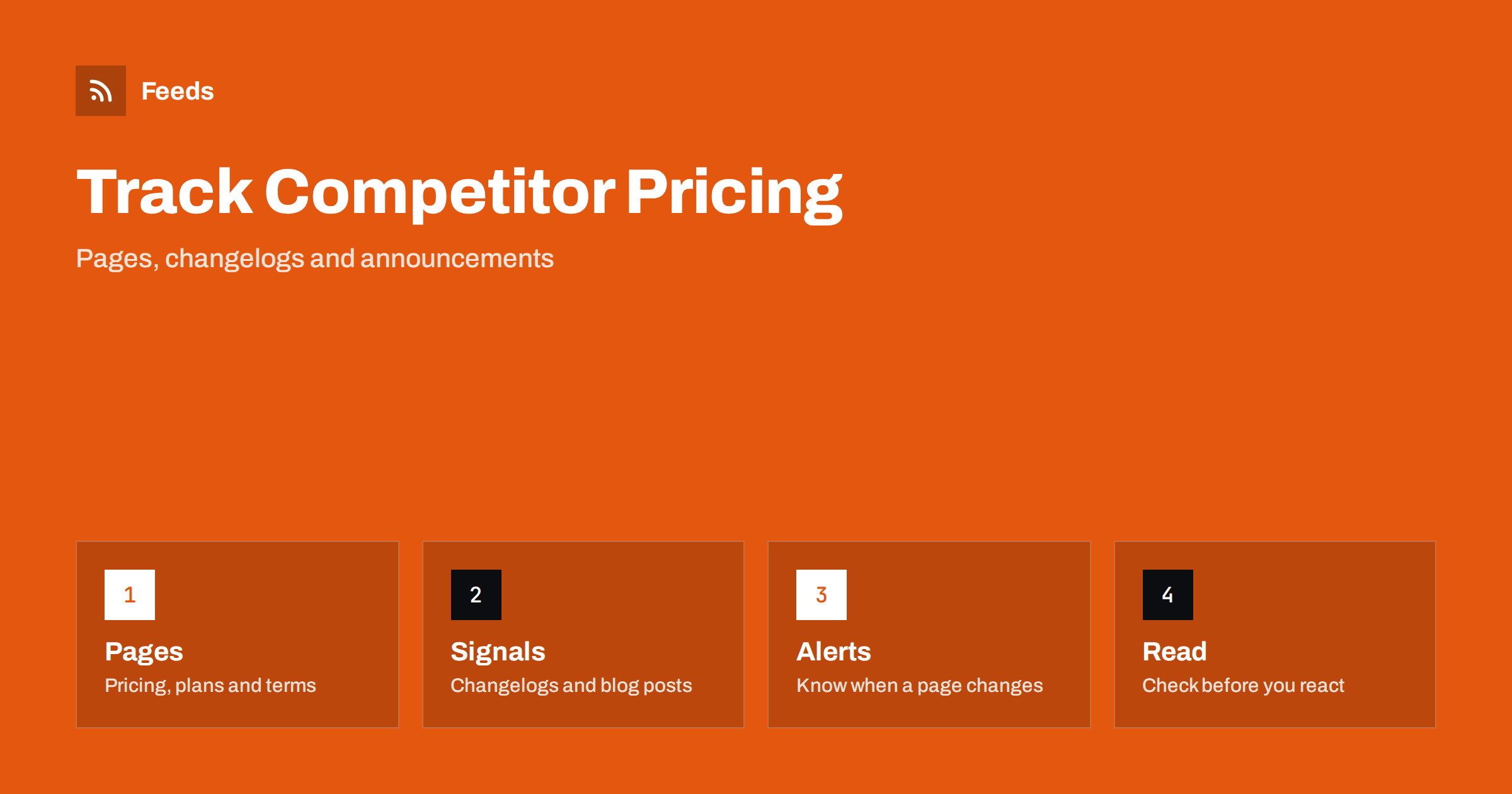
Short answer: A pricing page is usually a single page, not a list of dated items, so it does not behave like a normal feed. The practical way to follow a competitor’s pricing is to combine three things: an alert when the pricing page changes, a feed of the places where changes are announced, such as the blog, the changelog and the news page, and a short routine for reading and recording what you find. Use the information to understand the market, and check every fact before you react.
Why competitor pricing matters, and why it is tricky
Prices and plans tell you how competitors see their customers. A new plan, a changed limit, a removed free tier or a new bundle shows where they are going. If you sell a product or a service, noticing such changes early helps you answer customer questions, adjust your own offer and avoid being surprised by a sales conversation.
The difficulty is that most pricing pages are not feeds. They have no list of items, no dates and no unique addresses for each change. Some pages also show different prices depending on the country, the currency or the visitor. That makes careful, modest tracking more useful than clever automation. The difference between a page-level alert and a feed is explained in page change monitoring vs RSS feeds.
Decide what you really need to know
Start with a short list of competitors that your customers really compare you with, perhaps three to five. For each one, note which pages matter: the pricing page, the plan comparison, the terms, the page that lists limits or included features and the page for special offers. Write down what you want to learn: price level, plan structure, limits, free options, payment terms or discounts.
Be clear about ethics and law. Follow only public pages that anyone can open, respect each site’s terms and never try to get around a login or a paywall. If you are unsure whether it is allowed to build a feed from a site, is it legal to create RSS feeds from other websites? explains the main points.
Where changes are announced
Companies often explain pricing and plan changes in a few places: the blog, the changelog or release notes, a news or press page, an email to customers and a help article. These pages list dated items, so they work well as feeds. A change in plans often appears first in a short post, with an effective date, long before the pricing page is polished.
Build a feed from each of those pages. Following software changelogs and release notes with RSS and tracking competitor blogs and news with RSS explain the method. If a page has no feed, creating an RSS feed for a website without RSS shows how to make one from the list of posts.
Watching the pricing page itself
For the pricing page, you need a change alert and not a feed. A page that changes rarely is a good candidate: you only want to know when something is different. Some tools send a message when the content of a page changes, and some RSS services offer such an alert for pages that they read. Keep expectations modest: an alert tells you that something changed, not what it means, and layout changes and small wording edits can also trigger it.
When an alert arrives, open the page, compare it with your notes or a saved copy and find the change yourself. Write down the date, what changed and your first interpretation. If the page shows prices by country, check the version for your market. A tidy record is more useful than a flood of alerts.
Combine sources into one competitor list
Merge the feeds from your competitors’ blogs, changelogs and news pages into one list and add keyword filters. Words such as “pricing”, “plans”, “price”, “free”, “trial”, “limit”, “discount”, “billing” and “new plan” keep the relevant items. Be careful with words that are too broad: “new” or “update” appear in almost every item. The mechanics are explained in merging multiple RSS feeds into one clean feed and RSS keyword alerts.
Review the filter after two weeks. If you missed an announcement, look at how it was worded. Companies sometimes call a price change a “simplification” or a “new way to pay”, and the keywords must include such phrases. Widen the filter first and narrow it later.
Read changes without panic
When you see a change, resist the urge to react at once. Check the scope: does it apply to new customers only, to a region or to a certain plan? Check the date: many changes start later and have a transition period. Check what exactly changed: the price, the limits, the features or only the name. A price rise may come with more features, and a price cut may come with lower limits.
Compare like with like. A competitor’s headline price may exclude taxes, fees or add-ons that you include, and a plan name may hide different limits. Use the competitor’s own documentation for the details, and note the conditions. If you compare in a sales document or on a public page, make sure every statement is true, dated and fair, and avoid naming competitors in ways that may breach advertising rules.
Keep a simple table with one row per competitor and plan: the date you checked, the price, the main limits, the billing terms and a link. Update it when an alert arrives and review it once a quarter. A short table is easy to share with sales, support and product colleagues, and it shows trends that single alerts do not, such as a competitor moving upmarket or introducing usage-based pricing.
Turn what you learn into action
Information is useful when it reaches the people who decide. Send the filtered feed and the alerts to a shared channel or a weekly digest, as described in sending RSS updates to a Slack channel or Microsoft Teams. Agree who reviews the items, who updates the table and who decides whether your own offer needs to change.
Most of the time the right response is no change. Use competitor moves to test your own assumptions: do customers still choose you for the reasons you think? Ask customers why they chose you, and track the answers. Pricing decisions made from your own data and your customers’ needs are more reliable than decisions made in reaction to someone else’s page.
Limits and cautions
A feed or an alert shows what is public and what changed on a page. It does not show private discounts, negotiated contracts or offers sent by email. Prices on a public page may also differ from what a real customer pays. Treat everything you collect as indicative.
Check dates and web addresses before you act on a story or pass it on. Do not copy a competitor’s text or images, and avoid acting on rumours from forums or social posts without checking the official page.
Pricing is also a story told through packaging. Look at how competitors name plans, what they put in the free tier, how they explain limits and which features they use as upgrade reasons. Those choices say a lot about their customers and strategy, and you can learn from them even when you do not change your own prices. Take screenshots with dates for your records, and keep them private, since they are for internal analysis and not for republishing.
Finally, remember your own customers. Their questions about alternatives and their reasons for leaving or staying are the best pricing research you can get. Combine them with what you learn from public pages to see the whole picture, and review both every quarter.
How RSS Feed Creator helps
RSS Feed Creator turns the blog, changelog or news page of a company into a clean RSS feed, even when the site has no feed of its own. It reads titles, images, summaries and dates, uses an existing feed when there is one, and shows a preview of the items before the feed is created. You can merge several sources into one feed (up to 10 with the PostRSS add-on), keep only the items that contain your keywords and have duplicates removed automatically, which suits a competitor list with pricing keywords. Feeds refresh every 3 hours on the free plan and every 30 minutes on paid plans, and the PostRSS add-on sends an alert when a page changes and a feed stops finding items. The free plan allows up to 20 items per feed, and the details are on the pricing page.
Related reading
- How to Track Competitor Blogs and News with RSS Feeds
- Page Change Monitoring vs RSS Feeds: Which Do You Need?
- How to Track Terms of Service and Policy Changes with RSS
The bottom line
Tracking competitor pricing with RSS means combining a change alert for the pricing page, a filtered feed of blogs, changelogs and news pages and a short routine for recording and reading changes. Check scope, dates and conditions before you react, keep a simple table and share it with the people who decide. The aim is to understand the market, not to chase every move.
BUJ
Can an RSS feed show me a competitor’s price changes?
Not directly, because pricing pages are not lists of dated items. Use a page change alert for the page and feeds of blogs, changelogs and news pages for announcements.
Which pages should I follow first?
Start with the pricing page, the changelog or release notes, the blog and the terms page of three to five competitors your customers compare you with.
How do I avoid false alarms?
Expect some alerts for small wording or layout changes. Open the page, compare it with your notes and record only real changes.
Is it allowed to follow competitor pages?
Following public pages is common, but you should respect each site’s terms and never bypass a login or a paywall.
Should I change my prices when a competitor does?
Not automatically. Check the scope and conditions, compare like with like and decide using your own data and your customers’ needs.