 ENEnglish
 LTLietuviškai
 DEDeutsch
 FRFrançais
 RUРусский
 ESEspañol
 PLPolski
 ITItaliano
 UKУкраїнська
 CSČeština
 PTPortuguês
 JA日本語
 LVLatviešu valoda
 ETEesti
 HUMagyar
 IDBahasa Indonesia
 TRTürkçe
 HIहिन्दी
 ELΕλληνικά
 ARالعربية
 THไทย
 VITiếng Việt
 RORomână
 MSBahasa Melayu
 BNবাংলা
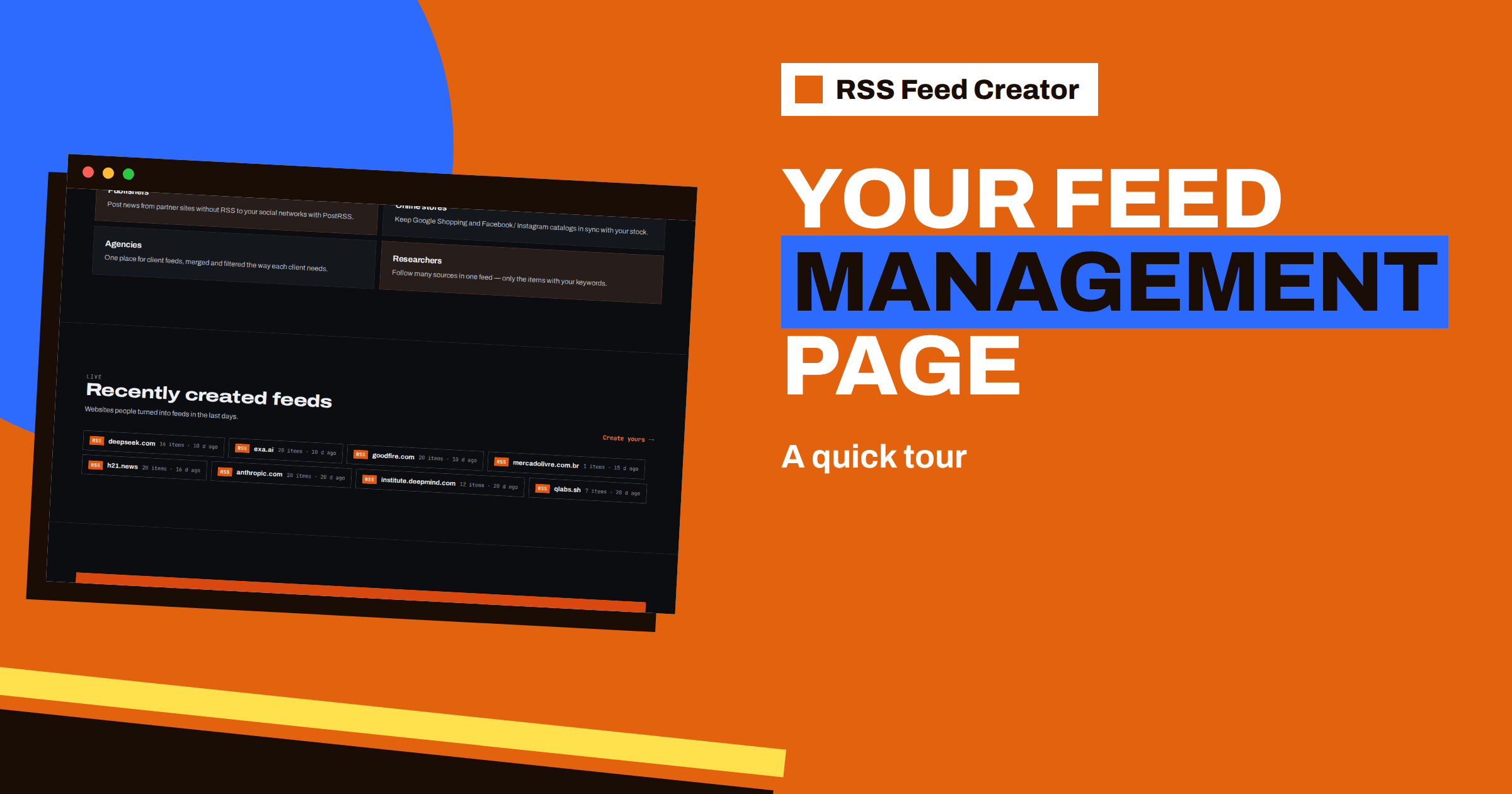
Short answer: The management page of a feed in RSS Feed Creator has six parts: the feed address with a Copy button, a line of counters (items, last update, refresh interval and reads), a list of the latest items, a settings card, a sources card for page-based feeds and a delete button. Together they let you check that a feed is healthy, change filters or product rules, merge more sources and remove the feed. This tour explains each part and the messages you may see.
How you reach the page
You arrive on the management page right after you press Create. Later, you open it from the “My feeds” list of your account with the Manage link, or, if you work without an account, with the address that you saved. The header shows what kind of feed it is, either “RSS feed” or “Product feed · Google Merchant & Meta”, and below it the feed’s name as a large heading.
Right after creation you may see a short notice that your feed is ready. If you are signed out, it asks you to save the page’s address, because that is the only way to edit the feed later; if you are signed in, a link leads back to all your feeds. The reasons are explained in why a free account helps keep your feeds safe.
The feed address and the Copy button
The first big element is the feed address, a long web address ending in .xml, in a box with a Copy button. That is the address you give to readers, posting tools and shopping channels. Pressing Copy puts it in your clipboard, and the button says “Copied” for a moment to confirm.
Under the box is a one-line hint about where to use it. For a page-based feed, it suggests adding the address as a new source in PostRSS to publish each new item to your social networks. For a product feed, it tells you to add the address in Google Merchant Center under Products, Feeds, Scheduled fetch, and in Meta Commerce Manager under Catalog, Data sources. Both are explained step by step in add your RSS Feed Creator feed to any RSS reader or tool and add your feed to Google Merchant Center and Meta.
The counters
A single line below the address shows four numbers:
- Items or products. How many entries the feed holds now.
- Updated. The date and time of the last update.
- Refresh every. The refresh interval of your plan, shown in hours: 3 on the free plan, and 0.5 on paid plans.
- Reads. How many times the feed address has been requested.
These four numbers answer most questions about a feed’s health. A falling item count points to a change at the source. An old update time means nobody has requested the feed lately or the last update failed. A rising reads counter proves that something is using the feed. The meaning of the interval is explained in how often RSS Feed Creator refreshes your feed.
Messages you may see
Several short messages appear on the page, and each means something specific:
| Message | Meaning |
|---|---|
| Saved. The feed is being updated. | Settings were stored and a rebuild started |
| Source added. The feed is being updated. | A page was added for merging |
| Source removed. | A source was taken out of the feed |
| Merging several sources into one feed is part of the paid plans. | You are at the source limit of your plan |
| Enter a public web address. | The address you typed is not accepted |
| Last update: … | The most recent update had a problem, described in the rest of the line |
The “Last update” line is the one to learn. It may say that a page returned an error, or that no items were found and that the previous version is shown. In the second case your feed keeps serving the last good items while you fix the source, as described in when a page layout changes: how RSS Feed Creator copes.
The latest items
The left side of the page lists the latest items in the feed, each with a small picture, the title as a link and a line of detail: the date for page-based feeds, and the price and availability for products. The titles link to the source pages, so you can click one to compare it with the original.
If the feed is still being built, the card says so and asks you to refresh in a minute. This list is your fastest quality check. After any change to filters or rules, look here first: is what you expected still present, and is what you did not want gone? Pictures in the list also show whether the source supplies images, which matters for posting tools, as covered in pictures in your feed: where RSS Feed Creator finds images.
The settings card
On the right is a card called Settings, with a button labelled “Save and update”. What it contains depends on the type of feed.
For a page-based feed it has the feed name and two boxes: “Only items containing”, which keeps items that contain at least one of your words, and “Skip items containing”, which removes items that contain any of them. Words are separated by commas, and capital letters do not matter. The boxes are explained in keyword filters in RSS Feed Creator and skip words in RSS Feed Creator: clean up a noisy feed.
For a product feed it has the feed name and four settings: a tick box to skip out-of-stock products, a title template that accepts the placeholders title, brand and category, a currency used when the store does not provide one and a percentage by which to change prices. How they work is covered in product rules in RSS Feed Creator: stock, titles and prices. Saving always rebuilds the feed at once.
The sources card
Page-based feeds also have a Sources card. It lists the pages or feeds that make up the feed. If there is more than one, each has a cross to remove it. Below the list, a box labelled “Merge another page or feed” takes a new address, such as example.com/news, and the Add source button adds it.
On the free plan a feed has one source, and the card reminds you that merging is part of the paid plans. With the PostRSS add-on you can merge up to 10 sources into one feed, newest items first and without duplicates, as shown in merge sources in RSS Feed Creator: up to 10 in one feed. Product feeds have no Sources card, because they are built from a single store or CSV.
A five-minute health check
Once a month, open the management page of each important feed and run through the same short list:
- Counters. Is the item count close to what you expect, and is the update time within the refresh interval?
- Reads. Is the number rising? If not, find out what stopped fetching the feed.
- Message. Is there a “Last update” line? If so, open the source page and see what changed.
- Latest items. Do the titles look like real headlines or products, with pictures where you expect them?
- Settings. Are the filters or product rules still what you intended? Remove words that are no longer needed.
Five minutes per feed is enough, and most feeds will pass without any change. The check turns surprises into routine, because problems are found while they are small. It also gives you a natural moment to delete feeds you no longer use, which keeps your account list short and your plan limits free for the feeds that matter.
Deleting a feed and the plan note
At the bottom of the right-hand column is the Delete feed button. It asks for confirmation and warns that the feed address will stop working. The deletion is permanent, so use it only for feeds that no reader, tool or channel still fetches; the reads counter helps you check.
The last line of the page states the limits of the plan you are on, for example that the free plan allows 20 items per feed, 50 products and a refresh every 3 hours, with a link to upgrade. The full list of plans is on the pricing page.
Related reading
- How to Monitor Your Own RSS Feed: Uptime and Freshness Checks
- Product Feed Health Metrics: What to Monitor Every Week
- How to Organize Your RSS Reader So It Never Overwhelms You
The bottom line
The management page is the control room of a feed: address and Copy button on top, four counters for health, latest items for quality, a settings card for filters or product rules, a sources card for merging and a delete button at the end. Learn the “Last update” line and the item list and you can diagnose almost anything.
FAQ
Where do I find the feed address?
At the top of the management page, in the box with the Copy button.
What does “Last update” mean?
It describes a problem with the most recent update, such as a page error or no items found. The previous version of the feed stays in place.
Do settings apply at once?
Yes. Pressing Save and update stores the settings and starts a rebuild of the feed.
Why can I not add a second source?
Merging sources is part of the paid plans. On the free plan a feed has one source.
Can I undo a deletion?
No. Deleting a feed makes its address stop working, so delete only feeds that nothing fetches.


