 ENEnglish
 LTLietuviškai
 DEDeutsch
 FRFrançais
 RUРусский
 ESEspañol
 PLPolski
 ITItaliano
 UKУкраїнська
 CSČeština
 PTPortuguês
 JA日本語
JA日本語 LVLatviešu valoda
 ETEesti
 HUMagyar
 IDBahasa Indonesia
 TRTürkçe
 HIहिन्दी
 ELΕλληνικά
 ARالعربية
 THไทย
THไทย VITiếng Việt
 RORomână
 MSBahasa Melayu
 BNবাংলা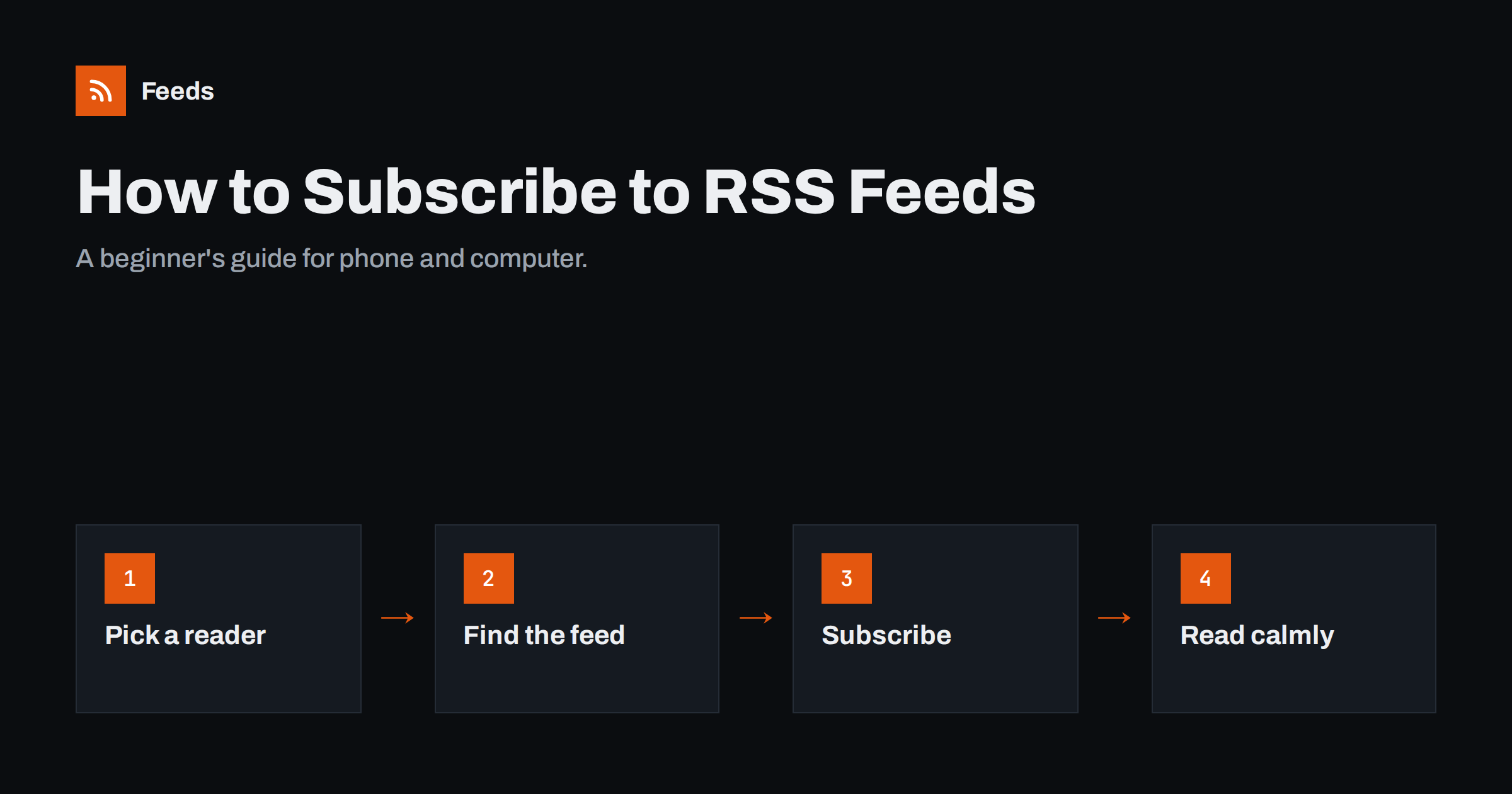
Short answer: To follow a website with RSS, install or sign up for a feed reader, then paste the website’s address into the reader’s “add” or “subscribe” box. Most readers find the site’s feed automatically; if not, look for an RSS icon or try the address plus /feed or /rss. New posts from every site you add then appear in one chronological list on your phone or computer, with no algorithm and no email sign-up.
RSS can sound technical, but using it is simpler than signing up for a newsletter: there are no forms to fill in, no confirmation emails and no passwords for each site. You do not need to understand XML or feeds to benefit. If you follow several blogs, news sites, podcasts or company updates and are tired of checking each one or relying on social media to show you what is new, RSS is the calm alternative. This guide walks through everything a beginner needs, from choosing an app to building a reading habit.
What you are signing up for
A feed reader is an app that checks the websites you choose and shows their new posts in one place, newest first. Compared with other ways of following sites:
- Unlike social media, nothing is hidden or reordered by an algorithm, and there are no adverts inserted between posts by the reader itself unless the reader is ad-supported.
- Unlike newsletters, your inbox stays clean and you never give your email address to the sites you follow.
- Unlike bookmarks, you do not have to visit each site to see whether something new appeared.
You can unsubscribe from any site with one click, and the site never knows who you are. RSS has been around since the late 1990s, so almost every blog, news site and podcast supports it, even if they do not advertise it prominently.
Step 1: choose a reader
There are three kinds of readers, and all of them are fine for beginners:
| Type | Jak to działa | Good if you |
|---|---|---|
| Web service with apps | Create an account; read in a browser and in mobile apps, synced | Read on several devices |
| Phone or desktop app | Install and use on one device, often without an account | Mostly read on one device and value privacy |
| Browser extension | A small reader built into your browser | Want to try RSS with minimal effort |
Popular options include Feedly, Inoreader, NewsBlur and The Old Reader as web services, NetNewsWire, Reeder and Feeder as apps, and many more. Most have free tiers. Do not overthink the choice: you can move all your subscriptions to another reader later with an OPML file.
Step 2: find a site’s feed
The easiest way is to let the reader find it:
- Copy the address of the website or blog you want to follow, for example from your browser’s address bar.
- In your reader, look for a “+” button, “Add”, “Follow” or “Subscribe”.
- Paste the address. The reader looks for the site’s feed and shows what it found.
Some readers also let you search for sites by name or topic and suggest popular sources. That is a convenient way to discover feeds, although pasting the exact address of a site you already trust is the most reliable method. If the reader cannot find a feed, look on the website for an orange RSS icon, a “Subscribe” or “RSS” link, usually in the footer or sidebar. You can also try common addresses: the site address followed by /feed, /rss, /rss.xml or /feed.xml. Many sites built on WordPress, the most common website system, use /feed/.
Step 3: subscribe and organise
Once the reader finds the feed, confirm the subscription. Most readers then ask you to choose a folder or category. A few simple folders help from day one:
- Must read: a small number of sources you never want to miss.
- News: busy sources you skim.
- Later: interesting but optional.
Folders are not permanent. You can rename them, move sources between them and delete them at any time, so there is no need to design a perfect system on the first day. Start with five to fifteen sources you already visit regularly. It is better to add sources gradually than to import hundreds on the first day and feel overwhelmed.
Subscribing on a phone
On a phone, the steps are the same, with a couple of shortcuts:
- Share sheet: in many browsers you can open the site, tap “Share” and choose your reader app, which then finds the feed.
- Copy and paste: copy the site address, open the reader, tap “+” and paste.
- Sync: if you use a web-based reader, subscriptions added on your computer appear on your phone automatically.
Most mobile readers also offer a comfortable reading view with adjustable text size and dark mode, and many can download articles for offline reading, which is handy on flights or the underground. Podcasts work the same way. Every podcast app is a specialised feed reader, and many let you add a show by pasting its feed address.
Step 4: read without stress
After the first week you will have a sense of how much arrives each day. The biggest beginner mistake is treating the reader like an inbox that must be emptied. It is not. A few habits keep it pleasant:
- Read “Must read” first, skim the rest by headline.
- Use “Mark all as read” freely; nothing bad happens.
- Save longer articles for later with a star or a read-later feature.
- Unsubscribe from sources you keep skipping.
- Turn off unread counters or notifications if they make you anxious.
What to follow first
If you are not sure where to start, these kinds of sources work especially well in a reader:
- Blogs you already visit, particularly ones that post irregularly. A reader tells you when there is something new, so you stop checking in vain.
- Industry news and trade publications, ideally a topic or category feed rather than the whole site.
- Companies and tools you use: product blogs, changelogs and status updates.
- Local sources: your council, school, library or neighbourhood news.
- YouTube channels and podcasts, which also publish feeds.
- Newsletters that offer a web archive with a feed, so they no longer need to land in your inbox.
After a week or two, notice which sources you actually open. Move those to “Must read”, and remove anything you always skip. A good reader setup grows slowly and stays personal: it reflects what you really read, not what you think you ought to follow.
Common beginner questions and problems
- “The reader says no feed found.” The site may not publish a feed, or it may hide it. Try the common addresses above, or search the site’s page source for “rss”.
- “I only see a summary.” The site publishes short summaries in its feed. Click through to read the full article, or check whether your reader can load full text.
- “I see strange code when I click an RSS link.” Browsers show feeds as code. Copy the address from the browser bar and paste it into your reader instead.
- “New posts arrive late.” Readers check feeds on a schedule, often every 15 minutes to a few hours. That is normal.
When a site has no feed
Many useful pages, such as company news pages, local organisations or job listings, have no RSS feed. You can still follow them. Our tool, Feeds, turns a public page with a list of articles or items into an RSS feed: paste the address, check the preview of what was found, and use the feed link in your reader. It uses the site’s own feed if one exists, and the feed refreshes by itself. The free plan lets you try it on one website; see the plans for more.
Related reading
- What Is an RSS Feed? A Plain-English Guide for Site Owners
- How to Choose an RSS Reader: Features That Actually Matter
- How to Organize Your RSS Reader So It Never Overwhelms You
The bottom line
Subscribing to RSS feeds takes a few minutes: choose a reader, paste the addresses of sites you like, sort them into a few folders, and read newest-first at your own pace. There is no algorithm, no inbox clutter and no email address to give away. Start small, add sources gradually, and use the reader as a calm window on the web rather than another to-do list.
FAQ
Do I need to pay for an RSS reader?
No. Many readers have free versions or are entirely free. Paid plans usually add more sources, faster updates, search and extra features that heavy users appreciate. Start free and upgrade only if you hit a limit that matters to you.
How do I know if a website has an RSS feed?
Paste its address into your reader, which will look for a feed automatically. You can also look for an RSS icon or link, or try the address followed by /feed or /rss.
Can I use RSS on my iPhone or Android phone?
Yes. There are many reader apps for both, and web-based readers have mobile apps that sync with your computer. Podcast apps on your phone are feed readers too.
Will the website know that I subscribed?
No. Feeds do not identify individual readers. At most, a site can estimate how many people follow its feed through some readers, but not who they are.
Can I move my subscriptions to another reader later?
Yes. Readers export and import subscription lists as OPML files, so switching takes a few minutes and you keep all your sources.


