 ENEnglish
 LTLietuviškai
 DEDeutsch
 FRFrançais
 RUРусский
 ESEspañol
 PLPolski
 ITItaliano
 UKУкраїнська
 CSČeština
 PTPortuguês
 JA日本語
 LVLatviešu valoda
 ETEesti
 HUMagyar
 IDBahasa Indonesia
 TRTürkçe
 HIहिन्दी
 ELΕλληνικά
 ARالعربية
 THไทย
 VITiếng Việt
 RORomână
 MSBahasa Melayu
 BNবাংলা
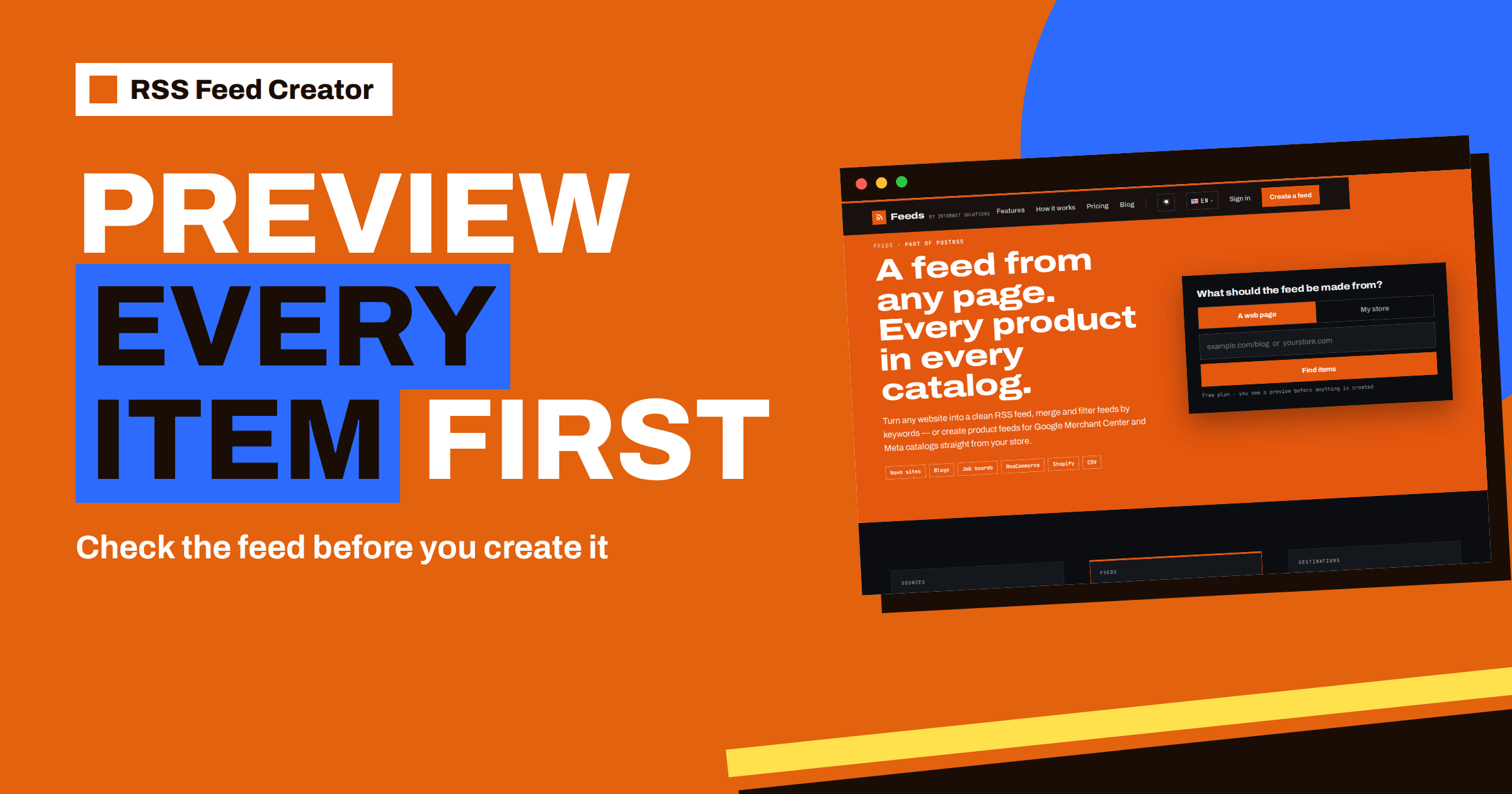
Short answer: When you paste an address into RSS Feed Creator, it does not create anything straight away. It shows a preview first: how many items it found, and for each one the title, address, date or price, and image. If the list looks right, you press Create. If it looks wrong, you try another address, and nothing has been created or counted against you. The preview is the cheapest quality check in the whole process.
Why the tool shows a preview first
Most feed tools ask you to create a feed, wait, and then discover that it contains navigation links, cookie notices or the wrong category. RSS Feed Creator reverses the order. You see exactly what it understood from the page before a feed address exists, so the first feed you create is usually the one you keep.
The preview is part of the free plan and works without an account. On the home page the promise is written plainly: you see a preview before anything is created. That matters when you are testing several websites in a row, for example five competitor blogs or three suppliers, because you can discard the bad candidates in seconds.
If you have never used the tool, the RSS Feed Creator walkthrough from a web address to a feed covers the full route. This article stays on the one step that decides whether the rest goes well.
What you enter: a page or a store
The start form asks what the feed should be made from. There are two choices. “A web page” is for news sites, blogs, job boards and any other page that lists items. “My store” is for product feeds, where you enter your store address and the tool reads products instead of articles.
You can type the address with or without https://, for example example.com/blog. Only public web addresses work, on the normal web ports. Addresses that point to private networks, and addresses with a username and password in them, are refused. That is a protection for everyone, and it also means a page that needs a login cannot be turned into a feed, because the tool reads pages the way a visitor would.
What the preview shows for a web page
For a page, the preview heading tells you what was found: either items found on the page, or an existing feed. Next to it you see the total number of items, followed by the address it read. Then comes a list of cards, and each card shows the title, the address of the item with the protocol removed, the date when one was found, and a thumbnail when the page offers an image.
Four things are worth checking on those cards:
- Titles read like headlines. If you see “Read more” or “Continue”, the tool picked up buttons instead of headings.
- Addresses go to individual articles. Category pages, tag pages and the home page do not belong in the list.
- Dates make sense. Newest first is the normal pattern. A date from last year at the top usually means you pasted an archive page.
- Images are present. A feed with pictures looks far better in a reader and in social posts.
With the free plan, the preview lists up to 20 items, which is also the free limit per feed. If the site has more, the total tells you so.
What the preview shows for a store
For a store, the heading says it is a product feed preview and names the platform it recognised: WooCommerce, Shopify or a CSV file. Each product appears with its title, price, currency and availability. Up to 30 products are listed in the preview, and the total tells you how many were found.
This is the moment to compare a few products with the store itself. Open one product in another tab and check the price, the stock status and the picture. If something does not match, the cause is almost always in the store data, and it is better to find that before a shopping channel does. The guide to connecting WooCommerce, Shopify or a CSV explains what each platform provides.
When the website already has a feed
Many websites publish an RSS or Atom feed without advertising it. If the page you entered declares one, the preview says so and lists the feed addresses it found. If you entered the address of a feed itself, the tool recognises it as an existing feed and reads it directly.
That is useful news, because an official feed is usually the most reliable source. You can add that address straight to PostRSS or any RSS reader, or you can still create a feed in RSS Feed Creator when you want to merge it with other sources or filter it by keywords. The background on how pages advertise feeds is in how JSON-LD structured data helps turn pages into feeds.
What to do when nothing is found
Sometimes the preview says it did not find a list of items on the page. The message is deliberately practical: try the page that lists articles or products, for example /blog or /news, or try another address. The cause is usually one of these:
- You pasted the home page. A home page mixes menus, banners and a few teasers. The list page of the blog or news section is cleaner.
- The page shows one article. A feed needs a list, so use the section page above it.
- The list is loaded after the page opens. Pages that fill their list only with scripts after loading give a simple reader nothing to find. Look for another page of the same site that lists the same items in plain HTML.
- The page needs a login. The tool reads public pages only.
A site can also answer with an error. In that case the preview reports the HTTP status the page returned, such as 403 or 404, so you know whether the address is wrong or the site is refusing automated reads. For stores, the message tells you that WooCommerce, Shopify and CSV files are supported, which is a hint to check the platform or to use a CSV link.
A one-minute routine for trying several sites
If you are comparing sources, use the same short routine each time so the results are comparable. Paste the list page, note the total, and scan the first six cards. Then open one item in a new tab and confirm that the title and date on the card match the article. Write down the address that worked, because that is the one you will create later.
Two sites that look alike can behave very differently. One may give a clean list of 20 headlines with pictures, while another gives six items because its newest posts load only after scrolling. Whichever you choose, the preview tells you early, and a source that previews badly is a source that would have produced a poor feed.
From preview to a working feed
When the list looks right, press Create. The tool builds the feed and takes you to its management page, where you see the feed address with a Copy button, the number of items, the time of the last update, the refresh interval and a counter of reads. A new feed may need a minute before the first items appear.
If you are not signed in, the page asks you to save its address, because that address is the only way to edit the feed later. A free account removes that worry by keeping all your feeds in one list. After that, you can add filters, merge more sources or adjust product rules on the same page. Filters are covered in keyword filters in RSS Feed Creator.
Plans and limits
The preview itself is free. Creating a feed on the free plan gives you up to 20 items per feed, product feeds with up to 50 products and a refresh every 3 hours. Paid plans refresh every 30 minutes, and the PostRSS add-on at €5 per month allows 10 feeds with up to 100 items each and merging up to 10 sources. The Store plan at €19 per month and the Business plan at €39 per month cover product feeds for one store and for several stores. All prices and limits are on the pricing page.
Related reading
- How to Create an RSS Feed for a Website Without RSS
- How to Monitor Websites for New Content Automatically
- Product Feed Checklist: 25 Checks Before You Submit
The bottom line
The preview turns feed creation into a check you can finish in a minute: paste the address, read the cards, and only then create. If the items look like real headlines or real products, go ahead. If not, change the address, because a better list page almost always exists.
FAQ
Does the preview create a feed or use up a slot?
No. The preview only reads the address and shows what was found. A feed exists only after you press Create.
Do I need an account to see a preview?
No. You can try the preview without signing in. A free account is useful afterwards, because it keeps your feeds in one list.
Why does the preview show fewer items than the website has?
The free plan lists up to 20 items per feed for pages and shows up to 30 products in the product preview. The total count tells you how many were found.
What should I paste if the home page gives nothing?
Paste the page that lists articles or products, such as the blog or news section, instead of the home page.
Can I preview a page that needs a login?
No. RSS Feed Creator reads public pages from the outside, like a visitor, and does not need access to the source website.


