ENEnglish
 LTLietuviškai
 DEDeutsch
 FRFrançais
 RUРусский
 ESEspañol
 PLPolski
 ITItaliano
 UKУкраїнська
 CSČeština
 PTPortuguês
 JA日本語
JA日本語 LVLatviešu valoda
 ETEesti
 HUMagyar
 IDBahasa Indonesia
 TRTürkçe
 HIहिन्दी
 ELΕλληνικά
 ARالعربية
 THไทย
THไทย VITiếng Việt
 RORomână
 MSBahasa Melayu
 BNবাংলা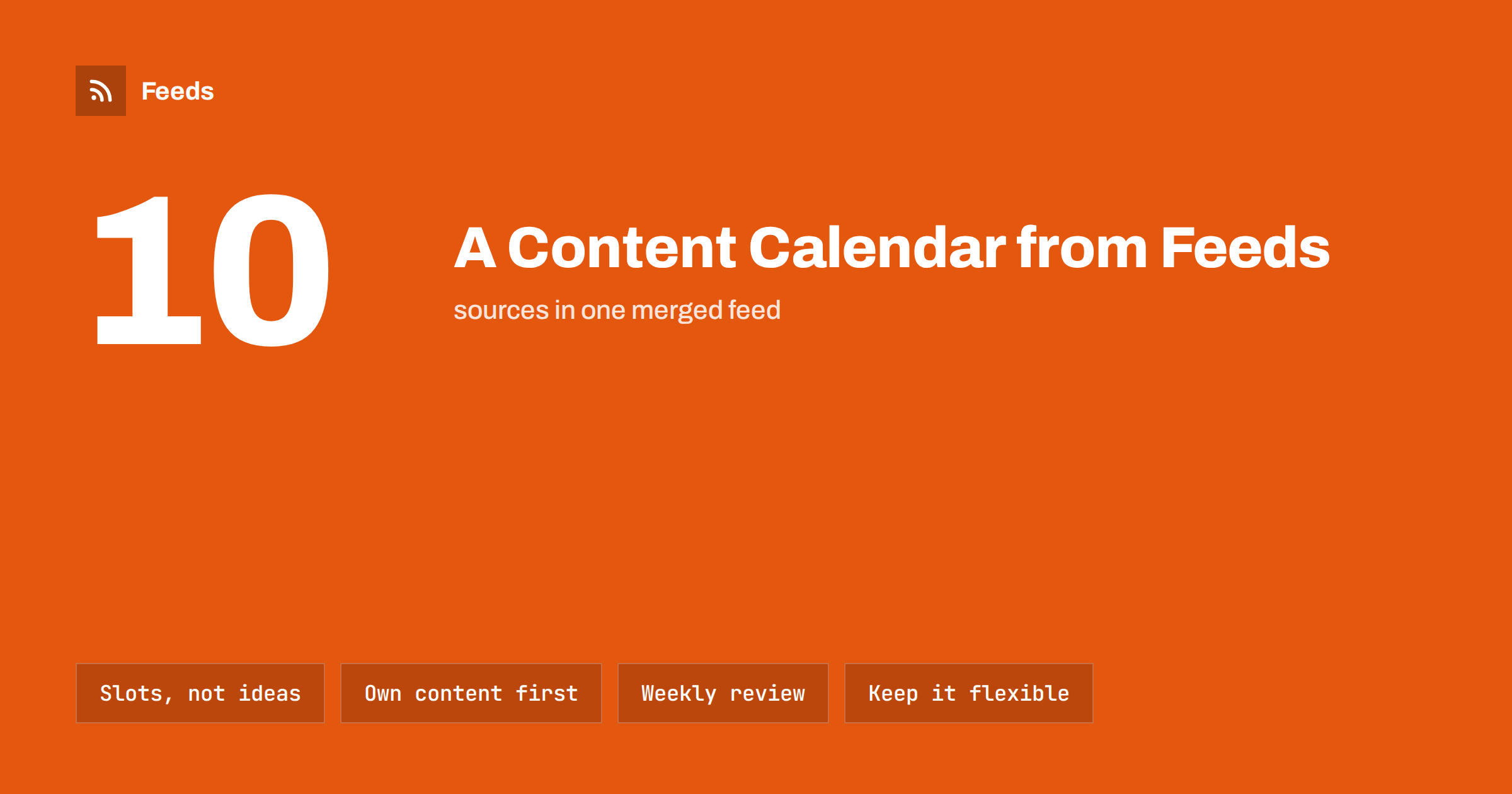
Short answer: A content calendar built on feeds works by fixing the rhythm first and letting sources fill the slots. Decide how many posts you want per week and in which slots, reserve most slots for your own content, and use curated feed items for the rest. Review the queue once a week, remove anything weak and leave room for news you cannot plan. This keeps a small team consistent without writing every post from scratch.
Why a calendar that starts with ideas fails
Many content calendars begin with a list of ideas and a hope that someone will write them. The ideas are good, the intentions are real, and three weeks later the calendar is empty because the writing never happened. The problem is not creativity. It is that the calendar depends on constant new effort for every single slot.
A calendar built on feeds starts from the other end. It treats the rhythm as fixed and asks what will reliably supply material for each slot. Your own blog posts, product updates and event dates are one supply. Curated items from trusted sources are another. When both flow into a queue, the calendar is full by default, and your effort goes into choosing and improving, not into starting from a blank page.
Step 1: decide the rhythm
Begin with a number you can sustain. Three to five posts a week on a channel is realistic for a small team; one a day is a lot of work to do well. The right number depends on the channel, the audience and the time you have, and posting less often but reliably is better than a burst followed by silence. The guide to how often automated feeds should post to social media helps with this choice.
Then define the slots: days and times when something goes out. Look at your own analytics to see when your audience is active, and start with two or three fixed times. Fixed slots make the calendar easy to read, easy to automate and easy for readers to get used to.
Step 2: assign content types to slots
A calendar of only promotion is dull and one of only curation says nothing about you. A simple mix works well for most small teams:
- Your own content (about half): new articles, product news, case notes, event announcements.
- Curated content (about a third): useful articles from other sources, with a line of your own comment.
- Evergreen content (the rest): older posts that are still useful, resurfaced on a rotation.
The proportions are a starting point, not a rule. Adjust them to what your audience responds to. Each type has a different source, and that is where feeds become useful. The ideas behind reusing older material are in how to reshare evergreen content automatically without spamming.
Step 3: connect sources to slots
For each type, choose where the material will come from.
- Your own content: your blog or news page, via its feed. Every new post flows into the queue on publication.
- Curated content: a small group of trusted sources, merged into one feed and filtered by the topics you care about. Ten good sources beat a hundred noisy ones.
- Evergreen content: a list of your best older posts, picked by hand.
- Events and dates: an event calendar or a list of key dates, which can be turned into reminders ahead of time, as in promoting upcoming events automatically.
If a source has no feed, you can usually create one from its page, using the method in creating an RSS feed for a website without RSS. Merging sources is explained in how to merge multiple RSS feeds into one clean feed.
To make this concrete, here is what a light week might look like for a small business with four slots. Monday: a post about the newest article on your own blog. Wednesday: a curated item from your filtered source feed, with a one-line comment. Friday: an evergreen post chosen from your best older articles. Sunday evening or Monday morning: a reminder about an event or date coming up, if there is one, and otherwise another curated item. Nothing in that week needs more than a few minutes of attention, yet the channel looks active and focused. The same pattern scales up by adding slots, or down by dropping the weakest one.
Write the pattern down in one place, with the sources and templates behind each slot. A calendar that lives in one person’s head fails when that person is away, while a written pattern can be handed over in minutes.
Step 4: add a short human layer
Raw feed items make poor posts. A headline and a link are a start, but the posts that perform are the ones with a reason to click. Give curated items a consistent layout: the headline, one sentence on why it matters to your audience and the link. Where you can, write that sentence yourself; where you cannot, use a template that at least frames the item, for example “Worth a read for [your audience]”. Over time your audience learns what to expect.
Write the templates once. A good set has a version for your own posts, a version for curated posts, a version for events and a version for evergreen reposts. More on this is in writing post templates for automated social media feeds.
Step 5: a weekly review that takes thirty minutes
The review is what turns automation into a calendar. Once a week, open the upcoming queue and check four things.
- Balance: is there a sensible mix of own, curated and evergreen items, or is one type crowding out the others?
- Quality: would you be happy to see each item under your name? Remove the weak ones.
- Timing: does anything clash with a launch, a holiday or a news event that makes it inappropriate?
- Gaps: are there empty slots that need a hand-written post?
If the review takes much longer than half an hour, the source list is probably too broad or the filters too loose. Tighten them. The trade-off between full automation and a review step is discussed in full auto vs approval queue.
Leaving room for what you cannot plan
A calendar that is completely full cannot react. Keep one slot per week free or ready to be replaced for real news: an industry event, a customer story, a rule change or a sudden problem. Know how to pause the queue as well. Posting a cheerful scheduled item during a crisis is worse than posting nothing, and the steps are in when to pause automated posting: a crisis and holiday plan.
Seasonal peaks deserve their own preparation. If your business has busy periods, prepare the calendar for them weeks in advance, with more of your own content and fewer curated items so the message stays on topic.
Measuring what works
Keep measurement light. Once a month, note which posts brought the most clicks or replies, and look at which type and which source they came from. Add tracking parameters to links so that your analytics can tell you which channel and which type of post brought visitors, as explained in tracking traffic from automated posts with UTM tags. Drop sources that never produce a post worth sharing, and add sources that do. A wider view of cost and benefit is in how to measure whether content automation is worth it.
How RSS Feed Creator helps
RSS Feed Creator turns web pages without a feed into clean RSS feeds with titles, images, summaries and dates, and shows a preview before anything is created. It can merge up to ten sources into one feed, remove duplicates and keep only items that contain, or do not contain, the words you choose. That gives you one tidy curated feed to feed the calendar, instead of many noisy sources. Feeds refresh automatically, and plan limits are on the pricing page.
Related reading
- Building a content automation stack for a small business
- How to automate a weekly link roundup for your blog
- How to automate content curation without losing quality
The bottom line
A content calendar built on feeds starts with rhythm, not ideas. Fix a number of slots you can sustain, give each slot a content type, connect each type to a reliable source, add a short human layer and review the queue weekly. Leave room for news and a way to pause. The result is a calendar that stays full without demanding a blank page every day.
FAQ
How many posts per week should a small team plan?
Three to five per channel is realistic for most small teams. Choose a number you can keep up for months, because consistency matters more than volume.
How much of the calendar should be curated content?
About a third is a sensible starting point, with roughly half your own content and the rest evergreen reposts. Adjust the mix based on which posts your audience engages with.
Can the whole calendar run automatically?
Much of it can, but a weekly human review keeps quality high and catches posts that no longer fit. Fully automatic queues tend to drift towards noise over time.
What if a good source has no RSS feed?
You can create a feed from the source’s page with a page-to-feed tool, check the preview and use the resulting address like any other feed.
How do I know which sources to drop?
Review the items you actually used each month. Sources that never contribute a post you would share are candidates for removal, and a shorter list is easier to review.