 ENEnglish
 LTLietuviškai
 DEDeutsch
 FRFrançais
 RUРусский
 ESEspañol
 PLPolski
 ITItaliano
 UKУкраїнська
 CSČeština
 PTPortuguês
 JA日本語
JA日本語 LVLatviešu valoda
 ETEesti
 HUMagyar
 IDBahasa Indonesia
 TRTürkçe
 HIहिन्दी
 ELΕλληνικά
 ARالعربية
 THไทย
THไทย VITiếng Việt
 RORomână
 MSBahasa Melayu
 BNবাংলা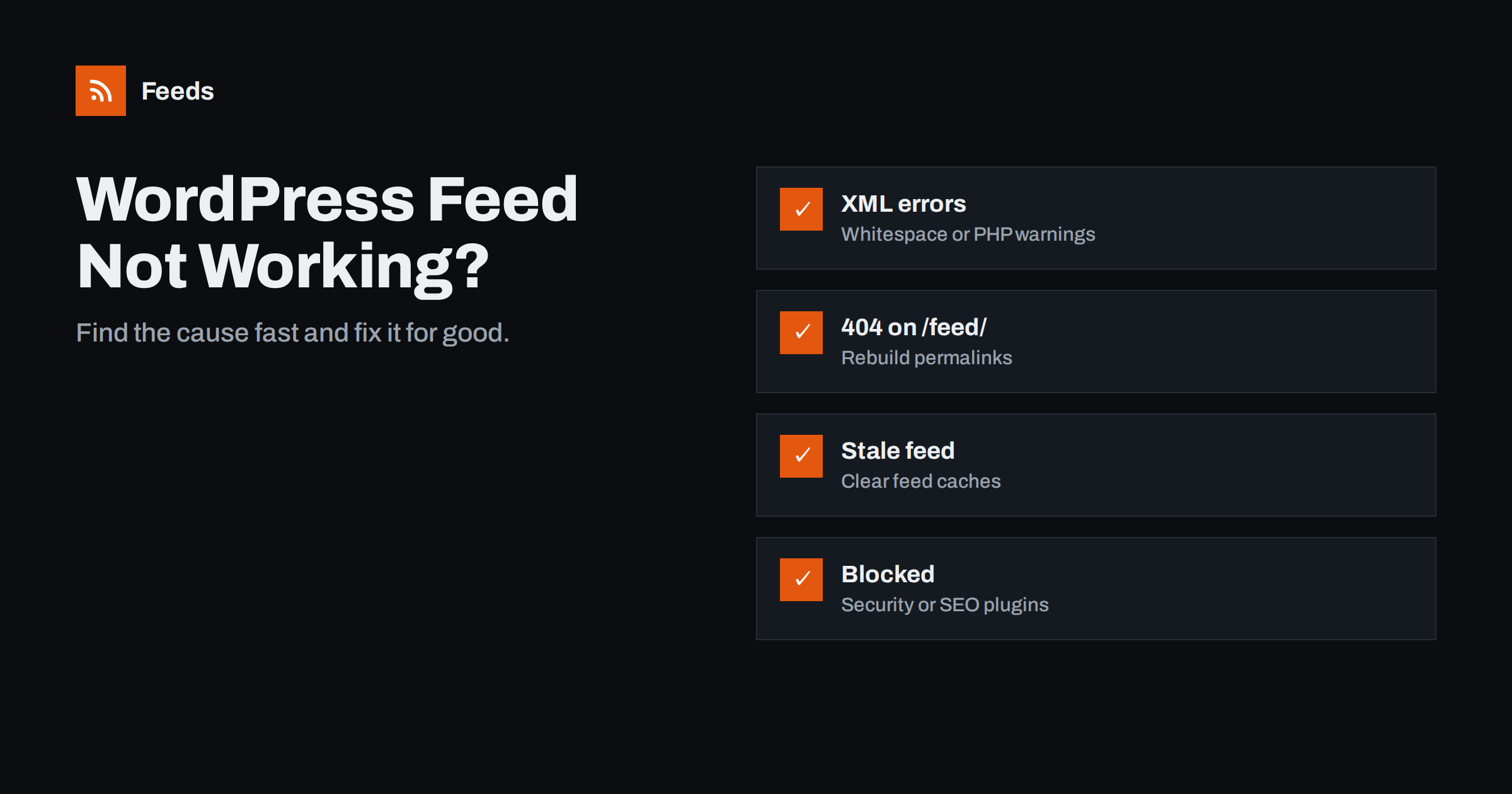
Short answer: Most broken WordPress feeds come from five causes: output before the XML (a blank line or PHP warning from a plugin or theme), broken rewrite rules that turn /feed/ into a 404, caching that serves an old copy, a plugin that disables or redirects feeds, and invalid characters inside a post. Test the feed with /?feed=rss2 and a validator, then switch off plugins and the theme one at a time until the error disappears.
A WordPress feed usually works without anyone thinking about it, which is exactly why a broken one can go unnoticed for weeks. Readers stop receiving updates, your RSS-to-email campaign sends nothing, your social posting tool goes quiet, and a partner site stops showing your news. Nobody complains, because nothing looks broken on the website itself. This guide shows how to recognise each type of failure, the likely cause, and how to fix it safely.
Step one: see exactly what is wrong
Before changing anything, collect three pieces of evidence. They usually point straight to the cause:
- Open the feed in a private browser window at
/feed/. Note whether you see XML, an error message, your home page, a login page or a blank screen. - Try the fallback address
/?feed=rss2. If this works but/feed/does not, the feed is fine and the problem is in permalinks or redirects. - Run the feed through a validator, such as the W3C Feed Validation Service. It shows the line and character where parsing fails, which is essential for XML errors.
It also helps to check the HTTP status and headers with a command-line tool or your browser’s developer tools. A healthy feed returns status 200 and a content type such as application/rss+xml or text/xml.
Finally, note when the problem started. A feed that broke on a specific day almost always broke because of something that changed that day: a plugin update, a new theme version, a hosting migration, a new CDN rule or a particular post. Your hosting control panel, plugin update history and the list of recent posts often reveal the answer faster than any technical test. If several things changed at once, undo them one at a time on a staging copy rather than all together, so you learn which one was responsible.
“XML declaration allowed only at the start of the document”
This is the classic WordPress feed error, and browsers may show it as “XML parsing error” or a blank page. It means something printed text before the <?xml line, most often:
- A blank line or space after a closing
?>tag at the end of the theme’sfunctions.phpor a plugin file. - A PHP notice or warning that is displayed because
WP_DEBUG_DISPLAYis on. - A byte order mark (BOM) at the start of a PHP file saved by some text editors.
How to fix it: view the feed’s source and look at what appears before the XML declaration. If it is a PHP warning, the message names the file. If it is invisible whitespace, switch to a default theme temporarily; if the feed recovers, the culprit is in your theme, most often functions.php. If not, deactivate plugins one by one on a staging copy. The permanent fix is to remove the closing ?> from the end of pure PHP files, which is recommended practice anyway, and to turn off on-screen debug output on production sites.
The feed returns 404 or your home page
If /?feed=rss2 works but /feed/ gives a 404, WordPress’s rewrite rules are out of date. Go to Settings → Permalinks and click Save Changes without changing anything. This regenerates the rules and fixes most cases.
If the feed redirects to your home page or another URL, look for:
- An SEO, security or “disable feeds” plugin with an option to turn off RSS. Some redirect feeds to the home page when that option is on.
- Redirect rules in a redirection plugin, in
.htaccessor in your server or CDN configuration. - A maintenance or coming-soon mode that intercepts every request, including feeds.
- Language or country redirects that send bots and readers to a different version of the site.
On Nginx servers, a missing or incorrect try_files rule can also break pretty feed URLs while leaving normal pages working, because feeds are virtual paths that WordPress must handle.
The feed works but shows old posts
A stale feed is almost always caching. Several layers may keep a copy:
- Page caching plugins often cache feeds separately from pages and may not purge them when you publish.
- Server caches such as Varnish or Nginx FastCGI cache.
- CDNs, which may cache XML files for hours if rules allow it.
- The reader or tool itself, which only fetches on its own schedule.
Purge each layer and reload the feed with a cache-busting query such as /feed/?nocache=1. If that shows the new post but the plain URL does not, set a shorter cache time for feed URLs, or make sure your caching plugin purges the feed on publish. A short cache of a few minutes is fine; hours are too long for most sites.
Posts are missing from the feed
If the feed works but a specific post is absent, check these in order:
- Is the post published, not scheduled? Scheduled posts appear only after their publication time, and WordPress’s scheduling depends on WP-Cron, which runs when the site gets traffic. Low-traffic sites sometimes see “missed schedule” posts.
- Is it older than the item limit? By default only the latest 10 posts appear. Change it under Settings → Reading.
- Is it a custom post type? The main feed includes only standard posts unless a developer adds others.
- Is it excluded? Some plugins exclude categories or individual posts from feeds, and some sites deliberately hide certain categories.
- Is it password-protected or private? These do not appear in feeds.
Invalid characters and broken encoding
Sometimes the feed breaks only after a particular post is published. The usual causes are invisible control characters pasted from word processors or PDFs, or text in a legacy encoding. Strict parsers reject the entire feed because of one bad character, so a single post can silence every subscriber.
The validator will point to the offending line. Open that post, retype or paste the problem paragraph as plain text, and save. Also confirm that Settings → Reading or your wp-config.php uses UTF-8, which is the default on modern installs, and that the database tables use a UTF-8 collation.
Images, excerpts and formatting look wrong
These are not failures, but they make a feed much less useful:
- No images in readers. WordPress does not add featured images to feeds by default. A small snippet or a plugin can add them either to the content or as a media element.
- Only a short excerpt. Change “For each post in a feed, include” to full text under Settings → Reading, if you want full articles.
- Shortcodes appear as raw text. Some page builders do not render their content in feeds. Use a manual excerpt for affected posts or a builder setting for feeds.
- Relative image links. Images with addresses starting with
/break in many readers. Use full URLs in content.
Keep it from breaking again
Once your feed is healthy, a few habits prevent repeat problems:
- Check the feed with a validator after every theme update, plugin installation or hosting change.
- Test on a staging site before updating plugins that touch output, caching or redirects.
- Keep debug output off on production.
- Subscribe to your own feed in a reader. When your own posts stop appearing, you will notice quickly.
If you rely on a third-party site’s feed rather than your own, you cannot fix their WordPress, but you can work around it. Our tool, Feeds, uses a site’s feed when it works and can create a feed from the site’s pages when it does not, so the list of articles keeps flowing to your reader or tools. Paid plans also alert you if a feed stops finding items. See the plans for details.
Related reading
- WordPress RSS Feed URLs: Every Feed Your Site Already Has
- RSS vs Atom: Which Feed Format Should Your Site Publish?
- How to Create an RSS Feed for a Website Without RSS
The bottom line
A broken WordPress feed is usually caused by output before the XML, stale rewrite rules, aggressive caching, a plugin that disables feeds, or a single bad character in a post. Start with the fallback URL and a validator, which together tell you whether the problem is the feed itself or the way it is served. Fix the cause, not only the symptom, and check the feed after every significant change to your site.
FAQ
Why does my WordPress feed show an XML parsing error?
Something is printed before the XML declaration, usually whitespace after a closing PHP tag in the theme or a plugin, or a visible PHP warning. View the feed source to see what comes first, then disable the theme or plugins one by one to find the cause.
How do I fix a WordPress feed that returns 404?
Go to Settings → Permalinks and click Save Changes to rebuild the rewrite rules. If the feed still fails, check for plugins or server rules that disable or redirect feeds.
Why doesn’t my new post appear in my RSS feed?
Check that it is published rather than scheduled, that caches have been purged, and that it is a standard post not excluded by a plugin. Also remember that readers fetch on their own schedule, so a delay is normal.
Can a single post break the whole feed?
Yes. An invalid control character or broken encoding in one post can make strict parsers reject the entire feed. The validator shows the exact line, so you can clean up that post.
Should I disable RSS feeds on WordPress?
For most sites, no. Feeds cost almost nothing and serve readers, newsletters, automation tools and partners. Disabling them mostly removes a free distribution channel.


