 ENEnglish
 LTLietuviškai
 DEDeutsch
 FRFrançais
 RUРусский
 ESEspañol
 PLPolski
 ITItaliano
 UKУкраїнська
 CSČeština
 PTPortuguês
 JA日本語
JA日本語 LVLatviešu valoda
 ETEesti
 HUMagyar
 IDBahasa Indonesia
 TRTürkçe
 HIहिन्दी
 ELΕλληνικά
 ARالعربية
 THไทย
THไทย VITiếng Việt
 RORomână
 MSBahasa Melayu
 BNবাংলা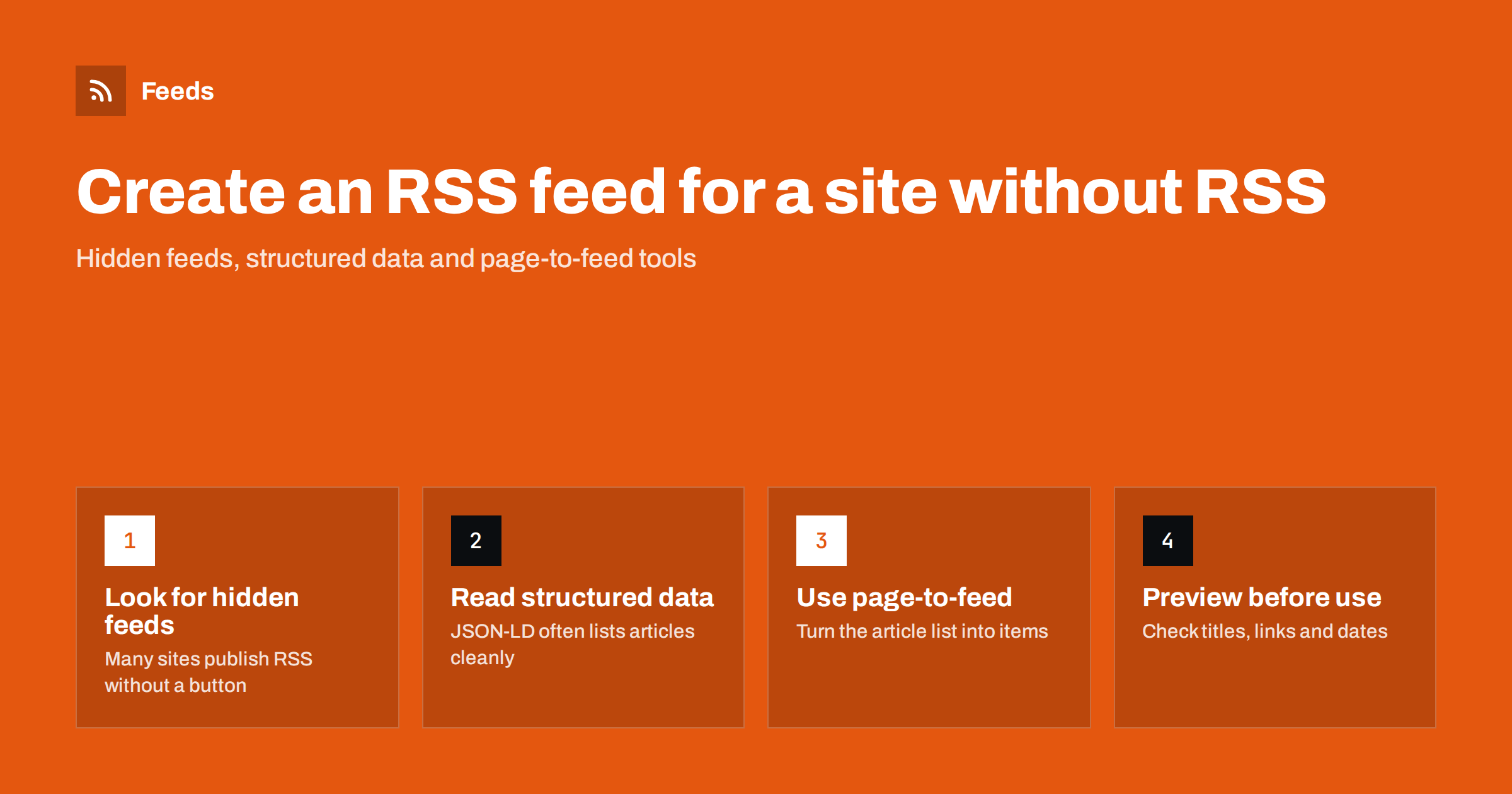
Short answer: First check whether the site already has a hidden feed, because many do even without an RSS icon. If it truly has none, use a page-to-feed tool that reads the public list page (a news section, blog index or job board), detects the repeating items and publishes them as a standard RSS feed that refreshes on a schedule. Always check a preview of the items before you rely on the feed.
RSS is still the most portable way to follow a website: one link that any reader, automation tool or publishing service understands. The problem is that many modern websites no longer advertise a feed, and some never had one. This guide walks through the options in the order you should try them, from the zero-effort checks to creating a feed from a page yourself.
Step 1: Make sure the site really has no feed
A missing RSS icon does not mean a missing feed. Content management systems generate feeds automatically, and many themes simply do not show a link to them. Before you build anything, spend two minutes checking the usual places.
- The page source. Open the page, view its source and search for
application/rss+xmlorapplication/atom+xml. A<link rel="alternate">tag in the head points to the feed that browsers and readers can discover automatically. - Common paths. Try adding
/feed/,/rss/,/rss.xml,/atom.xmlor/index.xmlto the site address or to a section address. WordPress sites usually answer on/feed/, including for categories and tags. - Section feeds. Some sites publish one feed per section rather than a single site-wide feed. Check the section you care about, not only the home page.
- Your reader’s discovery. Most feed readers try to discover a feed when you paste a normal page address. If the reader finds one, you are done.
If one of these works, use the original feed. It is maintained by the publisher, it is usually the most complete source of dates and summaries, and it places the least load on the website.
Step 2: Understand what a feed actually needs
If there is no feed, you need something that produces one from the page. It helps to know what a good feed contains, because that is what you will be checking in the result. The RSS 2.0 specification defines a channel with a list of items, and for monitoring purposes each item needs a few fields.
- Title: the headline of the article, job or announcement.
- Link: the unique address of that item. This is what readers use to tell new items from old ones.
- Date: when the item was published. Some pages do not show dates, so a generator may have to use the time it first saw the item.
- Summary and image: optional, but they make a feed far more useful in readers and when items are shared.
The link is the most important field. If links change on every refresh, every item looks new and you get duplicates. If links are stable, the feed behaves like a publisher’s own feed.
Step 3: Choose the right source page
A feed is only as good as the page it is made from. The best source is a page that lists items in reverse date order and changes when something new is published.
- Pick a list page, not an article. A blog index, a “latest news” section, a press room, a job board or a category page are ideal. A single article page has nothing to turn into a list.
- Pick the narrowest useful section. If you only care about press releases, use the press release page rather than the whole newsroom. You get less noise and fewer filters to maintain.
- Prefer server-rendered pages. Pages whose items are visible in the page source are the easiest to read reliably. Pages that load items only after scripts run can still work, but they are more sensitive to changes.
- Avoid pages that require a login. A feed tool reads public pages from the outside, just like a visitor who is not signed in.
Step 4: Pick a method to generate the feed
There are three broad ways to create a feed from a page that has none. They differ mainly in how much you have to build and maintain.
| Method | วิธีการทำงาน | Effort | Main risk |
|---|---|---|---|
| Custom scraper | Your own code selects elements on the page and writes RSS | High: code, hosting, scheduling | Breaks when the layout changes |
| Selector-based feed builder | You click or type CSS selectors for title, link and date | Medium: setup per site | Selectors go stale after redesigns |
| Automatic page-to-feed tool | The tool detects the repeating list and structured data itself | Low: paste an address and check a preview | Unusual layouts may need a different source page |
For a developer who needs a very specific extraction, a custom scraper can make sense. For most people who simply want to follow a site, automatic detection is the practical choice because it re-detects the list on each refresh instead of relying on fixed selectors.
Step 5: Use structured data when the page has it
Many sites that lack RSS still describe their content for search engines using Schema.org markup in JSON-LD. That markup often contains exactly what a feed needs: headline, URL, publication date and image, in a clean machine-readable form.
When a page-to-feed tool reads JSON-LD, it does not have to guess which text is the headline and which is a caption. Dates are usually precise, which improves ordering and duplicate detection. If you are choosing between two possible source pages, the one with good article markup will generally produce the more reliable feed.
Step 6: Check the preview and the first refreshes
Never add a generated feed to an important workflow without looking at what it contains. A short review now saves confusion later.
- Do the titles match the headlines you see on the page, without menu labels or “Read more” text mixed in?
- Does each item link to its own article, not to the list page or to a category?
- Are the dates plausible, and is the newest item at the top?
- Are images the article images rather than logos or icons?
- After the next refresh, did only genuinely new items appear?
If the preview shows navigation links or unrelated blocks, try a more specific source page. A section page usually has a cleaner list than a home page that mixes many content types.
How Feeds helps
Feeds was built for exactly this job. You paste a public address and the tool first checks for an existing feed and uses it if there is one. If there is none, it finds the list of articles on the page, reads JSON-LD article data where available, and shows a preview of the items with titles and images before anything is created. It needs no plugin or code on the source website, because it reads pages from the outside like a visitor. The feed then refreshes on its own, the list of items is detected again on every refresh, and you can merge several sources and keep only items with your keywords. Refresh frequency and limits depend on the plan, which you can compare on the pricing page.
Common mistakes to avoid
- Using the home page as the source. Home pages mix featured stories, promotions and navigation. A section page gives a cleaner feed.
- Skipping the preview. A feed that looks fine in principle can contain the wrong elements. Look at the items first.
- Refreshing too aggressively. Checking a small site every minute adds load and rarely brings you news sooner. Match the refresh rate to how often the site publishes.
- Ignoring an existing feed. If the publisher offers RSS, use it. It is the most stable option available.
- Forgetting to watch feed health. A feed that silently stops finding items looks the same as a quiet website. Some kind of alert or regular check matters for anything important.
Related reading
- Your Website Has No RSS Feed? Options for Site Owners
- How to Follow Just One Section or Category of a Website
- Why So Many Websites No Longer Offer RSS Feeds
The bottom line
Getting RSS from a website without RSS is a short process: check for a hidden feed, pick a clean list page, generate the feed with a method you do not have to babysit, and verify the items before relying on them. Structured data and stable links make the difference between a feed that works for years and one that constantly produces duplicates. Start with one important source, confirm it behaves well over a few refreshes, then add the rest.
FAQ
Can I create an RSS feed for any website?
You can create a feed for most public pages that list items such as articles, jobs or announcements. Pages behind a login, pages without a repeating list, and some heavily script-driven pages are harder or impossible to turn into reliable feeds.
How do I know if a website has a hidden RSS feed?
View the page source and search for application/rss+xml or application/atom+xml, then try common paths such as /feed/ or /rss.xml. Pasting the page address into a feed reader also often discovers a feed automatically.
Do I need access to the website to make a feed from it?
No. A page-to-feed tool reads the public page from the outside, the same way a visitor does. You do not need a login, a plugin or any change on the source website.
Why does my generated feed show duplicate items?
Duplicates usually appear when item links change between refreshes, for example because of tracking parameters or session values. Choosing a source page with stable article links, or a tool that removes duplicates automatically, solves most cases.
How often will a generated feed update?
That depends on the tool and plan you use, since the feed is refreshed on a schedule rather than pushed by the publisher. For most monitoring, a refresh every few hours is enough, while fast-moving news sources benefit from shorter intervals.


