ENEnglish
 LTLietuviškai
 DEDeutsch
 FRFrançais
 RUРусский
 ESEspañol
 PLPolski
 ITItaliano
 UKУкраїнська
 CSČeština
 PTPortuguês
 JA日本語
JA日本語 LVLatviešu valoda
 ETEesti
 HUMagyar
 IDBahasa Indonesia
 TRTürkçe
 HIहिन्दी
 ELΕλληνικά
 ARالعربية
 THไทย
THไทย VITiếng Việt
 RORomână
 MSBahasa Melayu
 BNবাংলা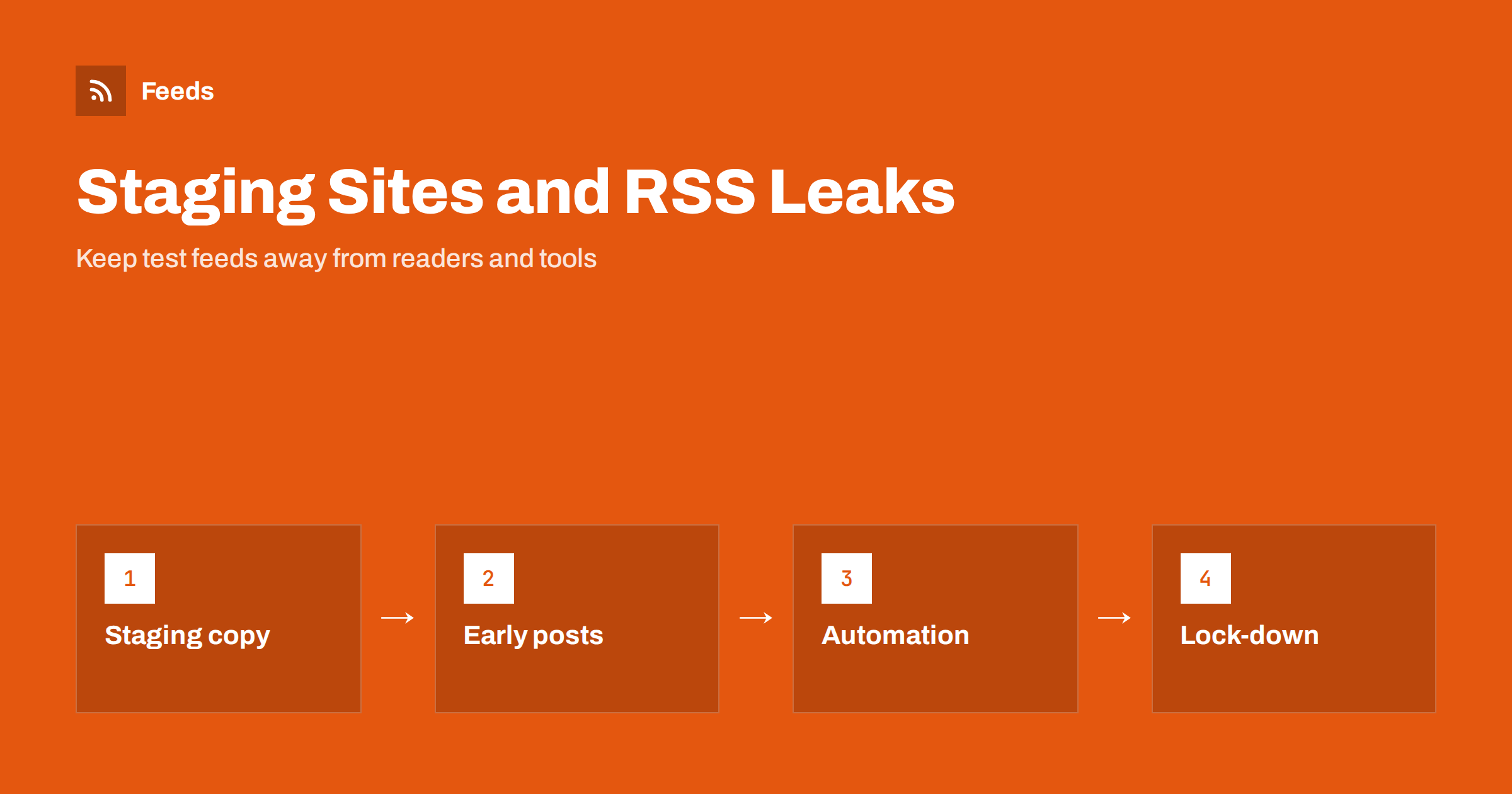
Short answer: A staging site is a copy of your website used for testing, and it usually has a working RSS feed. If the copy is open to the public, anyone and any tool that finds the feed address can read it, and scheduled or test posts on the copy may appear there before they appear on the real site. Protect staging with a password, switch off its scheduled tasks, mark it as a non-production environment and never connect an automation tool to its feed.
What a staging site is and why it has a feed
Before changing a theme, updating a plugin or redesigning a page, careful site owners test on a copy. The copy is called a staging site. It is usually built by duplicating the files and the database of the live site and putting them on another address, such as a subdomain.
Because it is a full copy, it contains everything the real site contains, including the feed. A WordPress site, for example, creates feeds for the posts, the comments, the categories and more, and the copy does the same. Nobody builds a feed for the staging site on purpose. It simply comes along with the rest, and that is exactly why it is forgotten. The list of feed addresses a typical site has is described in WordPress RSS feed URLs.
How a test feed leaks content
There are several ways a staging feed can expose things you did not intend to show.
- Scheduled posts that go live early. If the live site had posts scheduled for next week when the copy was made, the copy contains them too. Its own scheduler may publish them on the staging address on time, or earlier than you expect, and they appear in the staging feed.
- Test posts. Developers create posts such as “test” or “lorem ipsum” and sometimes real draft text to see how the theme looks. If these are published on staging, they are in its feed.
- Old and removed content. The copy may hold material that has since been taken down from the live site, because it was cloned earlier.
- Customer or personal data. A copy of a shop or membership site can contain names and e-mail addresses, and some plugins publish them in feeds or in other open pages.
The feed is not the only risk, but it is an unusual one, because it is made to be read by machines. Search engines, content scrapers and monitoring tools all know how to find and read feeds, and many sites advertise them in the page header, as explained in RSS autodiscovery. The result is that a staging feed can be discovered even when nobody linked to it.
When automation reads the wrong feed
The most expensive version of this problem is not a person reading a draft, it is a tool acting on one. Suppose you connected an automation that posts new feed items to social networks. If someone later changes the address to the staging site while testing, or if the staging copy contains the same connection settings as the live site, the tool may start posting items from the copy. The links in those posts point to a test address that customers cannot use, or to content you never meant to share.
The opposite also happens. A copy of the live site is created with the automation settings inside it, and the copy starts to do the job that only the live site should do. The same posts then appear twice, or posts that were meant to wait are published early. The symptoms look like the duplicates described in how to fix duplicate posts in automation.
The rule is simple: an automation should point at one address, the live feed, and no copy of the site should be able to run it.
Lock the staging site
The first defence is to make the staging site private. Do not rely on a hidden address, because addresses are easy to guess and appear in logs, certificates and old links.
- Use a password at the server level. Basic authentication in front of the whole staging site stops feeds, pages and images at once. Most hosting panels have a switch for it.
- Allow only known addresses. If your team has fixed addresses, restrict access to them.
- Do not rely on a search engine setting. The option that asks search engines not to index a site is a request, not a lock. Readers, scrapers and tools may still fetch the feed.
- Mark the environment. WordPress lets you declare the type of environment, such as staging, with a setting in the configuration file. Plugins and themes can use it to behave more carefully.
If the feed must stay reachable for a test, protect it too, and remove the access when the test ends. Ways to protect a feed from outside readers are explained in how to protect your RSS feed from scrapers.
Switch off tasks that should not run on a copy
A staging copy has its own scheduler. If it is left running, it can publish scheduled posts, send newsletters and trigger the same tasks as the live site. After you create a copy, check the following:
- Disable the scheduler for posts or set the copy so that nothing is published without your action.
- Turn off or empty the settings of any plugin that sends e-mails, posts to social networks or calls other services.
- Remove or replace keys for connected services, so the copy cannot use your live accounts.
- Change the e-mail address used for notifications, so that test messages do not go to customers.
The difference between a scheduled post and a feed-triggered action is explained in scheduled posts vs feed-triggered automation, and it is the reason the scheduler needs special attention on a copy.
Disable or empty the feed on the copy
Even when the site is protected, it is good practice to make the feed useless on staging. You can disable feeds with a small code snippet or a plugin, or you can set the feed to return only a single note stating that it is a test site. Another approach is to remove the posts in the copy that should not be there, such as scheduled and private items, right after you clone the site. Know which items belong in the live feed and which do not, as explained in how to exclude categories or posts from your WordPress feed.
If you only want to delay when new posts appear in the feed on the live site, which is a separate problem, see how to delay your WordPress RSS feed.
Check the links inside the feed
A copy often contains links that still point to the live site, or links that point to the staging address and will break after launch. Both cause trouble. Before you move a redesigned site to the live address, open the staging feed and look at the item links, the image addresses and the feed address itself. After the move, check the live feed again. Keep the old feed address working after the move, because readers and tools are subscribed to it.
Do not leave staging addresses in published content. A single link to a test site in an old post can reach readers, and search engines will follow it.
A short routine for every staging copy
The process does not need to be heavy. A checklist at the moment you create or refresh a copy catches almost everything:
- Is the copy behind a password?
- Is the scheduler off, and are scheduled posts removed or paused?
- Are keys for social networks, mail and payments replaced or removed?
- Is the feed disabled or empty, and does it contain nothing sensitive?
- Does every automation point to the live feed and nowhere else?
- Is there a written note saying who may use the copy and when it will be deleted?
Old copies are the worst, because nobody remembers them. Delete a staging site when the work is done, and remove its address from your list of tools. If something does go wrong, the response plan in pausing automated posting in a crisis helps you stop quickly.
How RSS Feed Creator helps
RSS Feed Creator reads public pages from the outside, like a visitor, and turns them into a standard RSS feed. That is useful for staging in one way: you can point it at your live site only, keep the feed address in one place and see a preview of the items before the feed is created, so that you know which address and which items a tool will receive. Keep your test addresses out of any feed you create, and do not connect a feed to an automation until you have checked the preview. You can also merge sources and keep only items with your keywords. Feeds refresh every 3 hours on the free plan and every 30 minutes on paid plans, and the free plan allows up to 20 items per feed. The details are on the pricing page.
Related reading
- RSS and Paywalls: What a Feed Can Show When Content Is Paid
- RSS Feed Privacy: What Readers and Publishers Should Know
- WordPress RSS Feed Not Working? Common Problems and Fixes
The bottom line
A staging site has a feed whether you want it or not, and an unprotected copy can show unfinished posts or drive automation from the wrong address. Lock the copy with a password, stop its scheduler, remove live keys, empty its feed and keep every automation pointed at the live site. Delete copies when the work is finished.
FAQ
Do staging sites have RSS feeds?
Yes, if they are copies of a site that has feeds, which is true for most WordPress sites. The copy produces feeds for posts, comments and categories in the same way as the live site.
Is the search engine discouragement setting enough to protect staging?
No. It asks search engines not to index the site, but it does not block readers, scrapers or tools from fetching pages and feeds. Use a password at the server level.
Can scheduled posts appear on a staging copy?
Yes. If the live site had scheduled posts when the copy was made, the copy contains them, and its own scheduler may publish them. Disable the scheduler or remove those posts after cloning.
How do I stop automation from posting from a staging feed?
Point each automation only at the live feed address, remove connection keys from the copy and check the settings after every clone. A password on the staging site also prevents tools from reading it.
Should I delete old staging sites?
Yes. Forgotten copies are the most likely to be unprotected and out of date. Delete a copy when the work is done and note the date in your project records.