 ENEnglish
 LTLietuviškai
 DEDeutsch
 FRFrançais
 RUРусский
 ESEspañol
 PLPolski
 ITItaliano
 UKУкраїнська
 CSČeština
 PTPortuguês
 JA日本語
 LVLatviešu valoda
 ETEesti
 HUMagyar
 IDBahasa Indonesia
 TRTürkçe
 HIहिन्दी
 ELΕλληνικά
 ARالعربية
 THไทย
 VITiếng Việt
 RORomână
 MSBahasa Melayu
 BNবাংলা
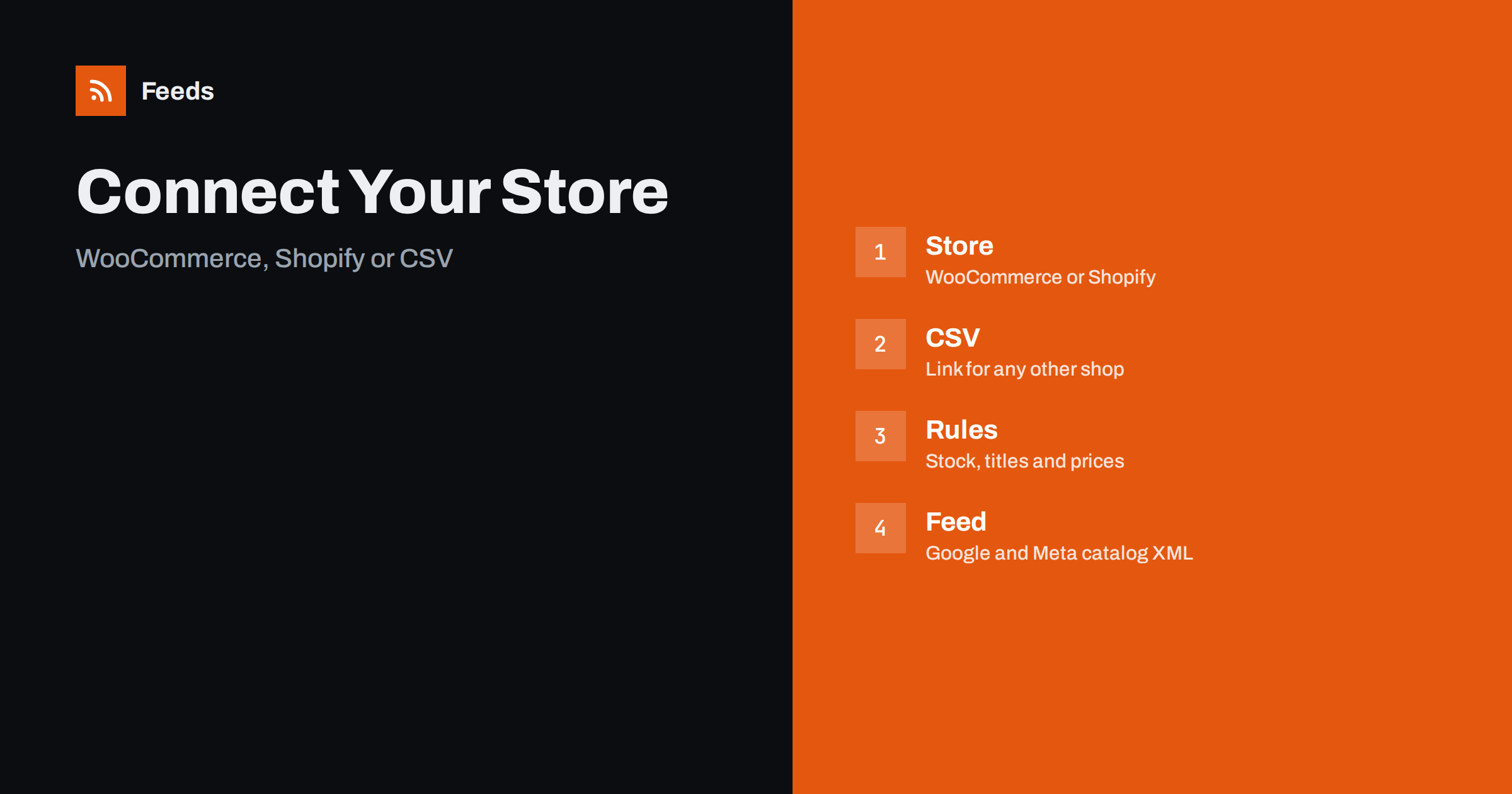
Short answer: In RSS Feed Creator you choose “My store”, enter your store address, and the tool reads WooCommerce and Shopify products automatically. Any other store can be connected with a CSV file link. You check a preview, set rules for stock, titles and prices, and then use the feed link in Google Merchant Center or Meta Commerce Manager. The feed refreshes by itself, every 3 hours on the free plan and every 30 minutes on paid plans.
Before you start, collect a few facts: the address of your shop, the platforms you want to feed, and a list of products that you do not want to advertise, such as gift cards or items that are not allowed. Decide who in your team will own the feed after it is live. A feed is a living thing: prices change, products arrive and leave, and someone has to look at the diagnostics from time to time.
What the product feed does
A product feed is a file that lists your products with their titles, links, images, prices and availability, in a format that advertising and shopping platforms understand. RSS Feed Creator creates Google Merchant Center and Meta catalog XML straight from your store, so you do not need a plugin or code to build it by hand. The Google format includes the id, title, link, image, price, availability and brand, and Meta reads the same file.
If the idea is new to you, what is a product feed gives the background. This article follows the practical path: connect, check, adjust and submit.
Make sure your product pages are public and load quickly. If your shop shows a password page or a country gate, the tool reads what an anonymous visitor sees, so open the shop in a private window and check what appears. For a CSV link, the file must be reachable at a web address without a login, and it should contain at least the identifier, title, link, image, price and availability for each product.
Step 1: choose My store
On the first screen, the tool asks what the feed should be made from. There are two answers: a web page or your store. For a product feed, choose your store. You then enter the address of your shop, the same address that customers use. You do not need to give access to the source website, and nothing is installed in your shop.
For WooCommerce and Shopify, the tool uses public store data, so it can find products without a login. Any other platform works through a CSV file link, which is a web address that returns a table of your products. Shopify vs WooCommerce product feeds explains how the two platforms differ, and CSV product feeds describes how to prepare a file that platforms accept.
Pay special attention to variants. A shirt that comes in five sizes should not appear as five unrelated products with the same title, and the price of each variant should match the page. If your shop uses separate prices for sizes or materials, test one of them. Also look at the images: a placeholder image or a tiny thumbnail is a common reason for disapproval later.
Step 2: check the preview
Before anything is created, you see what was found. Look at the products carefully: are the titles right, do the images load, are prices shown in the right currency and are variants listed the way you expect? The currency is detected automatically, but it is worth confirming, especially if your shop sells in more than one currency.
Compare a few products with your shop. Pick one simple product, one with variants and one that is out of stock, and check that each appears as it should. If something looks wrong, the cause is often in the store data itself, such as a missing image or a title with internal codes. Feed rules vs fixing store data helps you decide whether to fix it in the shop or with a rule.
Start with one rule at a time and look at the preview after each change. It is easy to create a rule that removes more products than you intended. Keep a note of each rule and the reason for it, such as “skip out-of-stock products so ads do not send customers to empty pages”. A short log helps when a colleague asks later why a product is missing.
Step 3: set rules for stock, titles and prices
Rules let you shape the feed without changing your shop. You can skip out-of-stock products, rewrite titles, and adjust prices. Rules for stock decide whether sold-out items stay in the feed; out-of-stock products in your feed discusses the options. Rules for titles help you build a consistent formula, for example brand, product type, colour and size, as described in product feed title optimization.
Rules for prices are useful when the feed price must differ from the shop price in a legitimate way, for example to include or exclude a fee that the platform expects. Use them with care, because the price in the feed must match the price on the product page. Price rules in product feeds and VAT and tax in product feed prices explain what to check.
Google Merchant Center needs your website to be verified and claimed before products can be shown, and Meta works best with a verified domain. Do this first, because it is a common cause of delays at the start. Then submit the feed, wait for the first fetch and look at the number of accepted products compared with the number in the preview. A big gap points to a specific problem that the diagnostics will name.
Step 4: use the feed link in Google and Meta
When the preview and the rules look right, create the feed and copy its link. In Google Merchant Center, add the link as a scheduled fetch of your product data. In Meta Commerce Manager, add it as a data feed for your catalog. Both platforms then read the file on their own schedule. The step-by-step flows are described in set up a Google Merchant Center product feed and how to add a product feed to a Meta catalog.
After the first fetch, open the diagnostics in each platform. Warnings are normal at the start. Fix the common ones first, such as missing identifiers or image problems, and check again after the next refresh. Merchant Center disapproved products and Meta catalog errors list typical causes.
How often the feed updates
The feed refreshes by itself: every 3 hours on the free plan and every 30 minutes on paid plans. An out-of-date feed is also refreshed when it is read. Platforms fetch the feed on their own schedule, so the speed of the whole chain depends on both. If stock changes quickly in your shop, a 30-minute refresh reduces the chance that a customer clicks on a sold-out product.
Think about your fetch times, too. Set the platform to fetch at a time after your shop has finished its own updates, such as overnight imports. How often should a product feed update gives a practical guide.
Plans and limits for product feeds
The free plan includes product feeds with up to 50 products, together with product rules, which is enough to test the process. The Store plan, at €19 a month without VAT, covers one store with 3 product feeds and up to 2,000 products, Google Merchant and Meta catalog formats, and rules for stock, titles and prices. The Business plan, at €39 a month, covers 3 stores and 10 feeds with up to 20,000 products, marketplace formats on request and priority support. Prices and details are on the pricing page, and you can cancel at any time; feeds keep working within the free plan limits.
If you manage more than one shop, give each feed a clear name that includes the shop and the platform, and keep one list of all feed links. Agencies in particular benefit from this habit, as described in product feed management for agencies.
A short checklist before you submit
Check that every product has a clear title, a working link, a good image, a price with a currency and an honest availability. Check that brands and identifiers are present where they exist. Check that the preview matches your shop for a sample of products. Finally, write down the date of the first submission and the settings you used, so that you can compare results later. The product feed checklist covers more points.
Related reading
- WooCommerce Product Feed for Google Shopping: A Setup Guide
- Shopify Product Feed for Google Merchant Center Explained
- CSV Product Feeds: How to Build One That Platforms Accept
The bottom line
Connecting a store to RSS Feed Creator takes four steps: choose My store, check the preview, set rules and use the feed link in Google Merchant Center or Meta. WooCommerce and Shopify are read automatically, and other stores use a CSV link. Keep rules honest, check diagnostics after the first fetch and pick the plan that fits your catalog size.
SSS
Hangi mağazalar destekleniyor?
WooCommerce ve Shopify otomatik olarak okunur. Diğer tüm mağazalar bir CSV dosya bağlantısıyla çalışır.
Will Google Merchant Center accept the feed?
Yes. It uses the Google product XML format with id, title, link, image, price, availability and brand, and Meta reads the same file.
Can I hide out-of-stock products?
Yes. Rules let you skip out-of-stock products, rewrite titles and adjust prices.
How many products can I include?
Up to 50 on the free plan, 2,000 on Store and 20,000 on Business.
How often is the feed refreshed?
Every 3 hours on the free plan and every 30 minutes on paid plans.


