ENEnglish
 LTLietuviškai
 DEDeutsch
 FRFrançais
 RUРусский
 ESEspañol
 PLPolski
 ITItaliano
 UKУкраїнська
 CSČeština
 PTPortuguês
 JA日本語
JA日本語 LVLatviešu valoda
 ETEesti
 HUMagyar
 IDBahasa Indonesia
 TRTürkçe
 HIहिन्दी
 ELΕλληνικά
 ARالعربية
 THไทย
THไทย VITiếng Việt
 RORomână
 MSBahasa Melayu
 BNবাংলা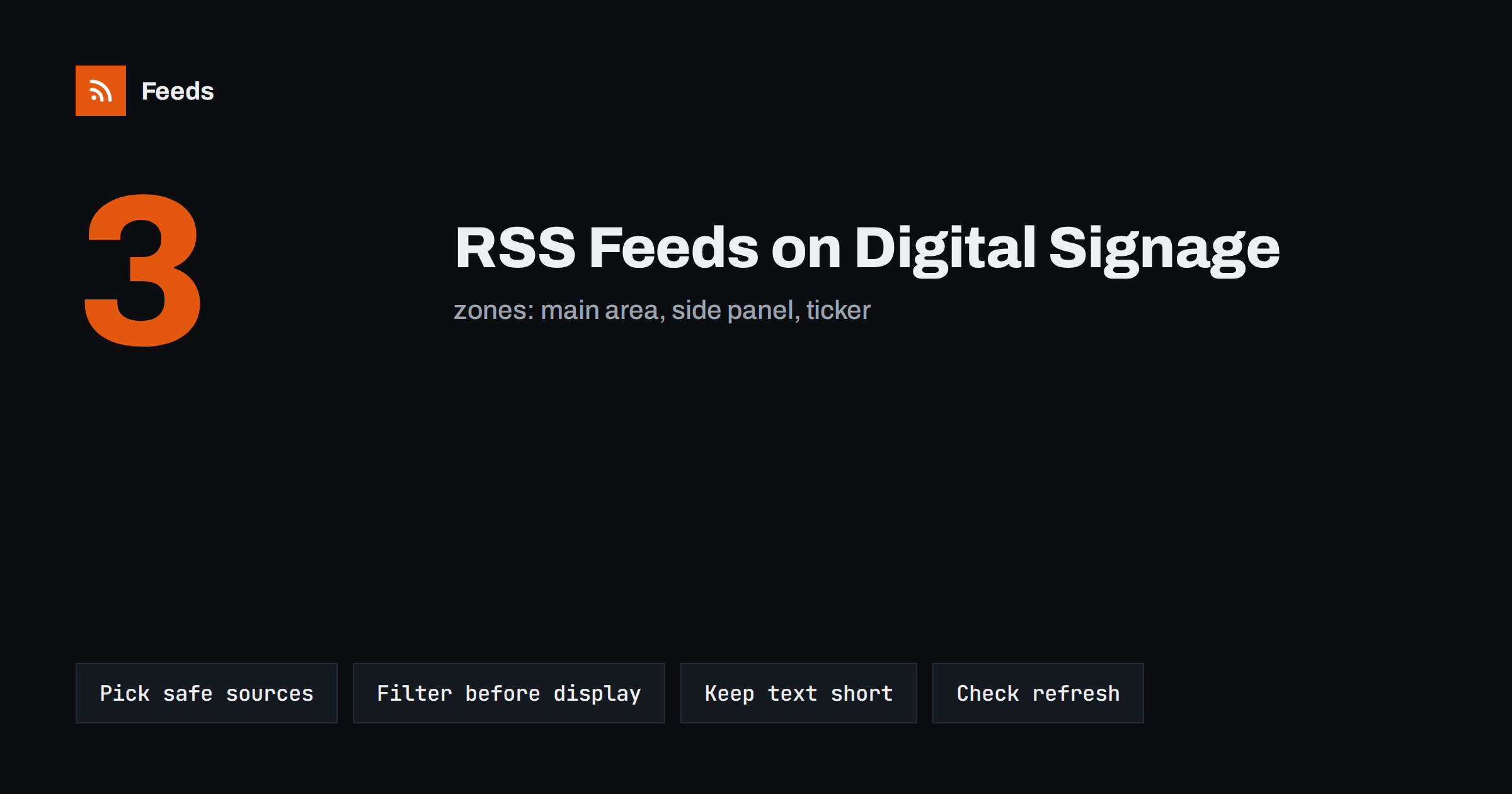
Short answer: Most digital signage systems can display RSS feeds, which makes feeds the easiest way to keep screens fresh: news tickers, company announcements on office screens, event lists in lobbies or offers in shops. Choose sources you trust and are allowed to display, filter them so nothing unsuitable appears, keep item titles short enough to read from a distance and make sure the feed refreshes often enough that the screen never looks out of date. Use one feed per screen zone.
Why digital signage uses RSS
A screen in a reception area, a shop window, a canteen or a factory floor needs new content regularly, or people stop looking at it. Updating slides by hand quickly becomes a chore, and most screens end up showing the same content for months. Feeds solve this by letting the signage software pull new items automatically.
RSS is a natural fit because it is simple and standard. Signage platforms commonly include an RSS or news ticker widget that takes a feed URL and displays the latest items as a scrolling line, a list or a rotating card with an image. The same feed format that powers news readers can therefore power screens without any custom development.
For organisations, this means content can be managed where it already lives. Company news is written on the intranet or website, events are published on the events page and the screens follow automatically. There is no separate signage content to maintain and no risk that the screen shows something the website has already removed.
It also makes many screens manageable from one place. A company with offices in several cities can give every location the same company news feed and a local feed for each office, so screens stay consistent without someone updating each one individually.
Common uses for feeds on screens
Feeds work for any screen content that changes as new items are published. Typical examples include:
- News tickers: industry or local headlines along the bottom of a lobby or waiting room screen.
- Internal communications: company announcements, safety notices and team news on office or factory screens.
- Event displays: upcoming talks, classes or meetings in schools, libraries, conference centres and coworking spaces.
- Retail and hospitality: new arrivals, daily specials or blog posts in shops, cafés and hotels.
- Public information: service notices, transport updates or weather warnings in public buildings.
Internal news is often the best starting point. If your organisation already publishes announcements on an intranet or website, a feed of those announcements turns every screen into an extra channel. Our guide on how to automate an internal company news feed covers the content side.
Choosing sources you can display
Displaying content in a public space is different from reading it in a personal reader. You are showing it to visitors, customers or staff, so the source must be suitable and you must be allowed to use it.
- Own content first: your website, blog, events page and announcements are the safest sources.
- Licensed news: some news providers offer feeds specifically for display; check their terms for public screens.
- Public sector information: service and safety notices from public bodies are often intended to be shared widely.
- Partner content: news from partners or industry associations, with their agreement.
Headlines from third-party news sites may be fine in a personal reader but not on a commercial screen. When in doubt, ask the source or use your own content. The general questions are covered in our article on whether it is legal to create RSS feeds from other websites.
Filtering so nothing unsuitable appears
A screen shows whatever arrives in the feed, without an editor in between. A news headline about a tragedy scrolling past next to a cheerful welcome message is a real risk with unfiltered news feeds. Filtering is therefore more important for signage than for almost any other use.
- Keep only items with words related to the screen’s purpose, such as your industry or your town.
- Exclude words that indicate sensitive news, such as accidents, deaths, crime or disasters, for screens in customer areas.
- Remove duplicates, so the same story from two sources does not appear twice.
- For the most sensitive locations, use only your own content, which you control fully.
Our guides on keyword alerts using RSS feed filters and brand safety for automated posting explain how to build such filters. The same rules that protect automated social posts protect screens.
Writing feed items that read well on screens
A screen is read from a distance, often in a few seconds. Feed items that work on a website can be far too long for a ticker or card.
| Element | What works on screens |
|---|---|
| Title | Short and complete, ideally under about 70 characters |
| Summary | One sentence, or none for tickers |
| Image | Clear, high-contrast, no small text inside |
| Date | Shown for events; often hidden for news |
| Links | Useless on a screen; optionally show a short address or QR code |
If you write content for both the website and screens, write headlines that make sense on their own. “Read more” style titles and teasers that depend on the article do not work on a ticker. Items with HTML in the title or summary can display as raw tags, so a clean feed matters.
Contrast and language matter too. A feed in several languages can look chaotic on one screen, so filter by language or use one feed per language for multilingual locations. Check how special characters, such as accented letters or currency symbols, are displayed by your player, and test the ticker speed with real titles. A title that is easy to read on a laptop can be impossible to follow when it scrolls past at the bottom of a large screen across a busy room.
Refresh intervals and caching
Signage software usually checks a feed on a schedule, and some players cache content to keep running when the network is down. Two things need to match: how often the feed itself updates and how often the player fetches it.
- For news and announcements, a refresh every 30 minutes to a few hours is usually enough.
- For daily specials or same-day events, make sure the feed updates before the screen’s busy period starts.
- Remove expired items, such as past events, so the screen never advertises something that is over.
- Test what the player shows when the feed is empty, and provide fallback content.
For the technical side of refresh timing, see how often RSS feeds update. An event feed that still shows yesterday’s events is one of the most visible signs of neglected signage, so check expiry carefully.
One feed per screen zone
Many signage layouts divide the screen into zones: a main area, a side panel and a ticker. Give each zone its own feed with its own purpose, rather than one mixed feed. A main area might show company announcements with images, the side panel upcoming events and the ticker a filtered industry news feed.
This also makes it easier to control. If a source causes problems, you can change one zone’s feed without touching the others. Merging several sources into one feed per zone keeps the number of feeds manageable while still letting each zone draw on more than one website. See how to merge multiple RSS feeds into one clean feed.
How RSS Feed Creator helps
RSS Feed Creator (Feeds) turns web pages without RSS, such as an events page, a news section or a list of offers, into clean feeds with titles, images, summaries and dates, and uses an existing feed when there is one. You can merge up to 10 sources into one feed on paid plans, keep only items with your words or drop items with words you do not want on screen, and duplicates are removed automatically. Feeds refresh on their own and work with any tool that reads RSS, including signage software with an RSS widget. You can create a feed on the free plan.
Related reading
- How to display RSS feeds on your website the right way
- How to turn event calendars into RSS feeds you can follow
- How to reduce noise in RSS alerts without missing anything
The bottom line
RSS is the simplest way to keep digital signage fresh. Use your own content first, choose external sources you are allowed to display, filter every feed so nothing unsuitable reaches the screen, keep titles short and images clear, remove expired items and match refresh intervals to how fast content changes. One feed per screen zone keeps the setup clear and easy to adjust.
SSS
Can digital signage software display RSS feeds?
Most signage platforms include an RSS or news ticker widget that takes a feed URL. Check your platform’s documentation for the formats and layouts it supports.
Is it allowed to show news headlines on a business screen?
It depends on the source’s terms. Some providers allow display, others do not, especially for commercial use. Your own content and licensed display feeds are the safest choices.
How do I stop bad news from appearing on a lobby screen?
Filter the feed to keep only relevant topics and exclude words linked to sensitive news. For customer-facing screens, using only your own announcements gives full control.
How long should feed titles be for signage?
Short enough to read in a few seconds from a distance, ideally under about 70 characters. Titles should make sense on their own without the article.
What happens if the feed is empty?
That depends on the signage player. Test it, and set fallback content so the zone never shows a blank area or an error message.