ENEnglish
 LTLietuviškai
 DEDeutsch
 FRFrançais
 RUРусский
 ESEspañol
 PLPolski
 ITItaliano
 UKУкраїнська
 CSČeština
 PTPortuguês
 JA日本語
JA日本語 LVLatviešu valoda
 ETEesti
 HUMagyar
 IDBahasa Indonesia
 TRTürkçe
 HIहिन्दी
 ELΕλληνικά
 ARالعربية
 THไทย
THไทย VITiếng Việt
 RORomână
 MSBahasa Melayu
 BNবাংলা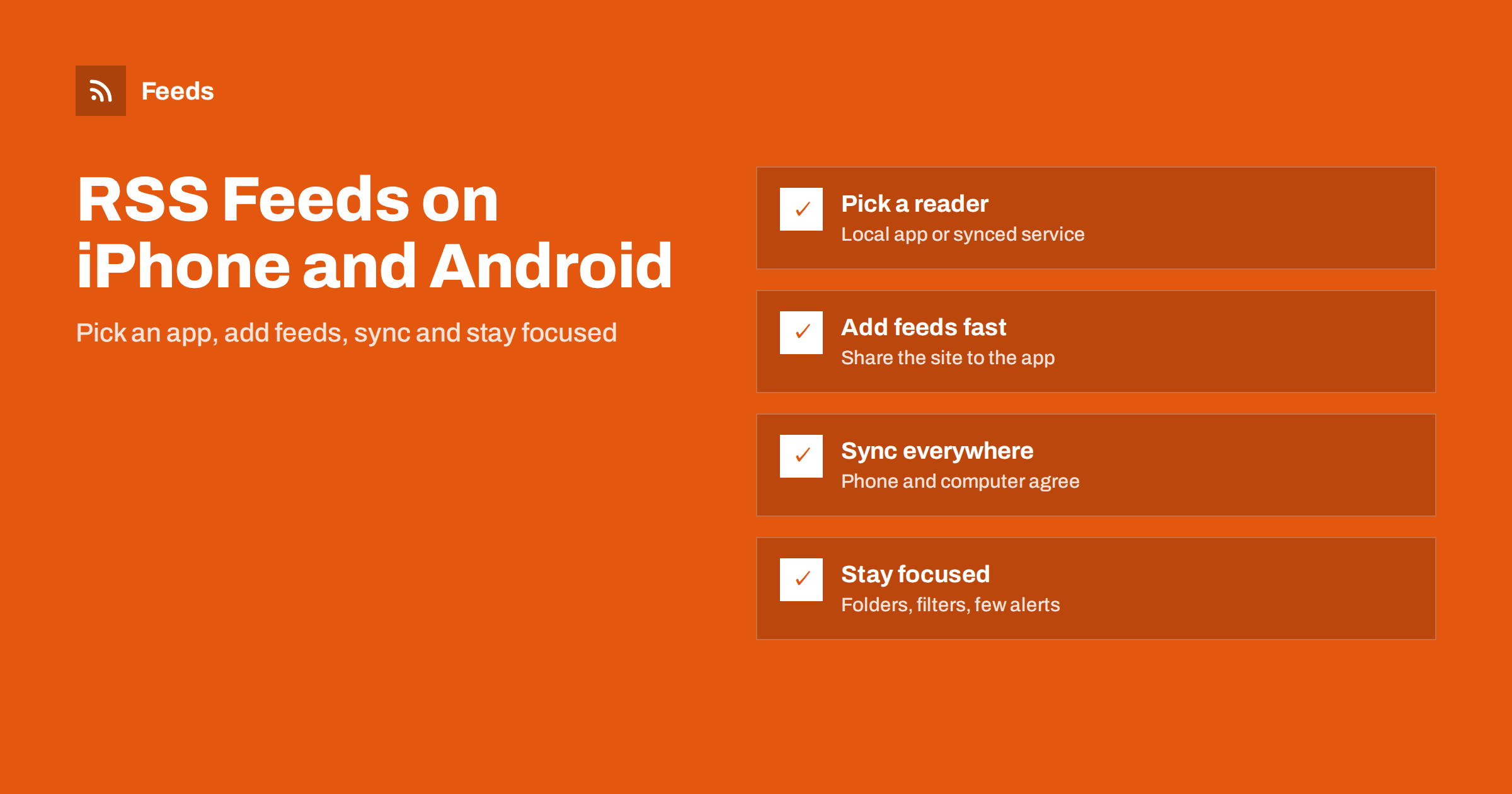
Short answer: To read RSS on a phone, install an RSS reader app, add feeds by pasting a site’s address or its feed URL, and organise them into folders. If you also read on a computer, use a reader that syncs through an account or a feed service, so read items stay read everywhere. Keep notifications for a few important feeds only, and let the app refresh in the background on Wi-Fi to save battery and data.
Why read RSS on your phone
Most people already read news, blogs and newsletters on their phones, usually through social media feeds or a dozen different apps. An RSS reader collects the sources you choose into one list, in the order they were published, without an algorithm deciding what you see and without ads inserted between items.
On a phone this is especially useful. You can go through new items in a few minutes while commuting, save longer pieces for later and skip everything else with a swipe. Because the reader only shows sources you have chosen, it is quieter than social apps, and nothing disappears because a platform decided it was not interesting enough.
If RSS is new to you, the basics are explained in what is an RSS feed. The rest of this guide focuses on doing it well on iPhone and Android.
Two kinds of mobile readers
Mobile RSS apps fall into two groups, and the difference matters more than any single feature.
| Type | Nasıl çalışır | Good for |
|---|---|---|
| Local reader | The app itself checks your feeds and stores them on the phone | People who read mostly on one device and value privacy |
| Synced reader | The app connects to an account on a feed service, which checks the feeds | People who read on phone and computer and want the same state everywhere |
| Self-hosted sync | The app connects to your own reader server, such as FreshRSS or Miniflux | People who want sync without a third-party service |
Local readers are simple: install, add feeds, read. Their limitation is that the phone has to fetch every feed itself, so refreshing many feeds takes longer, and your computer does not know what you have read on the phone.
Synced readers keep your subscriptions and read status on a server. The service checks feeds even when your phone is off, and the app only downloads what is new. Many well-known services, such as Feedly and Inoreader, have their own apps for both iPhone and Android, and several independent apps can connect to these services or to self-hosted servers. Self-hosting is covered in self-hosted RSS readers: FreshRSS, Miniflux and more.
Choosing an app on iPhone
The App Store has a good choice of RSS readers, from free open-source apps to paid apps with polished designs. NetNewsWire, for example, is a free and open-source reader for iPhone, iPad and Mac. Rather than recommending one app, look for these features, since apps and their pricing change over time:
- support for the sync service you use, or for local feeds if you do not want an account;
- a reader view that shows full articles cleanly, including images;
- folders or tags to group feeds;
- OPML import and export, so you can move your subscriptions later;
- a share extension, so you can add a feed from Safari;
- background refresh and optional notifications.
The general checklist for choosing any reader is in how to choose an RSS reader: features that actually matter.
Choosing an app on Android
Android has a similarly wide range. There are open-source local readers, such as Feeder, apps from the large feed services, and independent apps that support several sync backends. The same feature list applies, with a few Android-specific points:
- check whether the app can refresh in the background, and allow it in the battery settings if needed, as some phones stop background apps aggressively;
- look for widgets if you like to see new headlines on the home screen;
- check that “open in browser” uses your preferred browser or an in-app view you like;
- open-source apps are often available outside the Play Store as well, for example through F-Droid.
Whatever you choose, make sure you can export your feeds as OPML. That file is your list of subscriptions, and it lets you switch apps in minutes, as explained in OPML files explained.
Adding feeds from your phone
Adding feeds on a phone is easier than many people expect. There are three common ways:
- Paste the site address. Most apps accept a normal website address and look for the feed automatically through autodiscovery, explained in RSS autodiscovery.
- Use the share menu. While reading a site in the browser, tap Share and choose your reader app, if it offers a share extension. The app then finds the feed for that page.
- Paste a feed URL. If you know the exact feed address, such as a site’s
/feed/path or a category feed, paste it directly.
If you have many feeds to add, it is faster to do it once on a computer, export OPML and import it into the phone app, or simply use a synced service where subscriptions added anywhere appear everywhere.
When a site has no feed, the app will not find one. In that case, a page-to-feed tool can create one. RSS Feed Creator turns a public page, such as a news section or a blog list, into an RSS feed with titles, images, summaries and dates, and you can subscribe to that feed in any mobile reader. On a page without a feed it also follows further pages and the sitemap to collect older posts, up to the plan’s item limit. Plans are on the pricing page.
Notifications without the noise
Phones make it tempting to turn on notifications for everything. That quickly turns a calm reader into another source of interruptions.
- Use notifications only for feeds where speed matters, such as a status page, a regulator or an important customer.
- Use keyword filters, where the app offers them, so alerts only fire for items that mention what you care about.
- Read everything else in batches, once or twice a day.
A detailed setup for alerts on the phone is in how to get RSS alerts as push notifications on your phone, and ways to cut noise without missing anything are in how to reduce noise in RSS alerts.
Saving battery and mobile data
Feed readers are generally light, but a few settings help on a phone:
- Refresh less often. Hourly or a few times a day is enough for most reading. Synced services fetch feeds on their side, so the phone only downloads changes.
- Download images on Wi-Fi only, if the app offers the option.
- Limit how many items are kept. Old items take storage and slow some apps; keep a few weeks unless you need more.
- Avoid full-article fetching for every feed. Some apps can load the full web page for each item. Use it for feeds that only provide short summaries, not for all of them.
A simple routine that works
A reader becomes useful when it fits into your day. A routine many people find sustainable:
- Group feeds into three to six folders, such as “Work”, “Industry”, “Local” and “Personal”.
- Read the most important folder first, and mark the rest as read without guilt when time is short.
- Save long articles to a read-later list rather than reading them on the spot.
- Once a month, remove feeds you always skip.
The habit of keeping a reader manageable is covered in more depth in how to organize your RSS reader so it never overwhelms you, and combining a reader with a read-later app in RSS reader vs read-later app.
Related reading
- How to subscribe to RSS feeds: a beginner’s step-by-step guide
- How to read RSS feeds in Outlook and Thunderbird
- How to create an RSS feed for a website without RSS
The bottom line
Reading RSS on a phone takes a few minutes to set up. Pick a local reader if you read on one device, or a synced reader if you also read on a computer. Add feeds by sharing pages or pasting addresses, organise them into a few folders, keep notifications for the feeds that truly matter, and refresh on Wi-Fi to save battery and data. For sites without a feed, create one from the page and subscribe as usual.
SSS
Is there a built-in RSS reader on iPhone or Android?
Neither system has a dedicated built-in RSS reader app, so you install one from the App Store or Play Store. Many good readers are free, including open-source options.
Can I sync my RSS feeds between phone and computer?
Yes. Use a reader that connects to a feed service account or to a self-hosted reader server. Subscriptions and read status are then kept on the server and shared by all your devices.
How do I add a feed if I only know the website address?
Paste the website address into the reader app. Most apps find the feed automatically through autodiscovery. If the site has no feed, the app will say so, and you can create a feed from the page with a page-to-feed tool.
Do RSS reader apps use a lot of battery?
Usually not. Battery and data use depend mainly on how often the app refreshes and whether it downloads images and full articles. Refreshing hourly and downloading images on Wi-Fi keeps usage low.
How do I move my feeds to a new reader app?
Export your subscriptions as an OPML file from the old app or service and import that file into the new one. Most readers support OPML, which is why it is worth checking before you choose an app.