 ENEnglish
 LTLietuviškai
 DEDeutsch
 FRFrançais
 RUРусский
 ESEspañol
 PLPolski
 ITItaliano
 UKУкраїнська
 CSČeština
 PTPortuguês
 JA日本語
JA日本語 LVLatviešu valoda
 ETEesti
 HUMagyar
 IDBahasa Indonesia
 TRTürkçe
 HIहिन्दी
 ELΕλληνικά
 ARالعربية
 THไทย
THไทย VITiếng Việt
 RORomână
 MSBahasa Melayu
 BNবাংলা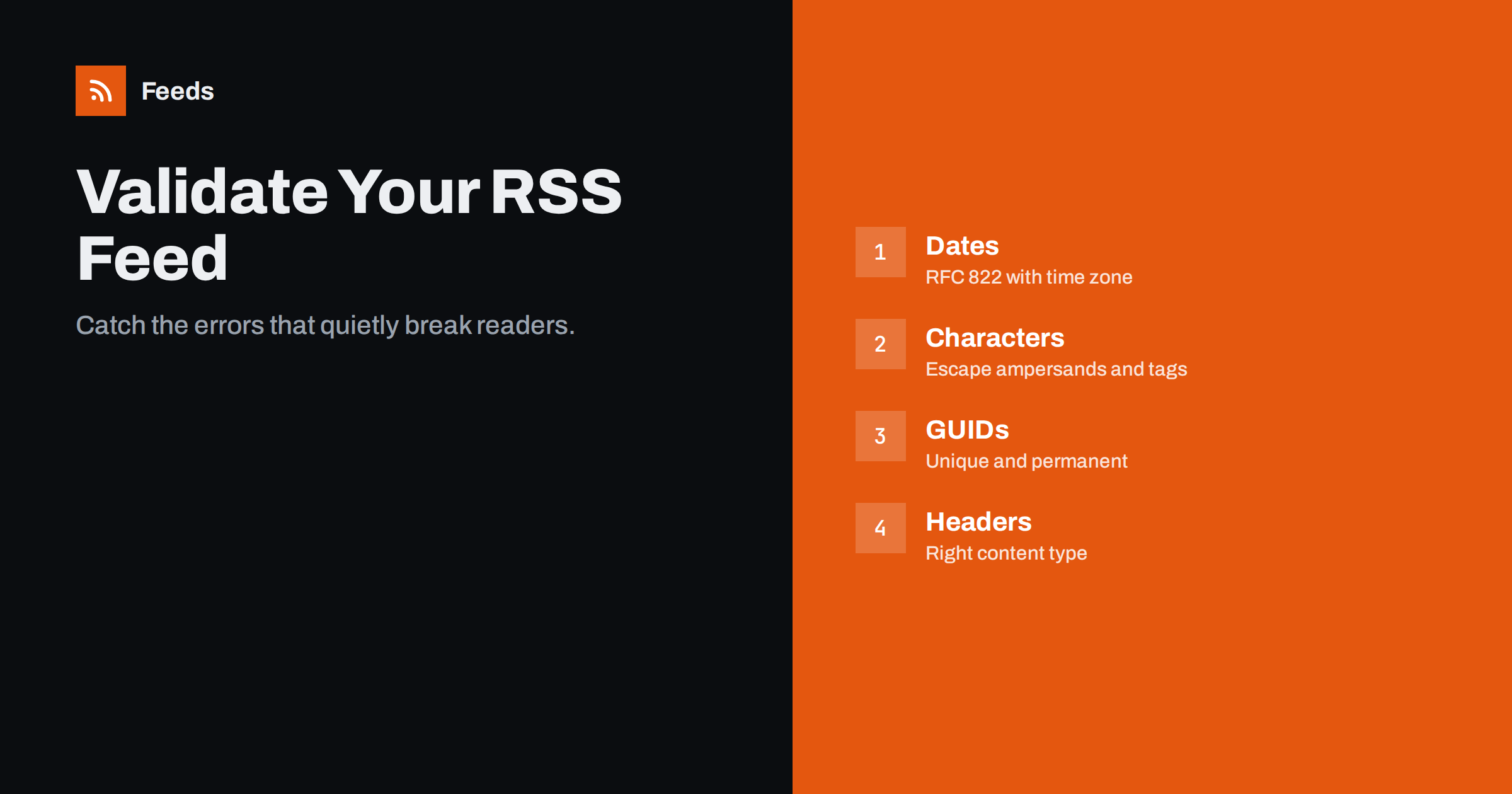
Short answer: Paste your feed address into a feed validator, such as the W3C Feed Validation Service, and fix every error it reports, starting with the first one, because one XML error can hide others. The most common problems are invalid dates, unescaped characters such as &, missing or duplicate identifiers, relative links, wrong character encoding and a wrong HTTP content type. Re-validate after each fix and whenever your platform, theme or plugins change.
Feed readers are forgiving in different ways. One app shrugs off a broken date and sorts the item at the top; another hides it; a strict parser rejects the whole feed. Podcast directories are the strictest of all. Validation removes the guesswork: if your feed passes, you know every app is reading the same thing. This guide explains how validation works, how to read the results, and how to fix the errors that appear again and again.
What validation actually checks
A validator checks your feed at three levels:
- Well-formed XML. Every tag closed, attributes quoted, special characters escaped, one root element, no stray text before the XML declaration. Failing here is fatal: many apps cannot read the feed at all.
- The format’s rules. Required elements such as the channel title, link and description in RSS, or the
id,titleandupdatedelements in Atom, and correct formats for dates, URLs and email addresses. - Recommendations. Warnings about things that are allowed but likely to cause trouble, such as missing guids, relative URLs inside content or unusual elements.
Errors should always be fixed. Warnings deserve a look: some are harmless, others explain exactly why one particular reader misbehaves.
Which validator to use
- W3C Feed Validation Service at validator.w3.org/feed: checks RSS and Atom, accepts a URL or pasted XML, and explains each message with a help page. It is the standard starting point.
- Podcast validators: Apple Podcasts Connect validates feeds when you submit or refresh a show, and several independent podcast validators check the iTunes and Podcasting 2.0 tags. Use one of these for any podcast feed.
- Generic XML tools: an XML linter or your code editor can confirm that the file is well-formed, which is useful when you generate feeds yourself.
- Your own readers: not a validator, but testing the feed in two real apps catches problems that pass validation, such as images that are technically valid but never load.
Validate the live URL rather than a file saved on your computer whenever you can. The live check also tests what your server actually sends: the HTTP status, redirects, the content type and the encoding header. Many real-world problems exist only in that layer. A feed can be perfect on disk and still fail because a CDN adds a login challenge, a security plugin blocks unknown user agents, or a redirect loops between HTTP and HTTPS. If the validator cannot fetch your feed at all, that is itself the most important finding, because many readers and tools will not be able to fetch it either.
Error: invalid or missing dates
RSS 2.0 requires dates in the RFC 822 format, for example Sun, 09 Aug 2026 08:38:00 +0000. Atom requires RFC 3339, such as 2026-08-09T08:38:00Z. Frequent mistakes:
- Localised day or month names, such as “Dim” or “Aug.” with a full stop.
- A missing time zone, or a time zone name that is not allowed.
- ISO dates in an RSS feed, or RSS-style dates in an Atom feed.
- Dates in the future, which some apps treat as permanently new.
Fix: generate dates with your language’s standard functions rather than formatting them by hand, force English day and month names for RSS, and always output a numeric offset such as +0000. In PHP, DATE_RSS and DATE_ATOM are the correct format constants.
Error: unescaped characters and invalid XML
XML reserves a few characters. An ampersand in a title, such as “Sales & Marketing”, must be written as &, and a less-than sign as <. HTML inside a description must be either escaped or wrapped in a CDATA section. Common culprits:
- Ampersands in titles, URLs with query strings, and category names.
- HTML named entities such as
or©, which XML does not know. Use numeric entities or the actual characters instead. - Invisible control characters pasted from word processors or PDFs. They are invalid in XML 1.0 and make strict parsers stop.
- A CDATA section that contains
]]>, which closes it early.
Fix: let an XML library build the feed rather than concatenating strings, strip control characters from user input, and convert named HTML entities before output. On WordPress, the validator’s line number usually leads you straight to the post that contains the bad character.
Error: missing, duplicate or changing identifiers
RSS’s guid is technically optional, but without it apps guess an identity from the link or title, and duplicates follow. Atom’s id is required. Problems to look for:
- No guid at all. Add one to every item.
- Duplicate guids in the same feed, often from a template bug. Apps may show only one of the items.
- A guid marked as a permalink that is not a URL. If the guid is not a working URL, add
isPermaLink="false". - Guids that change when a post is edited or the site is migrated. The validator cannot see this, but your readers will, as duplicates.
Error: relative URLs and broken links
Every link in a feed should be absolute, including the channel link, item links, enclosure URLs and, ideally, links and images inside the content. A reader that receives /images/photo.jpg has no reliable way to know which site it belongs to, especially when the feed is fetched through a proxy or aggregator. The validator reports relative URLs in required elements as errors and in content as warnings. Fix both: many content management systems have a setting or filter to output full URLs in feeds.
Error: wrong encoding or content type
The feed should declare its encoding in the XML declaration, normally UTF-8, and the server should send the same encoding in its Content-Type header. A mismatch turns quotes, dashes and accented letters into strange sequences such as “’”. The validator warns about mismatches, and some feeds pass only because the validator is lenient.
For the content type, application/rss+xml for RSS and application/atom+xml for Atom are the most precise choices; application/xml and text/xml are widely accepted too. Serving a feed as text/html earns a warning and confuses some tools.
Preventing errors instead of fixing them
Most feed errors are introduced by the same few events: a new theme, a plugin update, a site migration, a new editor who pastes content from a word processor, or a change in the CDN. A small routine prevents most surprises:
- Add feed validation to your launch and update checklists, next to checking the home page and the contact form.
- If you generate feeds in code, add an automated test that parses the output with a strict XML parser.
- Subscribe to your own feed in a reader so you see what subscribers see.
- Paste text into the editor as plain text when copying from documents.
How to work through a long list of errors
- Fix the first error first. In malformed XML, one missing closing tag can produce dozens of follow-on errors that disappear once it is fixed.
- Separate template errors from content errors. If every item has the same error, the template or plugin is at fault. If one item has it, the content of that post is.
- Re-validate after each change rather than fixing everything blind.
- Clear caches before re-validating, or the validator may keep reading the old version.
- Record what you changed, so the next theme or plugin update does not quietly undo it.
When a source feed you depend on is invalid
Often the broken feed is not yours: a supplier, partner or news source publishes an invalid feed and your reader or tool chokes on it. You can report the problem to the site owner, but that may take weeks. In the meantime, our tool, Feeds, can read the source site and give you a clean RSS feed of its items. It uses the site’s existing feed where one works and can build a feed from the page’s article list and structured data where it does not. You check the preview before creating anything. Details are on the pricing page.
Related reading
- WordPress RSS Feed Not Working? Common Problems and Fixes
- RSS vs Atom: Which Feed Format Should Your Site Publish?
- Podcast RSS Feeds Explained: How Episodes Reach Every App
The bottom line
Validation is the cheapest insurance for any feed. Run a validator, fix errors from the top down, and pay attention to warnings about dates, identifiers, relative URLs and encoding, because those are the ones that cause duplicates, missing items and garbled text in real apps. Validate again after every platform change, and your feed will behave the same in every reader, tool and directory.
SSS
How do I check if my RSS feed is valid?
Enter the feed URL in the W3C Feed Validation Service or paste the XML directly. It reports errors and warnings with line numbers and explanations. For podcasts, also use a podcast-specific validator.
Does an invalid feed still work in readers?
Sometimes. Many readers are lenient and will display a partly invalid feed, but each handles errors differently, and strict parsers and podcast directories may reject it entirely. A valid feed behaves consistently everywhere.
What is the correct date format for RSS?
RSS 2.0 uses RFC 822 dates with English day and month names and a time zone, for example “Sun, 09 Aug 2026 08:38:00 +0000”. Atom uses RFC 3339, for example “2026-08-09T08:38:00Z”.
Why does my feed show strange characters like ’?
That is an encoding mismatch: the text is UTF-8 but is being read as another encoding, or the other way round. Make sure the XML declaration and the server’s Content-Type header both say UTF-8 and that the content is actually stored as UTF-8.
Are validator warnings important?
Some are harmless, but many point to real problems in specific apps, such as missing guids causing duplicates or relative URLs breaking images. Read each warning and fix the ones that affect how items are identified or displayed.


