ENEnglish
 LTLietuviškai
 DEDeutsch
 FRFrançais
 RUРусский
 ESEspañol
 PLPolski
 ITItaliano
 UKУкраїнська
 CSČeština
 PTPortuguês
 JA日本語
JA日本語 LVLatviešu valoda
 ETEesti
 HUMagyar
 IDBahasa Indonesia
 TRTürkçe
 HIहिन्दी
 ELΕλληνικά
 ARالعربية
 THไทย
THไทย VITiếng Việt
 RORomână
 MSBahasa Melayu
 BNবাংলা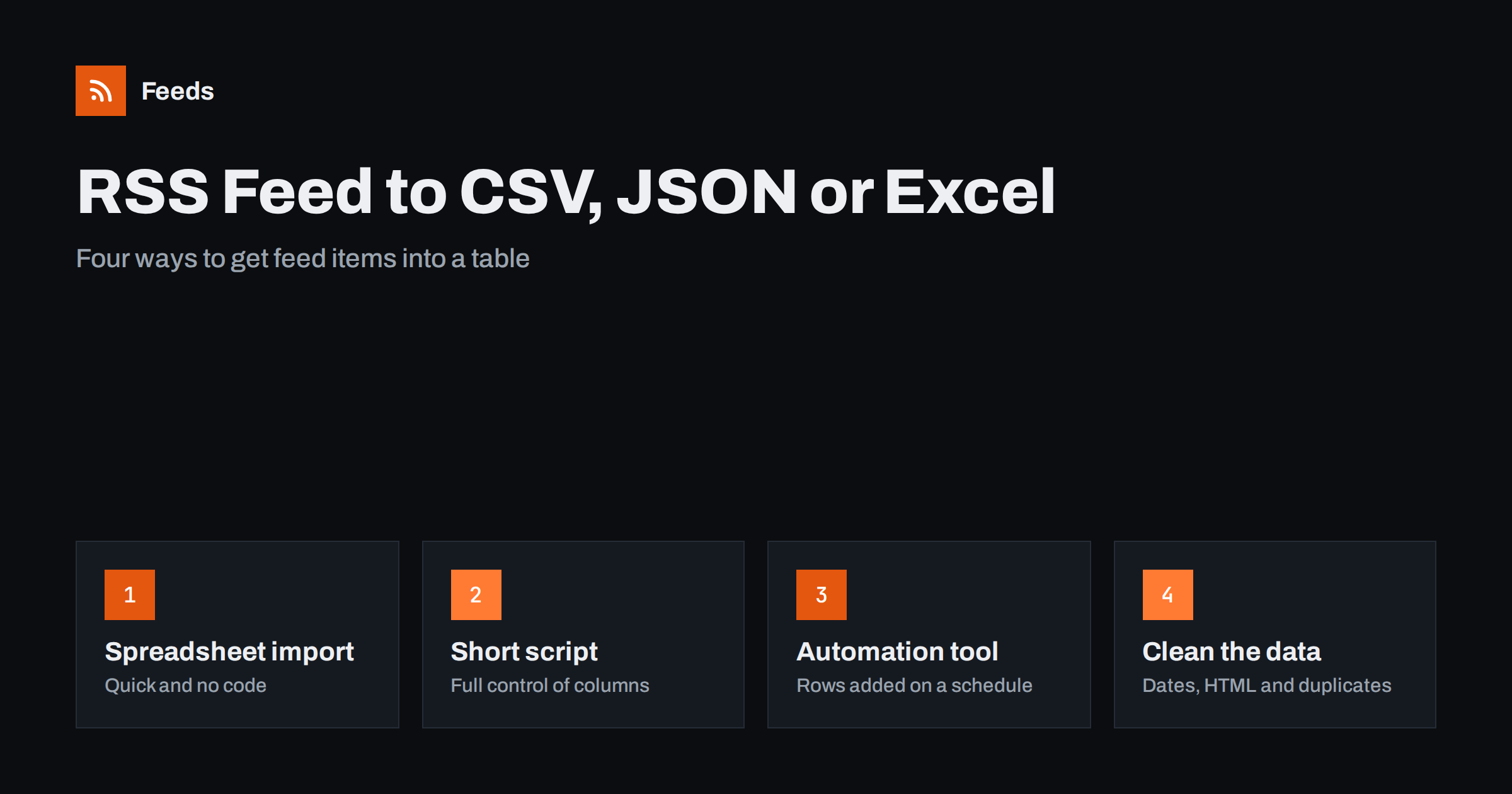
Short answer: An RSS feed is an XML file with a repeating list of items, so it maps naturally to a table with one row per item. You can convert it in a spreadsheet (Google Sheets or Excel), with a short script in Python or JavaScript, or with an automation tool that adds a row each time a new item appears. Pick the columns you need (title, link, date, summary), clean the dates and HTML, and remove duplicates by the item identifier.
Why convert a feed to a table
A feed is built for readers and software, not for analysis. Yet there are many good reasons to move its items into rows and columns. A marketing team may want a log of every competitor article with its date. A researcher may need a list of new papers that can be sorted and filtered. A shop owner may want to compare the items of two feeds side by side. A developer may need a JSON file to feed a small web page or a prototype.
The format of the source helps. Every item in an RSS 2.0 feed has the same few elements, such as the title, the link, the publication date and a description, which are explained in the anatomy of an RSS 2.0 feed. Each element becomes a column, and each item becomes a row. The same idea works for Atom feeds, only with different element names, and for JSON Feed, which is already JSON, as described in JSON Feed versus RSS.
Decide on the columns first
Before choosing a tool, list what you actually need. A feed item can contain much more than most people want in a spreadsheet, so start small. A practical set is:
- Title of the item.
- Link to the full page.
- Publication date, stored in one consistent format.
- Author or source, if you merge several feeds.
- Category values, if you plan to filter by topic.
- Identifier (the GUID), which you will need to remove duplicates later.
- Summary, as plain text and not as raw HTML.
Leave out the full article text unless you really need it. Full text makes cells very large and often contains markup that breaks the layout of a spreadsheet.
Method 1: a spreadsheet
The fastest route needs no code at all. In Google Sheets, a built-in function reads a feed and returns its items as a table, and you can ask for only the titles, the links or the dates. The steps and the options are covered in how to pull RSS feeds into Google Sheets with IMPORTFEED. The result refreshes by itself from time to time, which is useful for a live list, but it is limited to the most recent items that the feed contains, and you do not control the refresh time.
In Excel, you can import an XML file as a table with the data import tools: choose the option for loading data from XML or from the web, enter the feed address, and select the item list in the preview. Excel then shows each element as a column. You can refresh the query later to load new items. The menu names change between versions, so look for the get-data section on the Data tab. If your feed address needs a password or special headers, download the file first and import it from your computer.
Spreadsheets are a good first step. Their weak point is history. If the feed shows only the latest twenty items, an import that replaces the table each time will lose older rows, so copy the new items into an archive sheet if you want a permanent record.
Method 2: a short script
If you need exact columns, a repeatable result or a CSV file for another system, a few lines of code do the job. The example below uses only the standard library of Python. It downloads a feed, reads each item and writes three columns to a CSV file.
import csv, urllib.request
import xml.etree.ElementTree as ET

data = urllib.request.urlopen("https://example.com/feed/").read()
root = ET.fromstring(data)

with open("feed.csv", "w", newline="", encoding="utf-8") as f:
    writer = csv.writer(f)
    writer.writerow(["title", "link", "pubDate"])
    for item in root.iter("item"):
        writer.writerow([item.findtext("title"), item.findtext("link"), item.findtext("pubDate")])
For JSON, collect the same values into a list of dictionaries and write them with the json module. Elements from other namespaces, such as the author field from the Dublin Core set or the full text from the content module, need the namespace in the lookup, which is explained in RSS namespaces explained. For more languages and for the use of a ready-made parser library, see how to parse an RSS feed in Python, JavaScript and PHP.
Method 3: an automation tool
When you want a new row every time a new item is published, a scheduled automation is better than a one-off conversion. Most automation platforms have a trigger that watches a feed and an action that adds a row to a spreadsheet, a database or a file. The tool remembers which items it has already seen and passes only the new ones on. A comparison of the usual options is in Zapier, Make, IFTTT and n8n for RSS automation. If your target is a database, sending feed items to a Notion database shows the same pattern.
This method builds the archive for you. Each item arrives once, with the columns you mapped, and the table grows over time even if the feed itself keeps only recent entries.
Clean the data after conversion
A raw conversion usually needs a few corrections.
- Dates. Feed dates come in a format such as “Tue, 13 Oct 2026 08:30:00 +0000”. Convert them to a standard date and time and keep the time zone in mind. The pitfalls are described in RSS dates and time zones.
- HTML in summaries. Descriptions often contain tags and encoded characters. Strip the tags or convert them to plain text, and decode entities. If you see odd symbols, the guide to encoding errors and CDATA explains why.
- Duplicates. The same item may appear twice if you import two feeds that overlap, or if a publisher changes a link. Use the GUID as the key and keep the first row for each value. RSS GUIDs explained shows how these identifiers behave.
- Tracking parameters. Links may carry tags added for analytics. Remove them before you compare addresses.
- Empty cells. Not every item has an author or a category. Decide how you want blanks to be shown so that filters still work.
Choose the right method
| Need | Best method | Main limit |
|---|---|---|
| A quick look at the latest items | Spreadsheet function | Only recent items, little control |
| A one-off export with exact columns | Short script | Needs some code |
| A growing archive | Automation tool | Setup time, task limits of the tool |
| Data for a web page or app | Script writing JSON | You must host and refresh it |
What if the website has no feed?
All of these methods start from a feed, and many websites do not offer one. In that case you first need a feed made from the page that lists the articles, and then you can convert it in the same way. The approach is explained in how to create an RSS feed for a website without one.
How RSS Feed Creator helps
RSS Feed Creator turns the article list of any web page into a clean RSS feed with titles, images, summaries and dates, and it uses an existing feed when the page has one. You see a preview of the items before anything is created. You can also merge several sources into one feed (up to 10 on paid plans) and keep only the items that contain your keywords, with duplicates removed automatically. Because the result is a standard RSS feed, every method in this article works with it: a spreadsheet, a script or an automation tool. The free plan allows up to 20 items per feed, and the details are on the pricing page.
Related reading
- How to merge multiple RSS feeds into one clean feed
- How to validate an RSS feed and fix the most common errors
- RSS feed paging and archives: getting a feed’s full history
The bottom line
Converting a feed to a table is simple because every item has the same structure. Use a spreadsheet function for a quick look, a short script for exact columns and a file you can reuse, and an automation tool when you want a permanent archive that grows by itself. Whichever you choose, decide the columns first, convert dates to one format, remove markup from summaries and use the GUID to avoid duplicates.
FAQ
Can Excel read an RSS feed directly?
Yes, because a feed is an XML file. Use the data import tools to load it from the web or from a downloaded file, then select the list of items. Newer items can be loaded by refreshing the query.
How do I keep older items when the feed shows only the latest ones?
Store each new item as it arrives. An automation tool that adds a row for every new entry, or a script that appends to a file and skips known GUIDs, builds a permanent archive.
Which format is better for developers, CSV or JSON?
JSON keeps nested values such as several categories per item, while CSV is simpler for spreadsheets and quick imports. Choose the one your next tool reads best.
Why do some characters look wrong after conversion?
Most often the file was read with the wrong text encoding, or the summary contains encoded entities. Save and open the file as UTF-8 and decode entities in the summary field.
Can I convert a feed without writing code?
Yes. A spreadsheet function or an automation tool handles the conversion with a few clicks. Code is only needed when you want exact control over columns and cleaning.