ENEnglish
 LTLietuviškai
 DEDeutsch
 FRFrançais
 RUРусский
 ESEspañol
 PLPolski
 ITItaliano
 UKУкраїнська
 CSČeština
 PTPortuguês
 JA日本語
 LVLatviešu valoda
 ETEesti
 HUMagyar
 IDBahasa Indonesia
 TRTürkçe
 HIहिन्दी
 ELΕλληνικά
 ARالعربية
 THไทย
 VITiếng Việt
 RORomână
 MSBahasa Melayu
 BNবাংলা
Short answer: A “What’s on” or events page is a list, so RSS Feed Creator can turn it into a feed: choose “A web page”, paste the address of the list view, check the preview and create the feed. Each event card becomes an item with a title, a link, a picture and, if the card has one, a short text. The one thing to understand is dates. A date in the feed is whatever the page marks as the item’s date, and on an events page that may be the date of the event, not the date it was announced. Knowing that, you can follow a venue, a city or a club without visiting its page.
Who needs an events feed
Several kinds of people want to know about new events without checking a page every few days. Event-goers follow a favourite venue. Parents follow a school or a library. Local businesses watch what the town hall and the chamber of commerce plan. Venues, associations and tourism offices want to share events that partners publish. In every case, the page has no feed, or the feed is poor, and the task is to turn the list into something that tells you what is new.
RSS Feed Creator is built for this kind of list. The home page promises “RSS from any page” for news sites, blogs and job boards, and an events page is the same kind of list: repeated cards, each with a heading, a link and often a picture. For general ideas about calendars and feeds, see how to turn event calendars into RSS feeds you can follow; this article stays with what the tool does.
Step 1: choose the list view, not the calendar grid
Many events pages offer two views: a calendar with days in a grid and a list with one card per event. The list is what you want. A grid hides most events behind day numbers, and a month view has many links that are not events. Look for buttons labelled List, Agenda or Upcoming events, switch to that view and copy the address from the address bar after the page has changed.
Check the address for tracking parts and for filters that you set by accident, such as a date range or a category. A clean address of the full list is the best start; you can narrow the feed later with keywords. The choice of address is discussed in which web address to paste: home page, section or search.
Step 2: read the preview, especially the dates
Paste the address, and look at the preview. For each event you should see a title, a link to the event page and, ideally, a picture. Then look at the dates with care, because they work differently from news.
For a card built from repeated blocks, a date is taken from a time element, if the card has one. Event pages often mark up the date and time of the event itself with exactly that element. The result is that the date of the item in the feed is the date of the event, which may lie in the future. A feed made from a news page has dates in the past; a feed made from an events page may have dates ahead.
That is not wrong, but it affects how the feed behaves. A single-source feed keeps the order of the page, which is normally by date of event, soonest first, so the first item in the feed is the next event. A merged feed is sorted by date with the newest first, which would put the event furthest in the future at the top. Both are described in why items appear in that order in RSS Feed Creator. A reader or tool may also treat an item with a future date in its own way, so test with the tool you plan to use before you rely on it.
Step 3: filter by type
An events page tends to mix everything: concerts, workshops, meetings, closures. Use the keyword boxes to keep what you want. In “Only items containing”, write the types, such as “concert, jazz, festival”. In “Skip items containing”, write what you never attend, such as “members only” or “private hire”. The filters search the title and the short text. Save, and read the list of latest items to see the effect; the loop takes a minute. The filter logic is described in keyword filters in RSS Feed Creator.
Step 4: use the feed
- Read it. Add the feed address to a reader and see new events with the rest of your news.
- Route it. Send the feed to a team channel, so that a club or an office sees what is coming.
- Share it. Add the feed to PostRSS, and new events from a partner’s page can be posted to your social profiles.
The sharing route works best when the card has a title and a picture, which is the case for most venues. If you share other people’s events, credit the source and read the text before it goes out; the feed brings items to you, but it cannot check them. A fuller route to social posts is described in from pages without RSS to social posts.
When the page works differently
Three situations deserve a short note.
The site already has a feed. Many event plugins and calendar systems publish a feed. If the page announces one, the tool uses it, and you get the site’s own descriptions and dates. The preview tells you which case you are in.
The list is built with scripts. Some event pages load their cards after the page opens. If the preview is empty although the list is visible in your browser, look for another page of the same site, or for the feed. See preview shows 0 items: what to try.
The list paginates by month. The tool follows “next page” links and numbered pages of a list, up to ten pages and until your plan’s limit is filled. For a list that pages by month, the first page is usually the one that matters; check how many items the preview shows.
An example: a community theatre
A parent wants to know about new children’s shows at the community theatre. The theatre’s site has a “What’s on” page with a list view of upcoming performances: a poster, a title, the date and a one-line description. The parent pastes the address and sees fourteen items in the preview, each with its poster and a link. The dates in the preview are the performance dates, all in the coming weeks.
The parent adds “children, family, puppet” to the first keyword box and saves. Six items remain. After creating the feed and adding it to a reader, new shows appear when the theatre adds them to the list. The parent notices that the reader places items by their date, so a show in three weeks appears before one next week; that is how the reader treats a future date, and it does no harm for this use. A different tool might show the list in the order of the page. Because the tool and the reader are separate, a short test is the best guide.
The same steps work for a library, a museum, a sports hall or a town. Only the words in the filter boxes change.
Small things that go wrong
- Recurring events. A weekly class that repeats may appear as many separate cards, or as one. The feed shows whatever the page lists as separate cards with separate links.
- Cancelled events. When a page removes a cancelled event, it leaves the list; when it only marks it, the item stays. A feed cannot read the word “cancelled” unless it is in the title or the short text, in which case a skip word can remove such items.
- Several languages. If the page has language versions, choose the address of the one you want. See feeds from non-English sites: filters, accents and dates.
- Short titles. A card title shorter than eight characters can be skipped when there is no longer text to use. Check the preview for gaps.
None of these is a reason to avoid the method. They are reasons to read the preview once, carefully, and to check the feed again after the venue redesigns its page.
For venues: the other direction
If you run a venue and your own events page has no feed, you can create one in the same way, as described in make a feed for your own website without touching it. Two small improvements help every feed tool: mark the date of each event with a time element, and give every event page a meta description of a sentence or two. The tool then shows cleaner dates and better short texts.
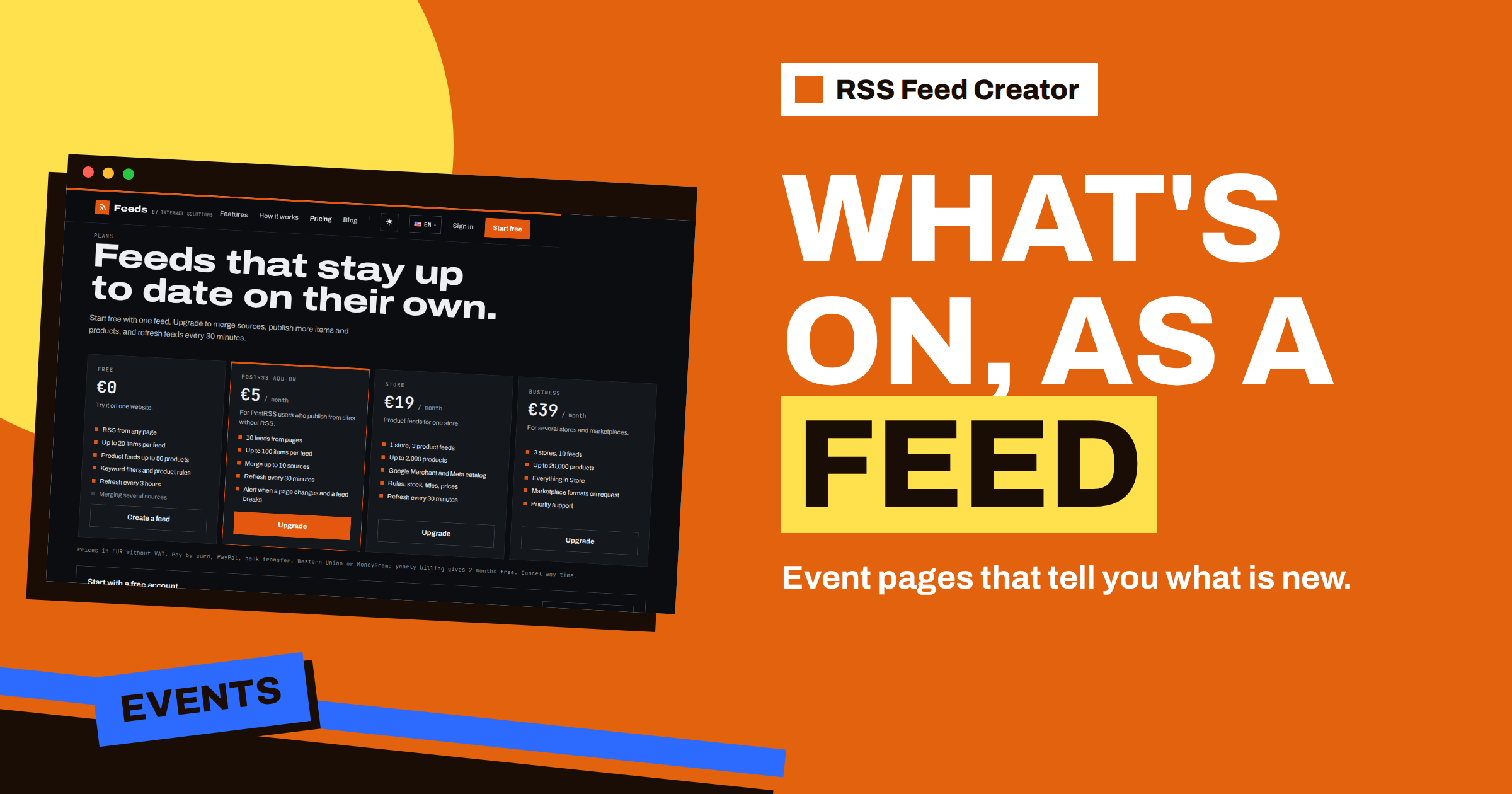
The free plan keeps up to 20 items per feed and refreshes every 3 hours, which is more than enough for most venues. If you want to follow several venues in one feed, merging up to 10 sources is part of the paid plans; the pricing page lists the details.
Related reading
- Content Automation for Event Organizers and Venues
- How to Promote Upcoming Events Automatically from a Calendar
- How RSS Feed Creator Finds Items on Pages Without RSS
The bottom line
An events page is a list, and a list becomes a feed. Choose the list view, read the preview for titles, links and dates, remember that the date may be the event date, filter by type and use the feed in a reader, a channel or PostRSS. It is a small job that saves regular visits to pages that never announce anything by themselves.
FAQ
Why is the date in my feed in the future?
On an events page the date marked on a card is often the date of the event. The feed shows what the page says.
Should I use the calendar view or the list view?
The list view. A calendar grid has few usable items and many links that are not events.
Can I follow several venues in one feed?
Yes, on the paid plans, which merge up to 10 sources. A merged feed is sorted by date, newest first.
What if the site already has an events feed?
The tool uses it when the page announces one, and you can still filter it with keywords.