 ENEnglish
 LTLietuviškai
 DEDeutsch
 FRFrançais
 RUРусский
 ESEspañol
 PLPolski
 ITItaliano
 UKУкраїнська
 CSČeština
 PTPortuguês
 JA日本語
JA日本語 LVLatviešu valoda
 ETEesti
 HUMagyar
 IDBahasa Indonesia
 TRTürkçe
 HIहिन्दी
 ELΕλληνικά
 ARالعربية
 THไทย
THไทย VITiếng Việt
 RORomână
 MSBahasa Melayu
 BNবাংলা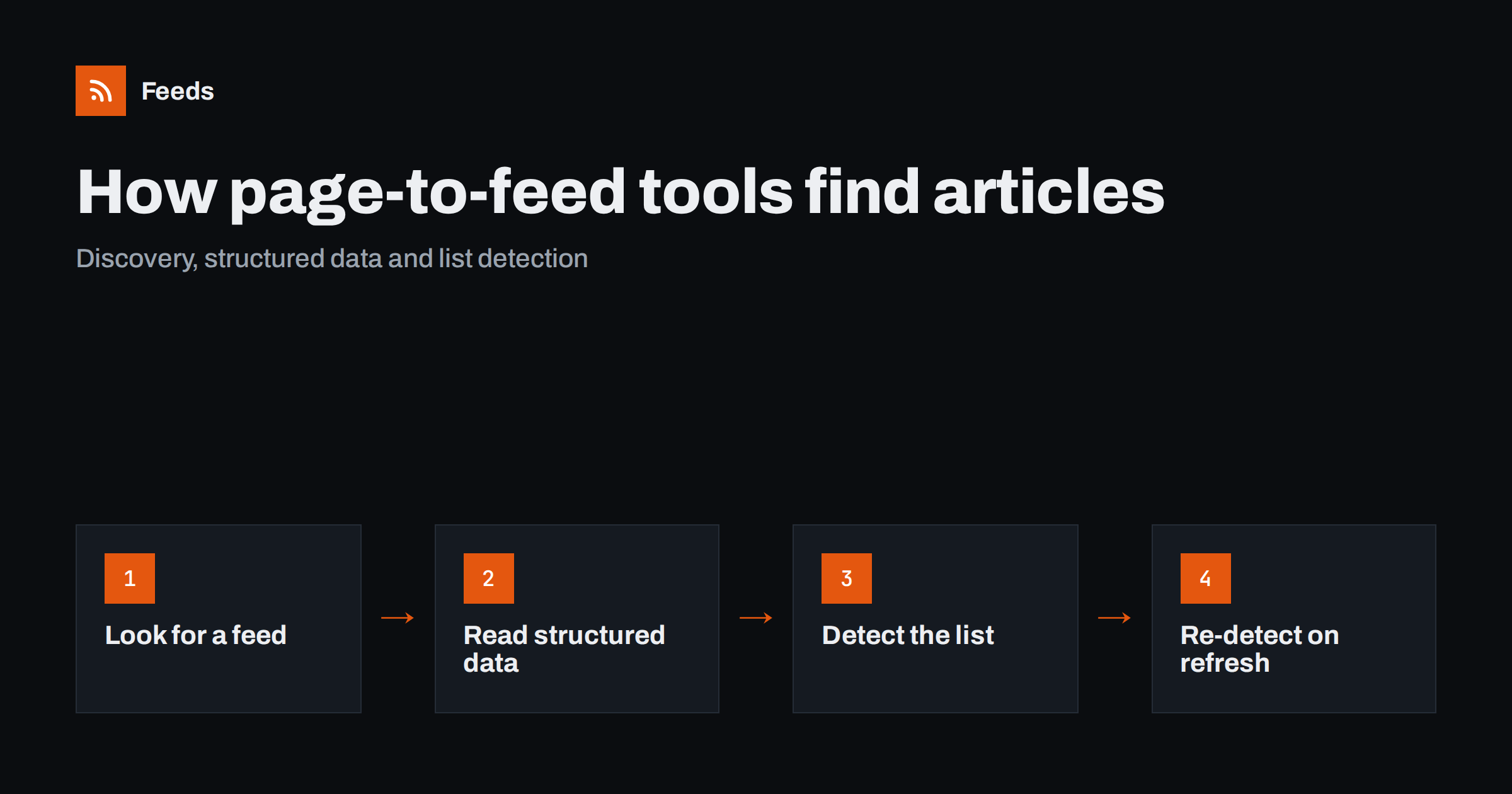
Short answer: A page-to-feed tool typically works in layers. It first looks for an existing feed that the page advertises, then reads structured data such as JSON-LD article markup, and finally analyzes the page’s HTML to find the repeating blocks that represent items, each with a headline and a link. From those items it builds a standard RSS feed, and on every refresh it repeats the detection so the feed keeps up with new items and, often, with layout changes.
Pasting an address and getting a feed back can feel like magic, especially compared with writing a scraper by hand. Knowing roughly what happens behind the scenes helps you choose better source pages, understand the preview you see, and diagnose the occasional page that does not produce a clean feed. This explanation is general; individual tools differ in the details, but the principles are shared.
Layer 1: Feed discovery
The cheapest and most reliable result is a feed that already exists. Websites announce their feeds with a link element in the page head, for example <link rel="alternate" type="application/rss+xml" href="...">. A tool reads the page head and follows such links first.
Some tools also try well-known feed locations used by common content management systems, such as /feed/ on WordPress sites. If a suitable feed is found, the tool can use it directly, and everything the tool adds, such as merging or filtering, is applied on top of the publisher’s own data. This is why a good tool will tell you when the page you entered already has a feed.
Discovery has one subtlety: the advertised feed may not match the page you entered. A news section might advertise the site-wide feed rather than a section feed. A careful tool, or a careful user looking at the preview, checks that the feed items actually correspond to the list on the page.
Layer 2: Structured data
If there is no feed, the next best source is machine-readable data embedded in the page. Many sites include JSON-LD blocks using the Schema.org vocabulary to describe articles, blog posts, events or job postings for search engines. These blocks contain clean fields: headline, URL, publication date, image and description.
When a list page includes structured data for the items it shows, a tool can build a feed with very accurate titles and dates without interpreting the visual layout at all. More often, structured data is present on individual article pages and only partly on list pages, so tools combine it with the next layer.
Layer 3: Detecting the list in the HTML
Most list pages share a recognizable pattern: a series of similar blocks, each containing a link to a different page, usually a headline, and often an image, a date and a short excerpt. Detection looks for that repetition.
- Repeated structure. Blocks with the same tag structure and similar classes, such as a series of article cards or list items, are strong candidates.
- Distinct links. Each item should link to its own page, typically deeper in the site’s address structure than the list page.
- Headline-like text. The link text or a nearby heading element that looks like a title, rather than “Read more” or a category label.
- Supporting fields. Images inside the block, text that parses as a date, and a paragraph that reads like a summary.
- Position and size. The main list usually sits in the content area and contains more items than navigation menus or footer link groups.
Menus, footers and “popular posts” sidebars are also repeated link blocks, which is why good detection weighs several signals together and why a clean section page produces better results than a busy home page.
Turning detected items into feed items
Once items are found, each one is mapped onto the fields of an RSS item.
| Feed field | Typical source on the page | Common difficulty |
|---|---|---|
| Title | Headline element or link text | Labels or badges mixed into the text |
| Link | The item’s main link, resolved to a full address | Tracking parameters that change between visits |
| Date | Time element, visible date text or structured data | Relative dates like “2 hours ago” or no date at all |
| Image | Image in the block or structured data image | Lazy-loaded images with placeholder sources |
| Summary | Excerpt paragraph in the block | Missing on minimal list layouts |
When a page shows no dates, a common approach is to record the time an item was first seen. That keeps ordering sensible and is accurate enough for monitoring, since what you usually want to know is when something appeared.
Refreshing: why detection runs again
A feed is only useful if it keeps updating. On each refresh the tool fetches the page again, finds the current items and compares their links with the items it already has. New links become new feed items; items that disappeared from the page may remain in the feed for a while so readers do not lose them.
Tools that re-detect the list on every refresh, instead of storing fixed selectors from the first visit, have an important advantage: when a site changes its design, the next detection can find the list in its new form. That is not guaranteed for radical changes, but it avoids the most common failure of hand-written scrapers, which break as soon as a class name changes.
Handling duplicates and moved items
The link is the identity of an item. If a site adds a changing parameter to its links, such as a session value or a campaign tag that differs on each visit, the same article can look new on every refresh. Tools usually normalize links to reduce this, for example by preferring the canonical address from structured data or removing obvious tracking parameters. Items that move position on the page, such as a story pinned to the top, are not new either, because their link has not changed.
Edits are a different case. If a publisher corrects a headline, the link usually stays the same and the item is not treated as new. That is normally what you want for monitoring, but it means feeds are not the right tool for tracking edits to existing articles.
What makes some pages difficult
- Content loaded by scripts. If the items are not in the HTML the server sends and only appear after JavaScript runs, a tool that reads the raw HTML finds nothing. Sometimes the site offers an alternative page, such as a plain archive, that works better.
- Infinite scroll and “load more” buttons. Only the first batch of items is in the initial page. For monitoring this is usually fine, since new items appear at the top.
- Mixed lists. Pages that combine articles, ads, videos and promotions in one grid make detection less clean. A more specific section helps.
- Bot protection. Some sites return challenge pages to automated visitors. No detection can work on a page that is never delivered.
- Login walls. Content only visible to signed-in users is out of reach for tools that read public pages.
How to get the best results as a user
- Use the most specific list page you can find: a section, category or tag page rather than the home page.
- Check whether the site already has a feed for that section.
- Look at the preview critically: titles, links, dates and images.
- If the preview includes navigation or unrelated items, try a different page on the same site, such as an archive.
- After a few days, confirm that only genuinely new items were added.
How Feeds does it
Feeds follows this layered approach. When a page already has a feed, it uses it. When it does not, it finds the list of articles on the page, reads JSON-LD article data, and builds items with titles, images, summaries and dates. You see a preview of exactly which items were found before anything is created. The list is detected again on every refresh, and paid plans send an alert if a feed stops finding items. No plugin or code is needed on the source site, because Feeds reads public pages from the outside, identifying itself as FeedsBot. You can try it on any page.
Related reading
- How JSON-LD Structured Data Helps Turn Pages into Feeds
- RSS vs Web Scraping: Which Should You Use to Track Sites?
- RSS Feed Stopped Updating? How to Find Out Why
The bottom line
Page-to-feed tools prefer the most reliable source available: an existing feed, then structured data, then detection of the repeating item list in the HTML. Because detection runs on every refresh, feeds can survive many redesigns that would break a fixed scraper. You get the best results from specific list pages, a critical look at the preview, and a quick check after the first few refreshes.
FAQ
How does a tool know which part of a page is the article list?
It looks for repeated blocks with similar structure, each linking to a different page and containing headline-like text, often with images and dates. Several signals are combined to tell the main list apart from menus and sidebars.
Why does my preview include menu links?
Menus are also repeated links, and on some pages they resemble the article list. Using a more specific section or archive page usually gives a cleaner result.
Can page-to-feed tools read pages built with JavaScript?
It depends on the tool and the page. If items only appear after scripts run, tools that read the initial HTML may not see them, so an alternative page on the same site may work better.
What happens when the website is redesigned?
Tools that detect the list again on each refresh can often find the items in the new layout. Radical changes can still break a feed, which is why alerts for feeds that stop finding items are useful.
Where do item dates come from if the page shows none?
Structured data may provide them. If there is no date anywhere, tools commonly use the time they first saw the item.


