 ENEnglish
 LTLietuviškai
 DEDeutsch
 FRFrançais
 RUРусский
 ESEspañol
 PLPolski
 ITItaliano
 UKУкраїнська
 CSČeština
 PTPortuguês
 JA日本語
JA日本語 LVLatviešu valoda
 ETEesti
 HUMagyar
 IDBahasa Indonesia
 TRTürkçe
 HIहिन्दी
 ELΕλληνικά
 ARالعربية
 THไทย
THไทย VITiếng Việt
 RORomână
 MSBahasa Melayu
 BNবাংলা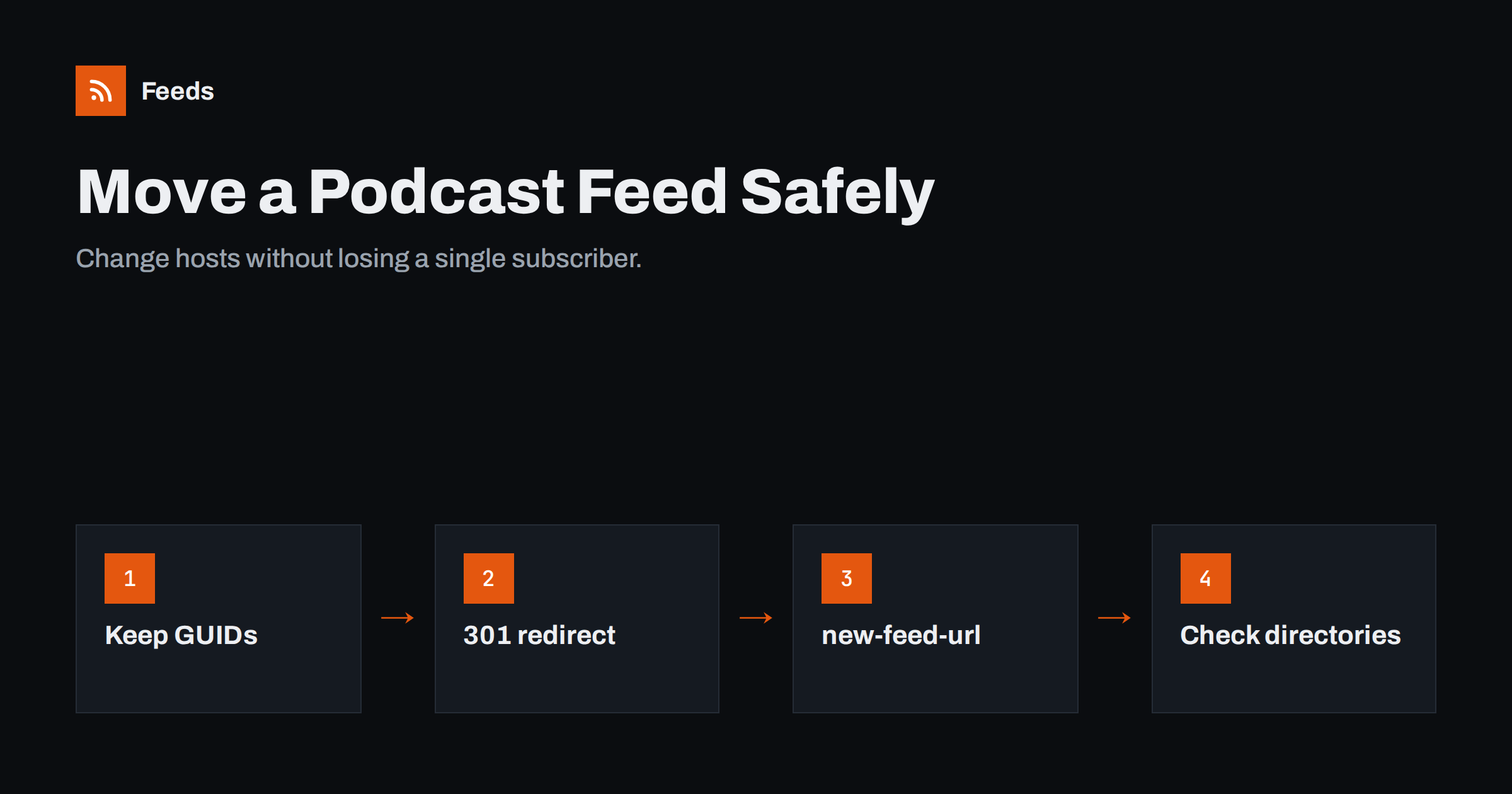
Short answer: To move a podcast without losing subscribers, import the show into the new host with every episode’s original GUID, then make the old feed return a permanent 301 redirect to the new feed and add the itunes:new-feed-url tag to the old feed. Keep the redirect running for as long as possible, ideally forever, and confirm in Apple Podcasts, Spotify and other directories that they picked up the new address. Nothing else is needed; listeners do not have to resubscribe.
Podcasters change hosts for many reasons: better statistics, lower prices, monetisation features, or a host shutting down. The fear is always the same: will my subscribers follow? The good news is that podcasting’s reliance on RSS makes a clean move possible, because apps simply follow the feed address. The bad news is that a careless move can cause duplicate episodes, a frozen show or a split audience. This guide walks through the process step by step and explains why each step matters.
Why moving a feed can go wrong
Podcasting has no central list of your subscribers. Each listening app, and each directory, stores your feed URL and the identifiers of the episodes it has already seen. That creates two risks:
- The address risk. If the old feed simply disappears, apps keep requesting it, get an error and eventually stop updating. Your subscribers do not get a message; the show just goes quiet in their app.
- The identity risk. If the new feed gives existing episodes new GUIDs, apps think they are new episodes. Listeners may see the whole back catalogue arrive at once, or duplicates of recent episodes.
A good migration handles both: the address is redirected permanently, and the identities stay exactly the same.
Before you start: collect what you need
Preparation makes the actual switch a ten-minute job. Gather:
- Your current feed URL. Copy it exactly as it appears in your old host’s settings.
- A backup of the current feed. Save the XML file. It records every GUID, date and enclosure URL, which is invaluable if something goes wrong.
- Your media files, if you want an independent archive. Most new hosts import the audio for you, but a local copy costs little.
- A list of every place the show is listed: Apple Podcasts, Spotify, Amazon Music, YouTube, Pocket Casts, the Podcast Index and any others, together with the logins for their creator dashboards.
- Your old host’s redirect options. Confirm that it supports a 301 redirect of the feed and how long it keeps the redirect after you cancel. This is the single most important question.
Step 1: import the show with the original GUIDs
Almost every podcast host has an “import existing podcast” feature that reads your current feed. During import, the new host should:
- Copy every episode’s title, notes, date and artwork.
- Download the audio files to its own storage.
- Keep each episode’s GUID exactly as it was.
- Keep the show-level
podcast:guid, if your feed has one.
Most reputable hosts preserve GUIDs by default, but check. Open the new feed, pick three episodes, and compare their GUIDs with your saved copy of the old feed. They must match character for character. If they do not, contact the new host’s support before going further.
Do not submit the new feed to directories as if it were a new show. That creates a second listing and splits your audience between two copies of the same podcast.
Step 2: redirect the old feed permanently
In your old host’s settings, set up a redirect of the feed to the new feed URL. It must be a 301 Moved Permanently redirect, not a temporary 302 and not a web page saying “we have moved”. A 301 tells apps and directories to update their stored address.
After enabling it, test with a browser or a command-line HTTP tool: requesting the old feed URL should return status 301 and a Location header with the new feed URL, which itself returns 200 with your feed.
If your old host cannot redirect, for example because it has shut down, the migration is harder. You then rely on submitting the new feed in each directory’s dashboard, where it may be possible to change the feed URL of an existing show, and on listeners who follow the show in apps that pick up the change through directories.
Step 3: add itunes:new-feed-url
The itunes:new-feed-url tag, placed in the channel of the old feed, tells Apple Podcasts and other apps that the show has a new address. Many hosts add it automatically when you set up a redirect. Some directories read it even if they see the old feed before the redirect.
It is also good practice to include the same tag in the new feed, pointing to itself, for a few weeks. Some apps check the tag in whatever feed they receive after following the redirect.
Step 4: update the directories
Most directories follow the redirect on their own within a few days. Still, log in to each creator dashboard and check:
| Directory | What to check |
|---|---|
| Apple Podcasts Connect | The feed URL shown for your show and any validation messages |
| Spotify for Creators | That the show’s RSS address was updated or can be changed |
| Amazon Music, YouTube and others | The feed URL on file and that new episodes arrive |
| Podcast Index | The feed URL and, if used, the podcast:guid match |
If a directory still shows the old URL after a week and you cannot change it yourself, contact its support with both URLs and proof of ownership, usually via the owner email in the feed.
Step 5: publish a test episode and watch for duplicates
Publish your next episode from the new host, and check it in at least three apps. You are looking for three things: the new episode appears, older episodes are not duplicated, and the order is correct. It helps to have a friend who is subscribed in a different app check too. If duplicates appear, compare GUIDs between the old backup and the new feed; that is nearly always the cause.
Step 6: keep the redirect alive
This is the step people forget. Some apps and devices check feeds rarely: a phone that has been in a drawer, an app that only updates when opened, a smaller directory that crawls infrequently. If you cancel your old account and the redirect disappears after a month, those subscribers are lost.
- Keep the old account on its cheapest plan, or confirm how long the redirect survives cancellation.
- If the old feed lives on your own domain, keep the redirect rule there permanently.
- For future moves, consider a feed address on your own domain that forwards to your host. Then your next migration only changes where that address points.
Other things that move with the show
A migration is also a good moment to check the parts of your show that are not in directories:
- Your website player and episode list, which may embed the old host’s player or read the old feed.
- Newsletter and social automation built on the feed. Most tools follow a 301, but some store the old URL and fail silently. Update them.
- Private or premium feeds, which usually need a separate migration plan from the host.
- Statistics. Download numbers will now come from the new host; keep an export of the old ones for comparison.
If you publish combined or filtered feeds built from your podcast, for example a network feed that merges several shows or a feed that keeps only episodes on one topic, check that their sources point to the new address too. Our tool, Feeds, builds exactly this kind of feed: it merges several sources into one RSS link, removes duplicates and keeps only items with your keywords, and it shows a preview so you can confirm the new episodes are picked up. See the plans for merging limits.
Related reading
- Podcast RSS Feeds Explained: How Episodes Reach Every App
- Podcast RSS Tags Explained: iTunes and Podcasting 2.0
- How to Validate an RSS Feed and Fix the Most Common Errors
The bottom line
Moving a podcast is safe when you protect two things: the feed address and the episode identities. Import with the original GUIDs, set a permanent 301 redirect from the old feed, add itunes:new-feed-url, check each directory, and keep the redirect running as long as you can. Do that, and your listeners will never notice the move.
FAQ
Will I lose subscribers if I change podcast hosts?
Not if the old feed permanently redirects to the new one and the episode GUIDs stay the same. Apps follow the redirect and keep your show in listeners’ libraries without any action from them.
How long should I keep the old feed redirect?
As long as possible, ideally permanently. Some apps and devices check feeds rarely, and they need to find the redirect when they do. Removing it after a few weeks can strand those subscribers.
What does itunes:new-feed-url do?
It is a tag in the old feed that tells Apple Podcasts and other apps the show’s new feed address. It works together with the 301 redirect and helps directories update their records.
Why did my listeners get duplicate episodes after moving?
The new host most likely created new GUIDs for existing episodes, so apps treated them as new. Ask the host to restore the original GUIDs from your old feed.
Should I resubmit my podcast to Apple and Spotify after moving?
No. Resubmitting creates a duplicate listing. Let the redirect do its work, and use each directory’s dashboard to confirm or update the feed URL of your existing show.


