ENEnglish
 LTLietuviškai
 DEDeutsch
 FRFrançais
 RUРусский
 ESEspañol
 PLPolski
 ITItaliano
 UKУкраїнська
 CSČeština
 PTPortuguês
 JA日本語
 LVLatviešu valoda
 ETEesti
 HUMagyar
 IDBahasa Indonesia
 TRTürkçe
 HIहिन्दी
 ELΕλληνικά
 ARالعربية
 THไทย
 VITiếng Việt
 RORomână
 MSBahasa Melayu
 BNবাংলা
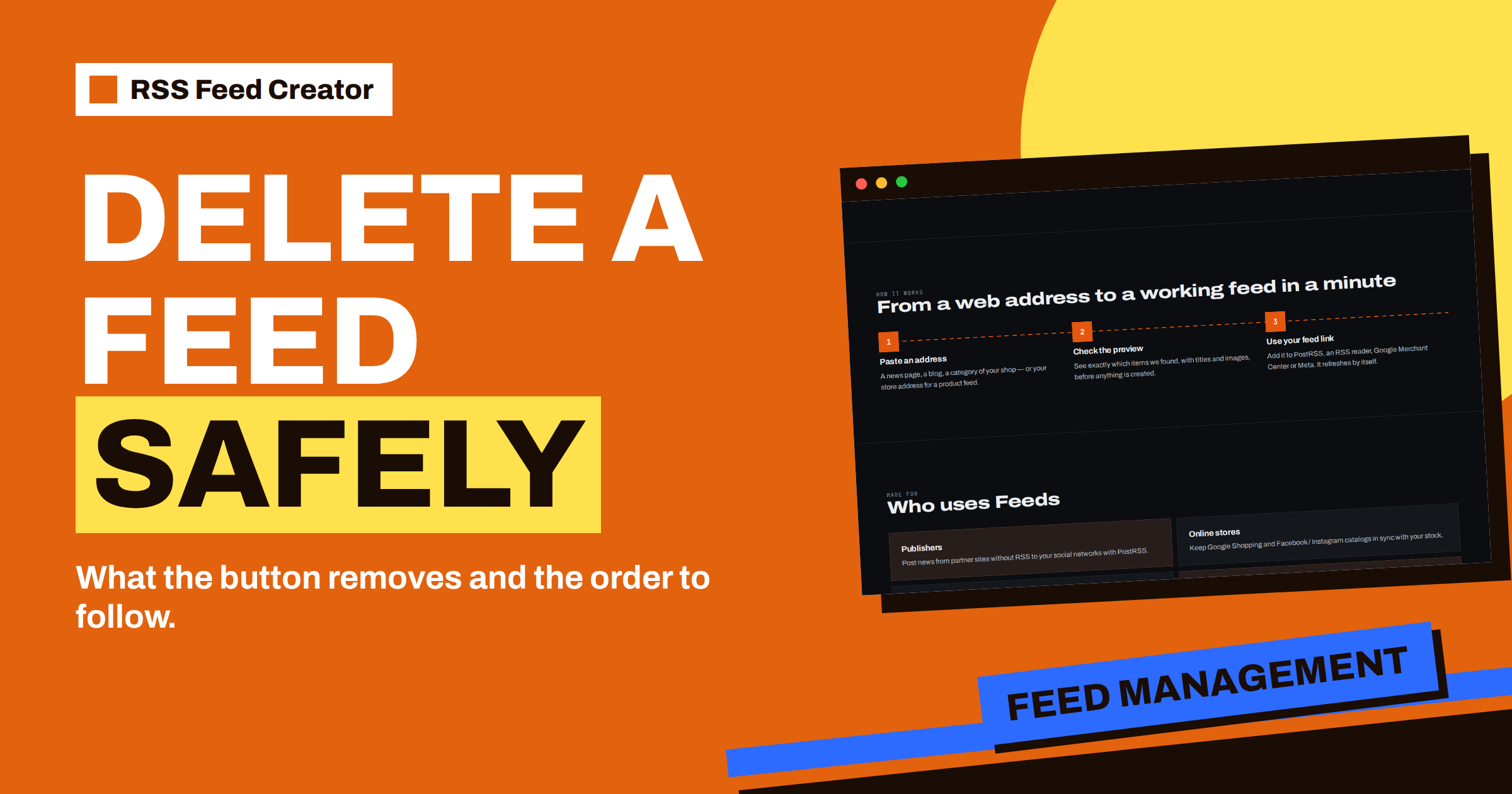
Short answer: The “Delete feed” button on the management page of RSS Feed Creator removes the feed completely, and its public address stops working at once. There is no undo, and a feed created later gets a new address even if it uses the same source. So retire a feed in a fixed order: find every place that reads the address, replace or remove it there first, save a note of the settings, and only then delete. A shop catalog or a social posting tool that still points to a deleted address will simply fail at the next fetch.
What the Delete button does
At the bottom of the management page of every feed there is a button labelled “Delete feed”. Before it acts, the browser asks for confirmation with the words “Delete this feed? The feed URL will stop working.” If you confirm, the feed is removed from the system. Its sources, its filters or product rules, its stored copy of the latest items and its counters go with it. Signed-in users return to their list of feeds, and visitors without an account return to the home page.
The key point is the address. Every feed has a permanent public address that ends in .xml, built from a random token. The token belongs to the feed, not to the source. When the feed is gone, the address answers with “not found”, and nothing in the system keeps it for later. If you create a new feed from the same web page tomorrow, you get a different address, and everything that used the old one has to be changed once more.
Who can delete a feed
The management page is protected by its own private address, the one that contains a long secret key. Whoever has that address can change the settings and delete the feed, which is why the page says to save it. Feeds made in an account are also listed in the account, so the owner does not depend on remembering the link. Treat the management address like a password. Do not paste it into public chats, tickets or shared documents, and give it only to people who are allowed to remove the feed. The public address, which you give to readers and shop channels, and the management address are two different things, and only the second one lets anybody change the feed.
Find everything that reads the address
A feed is rarely used in one place only. Before you delete, write a list of consumers. The usual ones are these:
- Google Merchant Center, where a product feed is attached as a source with a scheduled fetch, and Meta Commerce Manager, where the same file is a data source of a catalog. The set-up is described in add your RSS Feed Creator feed to Google Merchant Center and Meta.
- PostRSS, if the feed was added as a source to publish new items to social networks. The path is described in from pages without RSS to social posts with RSS Feed Creator.
- RSS readers of you and your colleagues, including phone apps and browser extensions.
- Automation tools and website widgets that take an RSS address and do something with each new item.
- Documents where you or a client wrote the address down, such as a handover note or a tracking sheet.
If you manage feeds for several clients, the naming habits in run client feeds from one RSS Feed Creator account make this list much shorter, because the feed name already tells you who uses it.
Use the Reads counter as a witness
You can forget a consumer, and a tool you did not set up yourself may be fetching the feed too. The management page helps here. Under the address it shows the number of reads, a counter that rises every time the feed address is fetched by anyone or anything. The test is easy. Note the number, remove the consumers you know about, wait for a few refresh periods of the plan, 3 hours on the free plan and 30 minutes on paid plans, and look again. If the counter still grows, somebody is still fetching the address. Find out who before you delete. If it stands still, the feed is idle, and deleting it will break nothing.
Keep in mind that a reader app that checks the feed several times a day adds many reads, so a counter that rises slowly can still mean a single forgotten reader. It is a witness, not a proof, but it is a better guide than memory.
Save what you would need to rebuild it
A deleted feed cannot be restored, so keep a short record of how it was set up. It takes two minutes and saves much more later.
| Feed type | Write down |
|---|---|
| Feed from pages | Every source address, the words in “Only items containing” and “Skip items containing”, and the feed name |
| Product feed | The store or CSV address, the state of the out-of-stock rule, the title template, the currency and the percentage by which prices change |
| Either type | Where the feed was used, and since when |
It also helps to open the feed address in a browser and save the page as a file. The file is a snapshot of the latest items, and it shows what the consumers were receiving on the last day.
The safe order, step by step
- List the consumers and tell the people who own them what will change and when.
- Replace the address where the feed is still needed. If you want a similar feed, create the new one first, check its preview and items, and put its address into each consumer.
- Remove the address where the feed is no longer needed. In Merchant Center and Commerce Manager, remove the source, and do not leave an address that will start failing.
- Watch the reads counter of the old feed for a short while.
- Write down the settings and save the snapshot.
- Delete the feed and confirm the question.
- Check afterwards. Open the old address and see that it no longer works, then look at the consumers for error messages in the following days.
The order for a product feed deserves extra care. A shopping channel that cannot fetch its source for a long time may take the products out of ads. That is why the replacement should be in place and verified before the old feed disappears.
Deleting versus keeping an idle feed
Deleting is not always the right choice. An idle feed costs nothing and does no harm. It keeps its address, its settings and its stored items, and you can return to it with one click if the need comes back. The only cost is a place in your account. A free account holds up to 3 feeds, and paid plans differ, so on the free plan a forgotten feed may block a new one. The limits are on the pricing page and explained in which RSS Feed Creator plan fits your feeds.
A good rule is to delete a feed when its address was shared widely and you want it to stop, when its source disappeared for good, or when you need the room for another feed. Keep it when it is merely paused. Deletion is a decision about the address, so ask yourself whether you will need that exact address again. If the answer is maybe, keep it.
When deleting is the cleanest answer
Some situations call for deletion without hesitation. A test feed that you created to try a page, a feed made for a client who left, a duplicate of a feed that exists elsewhere in the account, and a feed whose address leaked into a place where it should not be, are good examples. In the last case, remember that deleting is the way to end access for everyone who has the public address, because the address stops answering. A new feed with a fresh address then serves the people who should have it.
Related reading
- Run Client Feeds from One RSS Feed Creator Account
- Add Your RSS Feed Creator Feed to Google Merchant Center and Meta
- How Often Does RSS Feed Creator Refresh Your Feed?
The bottom line
Deleting a feed in RSS Feed Creator ends its address permanently, and nothing can bring that address back. List the consumers, replace the address where it is still needed, use the reads counter to confirm that the old feed is idle, save the settings, and then delete. An idle feed is harmless, so there is no hurry to delete unless the address must stop working.
FAQ
Can I restore a feed after deleting it?
No. The management page asks for confirmation because the feed and its address are removed. You can create a new feed from the same source, but it has a new address.
What happens to readers that still use the old address?
They stop receiving updates, because the address no longer answers. Replace the address in each reader, tool or shop channel before you delete.
Does deleting a feed free a place in my account?
Yes. A deleted feed no longer counts toward the number of feeds your plan includes, so you can create another one.
Is a feed deleted automatically if I stop using it?
No. The management page has no automatic removal of idle feeds. An unused feed stays until you delete it.
Who can delete a feed?
Anyone who has the private management address of the feed. Keep that address safe, and keep your feeds in an account so you do not depend on a saved link.