 ENEnglish
 LTLietuviškai
 DEDeutsch
 FRFrançais
 RUРусский
 ESEspañol
 PLPolski
 ITItaliano
 UKУкраїнська
 CSČeština
 PTPortuguês
 JA日本語
JA日本語 LVLatviešu valoda
 ETEesti
 HUMagyar
 IDBahasa Indonesia
 TRTürkçe
 HIहिन्दी
 ELΕλληνικά
 ARالعربية
 THไทย
THไทย VITiếng Việt
 RORomână
 MSBahasa Melayu
 BNবাংলা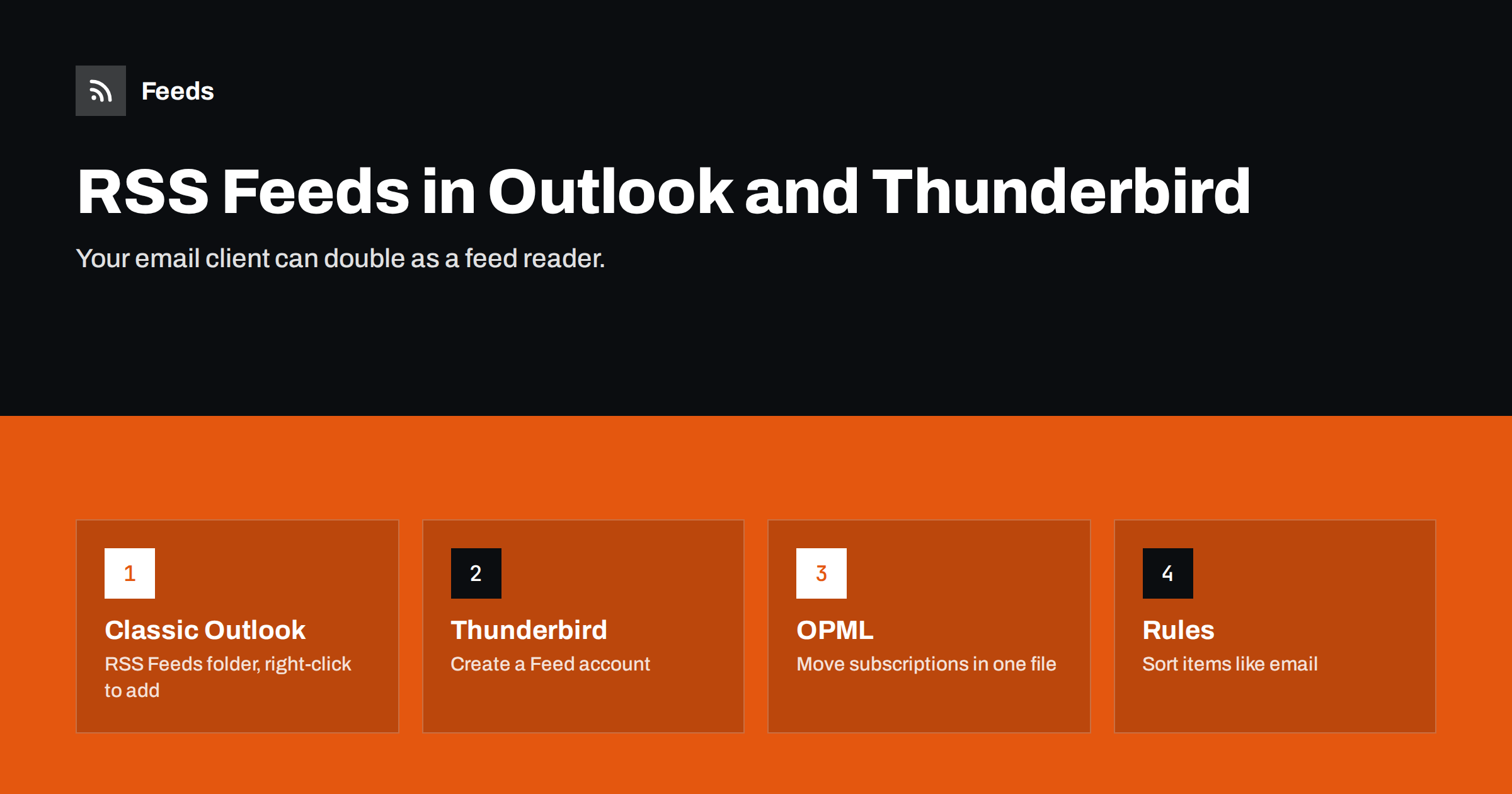
Short answer: both classic Outlook for Windows and Mozilla Thunderbird can subscribe to RSS feeds and show new items like email messages. In classic Outlook you right-click the RSS Feeds folder and add a feed URL; in Thunderbird you create a Feeds account and subscribe to feeds inside it. Both can import OPML files. The newer Outlook apps and Outlook on the web do not offer the same RSS folder, so if you depend on it, check which version you use before you invest time.
Why read feeds in an email client at all
Dedicated RSS readers are usually the better tool, but there are good reasons to use the email client you already have open all day:
- One inbox habit. People who process email in batches can handle feed items in the same session, with the same keyboard shortcuts.
- Powerful search and rules. Email clients are good at searching, flagging, filtering and moving items into folders.
- Company restrictions. In some workplaces new software and web services need approval, while the email client is already allowed.
- Archiving. Feed items are stored locally or in the mailbox, so you can keep important ones for years.
If you are new to feeds, the beginner’s guide on how to subscribe to RSS feeds explains how to find a feed URL. Once you have the URL, adding it to an email client takes less than a minute.
Classic Outlook for Windows: adding a feed
The desktop version of Outlook that comes with Microsoft 365 and older Office packages has an RSS Feeds folder in the mailbox folder list. To add a feed:
- Copy the feed URL, for example a blog’s
/feed/address. - In the folder pane, right-click RSS Feeds (or RSS Subscriptions in some versions) and choose Add a New RSS Feed.
- Paste the URL and confirm. Outlook creates a subfolder named after the feed and downloads the current items.
You can manage all subscriptions from File > Account Settings > Account Settings > RSS Feeds. There you can rename feeds, change the delivery folder, choose whether to download full articles as attachments and remove feeds you no longer need.
Things to watch in Outlook:
- Update limits. Outlook respects a feed’s suggested update interval, so some feeds refresh less often than you expect.
- Mailbox size. Feeds with images and full text can grow quickly. Set up an AutoArchive or clean-up rule for feed folders.
- Version differences. The new Outlook for Windows, Outlook for Mac and Outlook on the web do not provide the classic RSS Feeds folder. Microsoft changes its apps regularly, so check its current documentation if you plan to switch.
Thunderbird: creating a Feeds account
Thunderbird treats feeds as a separate account type, which keeps them neatly apart from mail:
- Open the account setup and choose to create a new Feed account (named “Blogs & News Feeds” in older versions).
- Right-click the new account and choose Subscribe, or open Manage Subscriptions.
- Paste the feed URL, choose the folder where items should be stored and click Add.
Thunderbird supports both RSS and Atom. For each feed you can decide whether a message shows the summary from the feed or loads the full web page. Showing the summary is faster and more private; loading the page shows the article as the publisher designed it.
Useful Thunderbird options include setting a check interval per feed, pausing a feed temporarily and storing different feeds in different folders of the same account. Because Thunderbird is free and runs on Windows, macOS and Linux, it is also a convenient choice for a shared office computer used for monitoring.
Importing and exporting subscriptions with OPML
If you already follow feeds in another reader, you do not need to add them one by one. Export an OPML file from your current reader and import it:
- Thunderbird: open Manage Subscriptions for the Feeds account and use the import option to load an OPML file. Folders in the OPML file can be kept as folders.
- Classic Outlook: use File > Open & Export > Import/Export and choose to import RSS feeds from an OPML file, then select the feeds you want.
The same route works in reverse, which is handy when you later move to a dedicated reader. The format is explained in OPML files and how to move your subscriptions.
Using rules, folders and search
The real advantage of an email client is what you can do with items after they arrive. A few ideas that work in both clients:
- Flag by keyword. A rule that marks items containing your company name, a competitor or a product keyword makes important news stand out.
- Route to project folders. Items mentioning a client or topic can be moved into a folder you already use for that work.
- Forward to a colleague. A rule can forward specific items to a person who needs them. Use this sparingly to avoid flooding inboxes.
- Search across time. Because items are stored, you can search months of news for a name or phrase.
Keep the number of feeds realistic. The advice in organizing an RSS reader so it never overwhelms you applies equally to email clients: group feeds by purpose, prune quiet or noisy ones, and filter aggressively.
Email client or dedicated reader: which to choose
| Need | Email client | Dedicated reader |
|---|---|---|
| Rules and archiving | Strong | Varies by reader |
| Reading on phone and desktop in sync | Limited | Usually built in |
| Reading experience | Basic, email-style | Designed for articles |
| Hundreds of feeds | Becomes slow and heavy | Handled better |
| No new software allowed | Already installed | May need approval |
For a handful of important sources, an email client is perfectly adequate. For wider monitoring or reading on the go, look at the criteria in choosing an RSS reader. Another option is to let feeds come to you as real email with an RSS-to-email service, which works with any mail app, including the new Outlook.
A practical setup for work monitoring
If you use an email client to follow industry news, competitors or clients, a little structure makes it far more useful. A setup that works for many people looks like this:
- One top-level folder per purpose, such as “Industry”, “Competitors”, “Clients” and “Tools”. Each feed goes into exactly one of them.
- A “Priority” search folder or view that shows only flagged items from all feed folders. Rules flag items that mention your key terms.
- A fixed reading time, for example fifteen minutes after lunch. Feeds do not need the same instant attention as email.
- Automatic clean-up of unflagged items after 30 or 60 days, so the folders never become an archive of noise.
- A quarterly review in which you remove feeds you never open and add sources you keep visiting by hand.
Privacy is worth a thought as well. Loading full web pages or remote images inside an email client tells publishers when you read their content. Showing only the feed summary, and opening the article in your browser when you want the full text, keeps the client fast and limits tracking. In a company setting, also check whether feed folders are included in mailbox backups and retention policies, because some organisations treat everything in the mailbox as business records.
Troubleshooting common problems
- “Invalid feed” or nothing downloads: the URL is probably a web page, not a feed. Open it in a browser; a feed shows XML or a styled feed page.
- Old items appear as new: the feed changes item identifiers or dates. This is a problem on the publisher’s side; a reader cannot fully fix it.
- Images missing: Outlook and Thunderbird may block remote images for privacy. Allow images for trusted feeds only.
- Feed stopped updating: check the address in a browser. If the site moved its feed or removed it, you will need a new URL.
- The site has no feed: you can create one from the page itself and subscribe to that feed in your email client.
How Feeds helps
Email clients can only subscribe to feeds that exist. Feeds creates a clean RSS feed from any public page, such as a news list, a job board or a blog without RSS, by finding the list of items and reading titles, images, summaries and dates; if the site already has a feed, it uses that. You can merge several sources and keep only items with, or without, your keywords, so Outlook or Thunderbird receives a short, relevant stream instead of everything. Feeds refresh automatically. Create a feed from a page and paste its link into your email client.
Related reading
- How to Turn an RSS Feed into an Automatic Email Newsletter
- How to Read Email Newsletters in Your RSS Reader Instead
- How to Get RSS Feed Updates in Microsoft Teams Channels
The bottom line
Classic Outlook for Windows and Thunderbird both work as simple feed readers, with the bonus of email-style rules, folders and search. Add feeds by URL or import an OPML file, keep the list short and filtered, and watch mailbox size. If you use the newer Outlook apps or need mobile sync, choose a dedicated reader or have feeds delivered as email instead.
FAQ
Can the new Outlook read RSS feeds?
The new Outlook for Windows and Outlook on the web do not offer the RSS Feeds folder found in classic Outlook. If you rely on feeds, keep using classic Outlook, choose another reader or use an RSS-to-email service.
How do I add an RSS feed in Thunderbird?
Create a Feed account, right-click it and choose Subscribe or Manage Subscriptions, then paste the feed URL and choose a folder. Thunderbird supports both RSS and Atom feeds.
Can I import my subscriptions from another reader?
Yes. Export an OPML file from your current reader and import it through Thunderbird’s Manage Subscriptions window or classic Outlook’s Import/Export wizard.
Why does Outlook not show images in feed items?
Outlook often blocks downloading remote images for privacy and security. You can allow images for individual trusted feeds, or open the full article in the browser.
Is an email client a good RSS reader for many feeds?
It works well for a small number of important sources. With hundreds of feeds, a dedicated reader is usually faster, easier to organise and better at syncing across devices.


