ENEnglish
 LTLietuviškai
 DEDeutsch
 FRFrançais
 RUРусский
 ESEspañol
 PLPolski
 ITItaliano
 UKУкраїнська
 CSČeština
 PTPortuguês
 JA日本語
 LVLatviešu valoda
 ETEesti
 HUMagyar
 IDBahasa Indonesia
 TRTürkçe
 HIहिन्दी
 ELΕλληνικά
 ARالعربية
 THไทย
 VITiếng Việt
 RORomână
 MSBahasa Melayu
 BNবাংলা
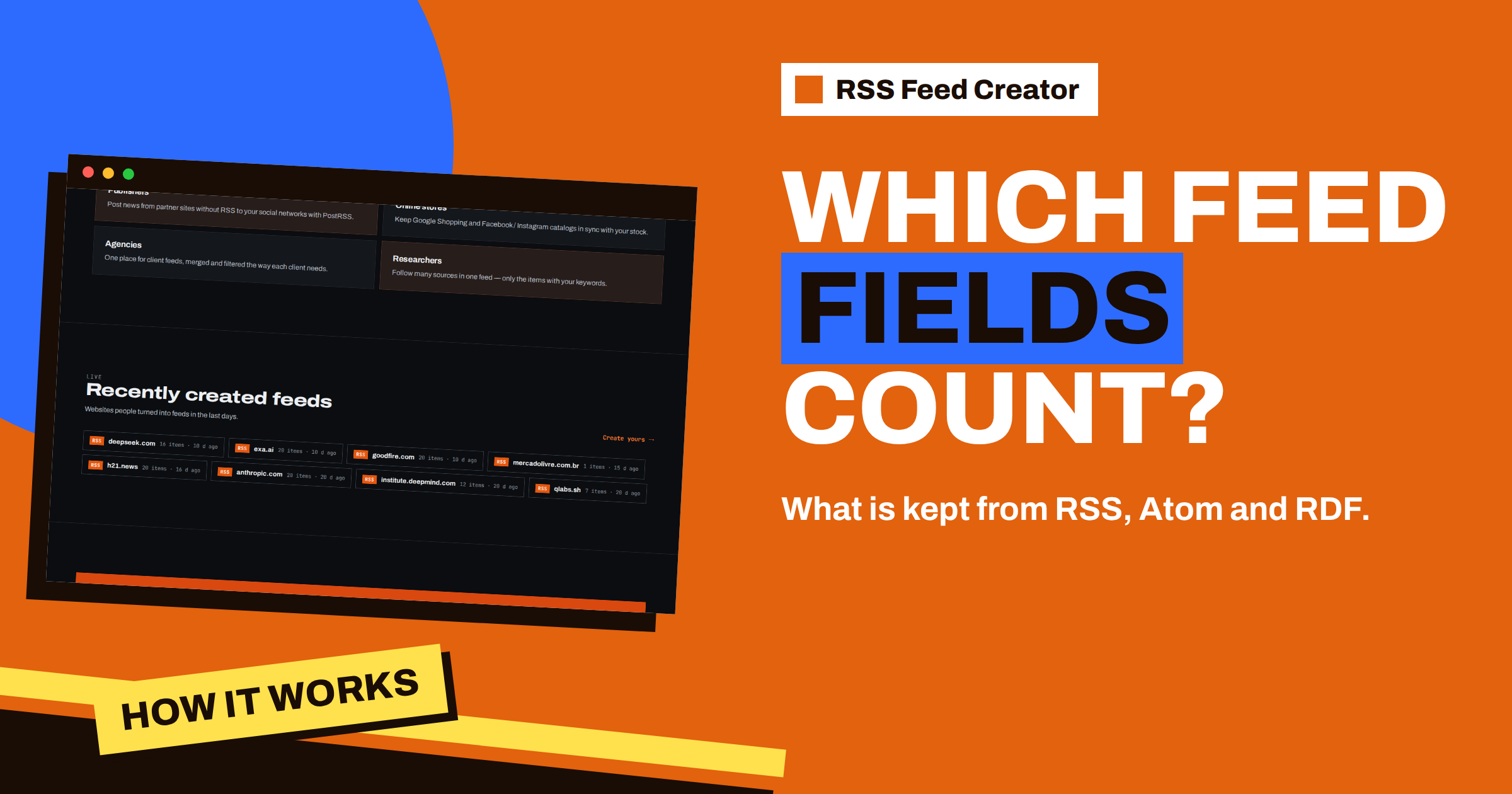
Short answer: When a source already publishes a feed, RSS Feed Creator reads it directly and accepts RSS, Atom and RSS 1.0 (RDF). For every entry it keeps a title, a link, a short text, one picture and a date, and it drops everything else, such as authors, categories, the full article body and audio or video attachments. The result is always a clean RSS 2.0 feed. Knowing where each field comes from explains why a picture, a date or a summary is sometimes missing, and what to do about it.
Why the field mapping matters
Feed formats are old and flexible, and every publisher fills them a little differently. One blog puts the full article in the description. Another puts a teaser there and the full text in a separate element. A third has pictures in an attachment, a fourth in a media tag and a fifth only inside the HTML of the text. A tool that merges, filters and republishes feeds has to settle on one way of reading all of them, and RSS Feed Creator does exactly that: it reads the field that is most likely to hold what it needs and falls back to the next one.
This is useful to understand for three reasons. When you merge several sources, the items must look the same whatever their origin. When you filter by keywords, you need to know what text the filter looks at. And when something looks wrong in the result, such as an item without a picture, you need to know which field the tool looked at, so you can decide whether the problem is in the source or in the tool. The overall picture of the three ways the tool finds items is in how RSS Feed Creator finds items on pages without RSS; this article covers the first of them, the existing feed, in detail.
How the tool recognises a feed
The tool opens the address and looks at the beginning of the answer. If it finds the opening tag of an RSS file, an Atom file or an RDF file, it treats the answer as a feed. Otherwise it treats it as a web page and looks for items in the way described elsewhere. If the page is an ordinary page that announces a feed in its header, the preview tells you that the website already publishes a feed, shows the address and offers the items it found.
When you paste the address of a feed itself, the preview is labelled “Existing feed”. That is a good starting point, because a feed that the publisher maintains is usually more stable than any guess made from a page. The tool still adds value: it merges, filters, removes duplicates and gives you a permanent address with a refresh schedule. Entries that have no title or no link are dropped at once, since they could not be shown or opened.
Field by field
| Field in the result | RSS 2.0 and RDF | Atom |
|---|---|---|
| Title | The title, cleaned of tags | The title, cleaned of tags |
| Link | The link, or the identifier when there is no link | The link marked as the alternate page, or a link with no mark |
| Short text | The full content element if present, otherwise the description | The summary, otherwise the content |
| Picture | An image attachment, then a media content picture, then a media thumbnail, then the first picture inside the text | The first picture inside the summary or content |
| Date | The publication date, otherwise the Dublin Core date | The published date, otherwise the updated date |
Every text field is cleaned. The tool removes the tags, turns character codes such as the one for an ampersand into the real characters and collapses runs of spaces and line breaks. Relative addresses, for example a link that starts with a slash, are completed using the address of the feed. The short text is cut to about 400 characters with an ellipsis at the end, so that feeds stay small and every item is a teaser, not a copy of the article.
Where the picture comes from
The picture is the field with the most variation, so the tool tries four places in a fixed order for RSS and RDF. The first is an attachment whose type says it is an image. The second is the picture address in a media content element, the third a media thumbnail, and the last is the first picture found inside the HTML of the text. For Atom feeds, only the last of the four applies, because the tool looks for the first picture in the summary or the content.
If a source puts its pictures somewhere else, for instance in a custom field that only its own theme reads, the tool will not find them, and the item will have a title and a link but no picture. In that case you can still use the feed, since pictures are optional, or you can look for another address of the site, such as a section page whose cards carry pictures. The same question for pages without feeds is handled in pictures in your feed: where RSS Feed Creator finds images.
Where the date comes from
RSS items normally carry a publication date, which the tool reads first. If it is missing, the tool looks at the Dublin Core date that many feeds use instead. Atom entries carry a published date and an updated date, and the published date is preferred. Dates may be written in several standard forms, and the tool understands the usual ones. A date it cannot understand is treated as absent, and the item simply has no date. Items without dates are still included; what changes is how they are ordered, and the ordering is applied after all the sources have been read.
The most common reason for a surprising date is that a source updates its entries without changing the link. The tool reads what the source says, so if a publisher edits an old article and stamps it with a new date, the item rises in the order. That is not an error in the tool, and it is another reason to prefer sources with stable dates.
What is not carried over
The result is deliberately smaller than the source. These things are left out:
- The full article. Only a short text of about 400 characters is kept. A reader who wants the whole story follows the link.
- Authors and categories. They are not copied into the new feed, which is why author names that appear in some readers are not available. The background on author fields is in RSS author fields: author, dc:creator and missing reader names.
- Audio and video attachments. Only image attachments are used. A podcast feed passed through the tool would lose its episodes, so RSS Feed Creator is not the right tool for republishing podcasts. Use the original feed address for that.
- Extra namespaces. Fields of other vocabularies are ignored, except the few mentioned above.
This is a design choice. The feed is made for headlines, short texts and pictures in readers, in automation tools and in posting tools, and for those a small, regular item is better than a full copy.
What the result looks like
Whatever the source, the output is a plain RSS 2.0 feed. Each item has a title, a link, an identifier that equals the link, a short text, a publication date and, when a picture was found, the picture twice: as a media content element and as an attachment, so that more readers and tools can use it. The type of the attachment is chosen from the file extension of the picture, and a picture without a recognised extension is described as a JPEG. The channel has the name you gave the feed and the address of the first source.
Because the identifier is the link, the tool treats two items with the same link as one. When you merge sources, the copy that the first source supplied is kept, as explained in how RSS Feed Creator removes duplicates in merged feeds. And because the filters work on the title and the short text together, as described in keyword filters in RSS Feed Creator: keep only what matters, the cleaned text is what they see.
Checking a source before you rely on it
A quick routine saves later surprises:
- Open the feed address in a browser and look at a few entries. Check that each has a link and a title.
- Look for a picture: an attachment, a media tag or a picture in the text.
- Look at the dates. Do they look like publication dates or like edit dates?
- Paste the address into RSS Feed Creator and compare the preview with what you saw.
If the feed has errors, a validator helps you find them, as described in how to validate an RSS feed and fix common errors. Many problems at the source, such as a broken character, an unclosed tag or a missing link, show up there before they affect your result.
Related reading
- Merge Sources in RSS Feed Creator: Up to 10 in One Feed
- Atom Feeds Explained: Elements, Examples and Pitfalls
- HTML in RSS Feeds: Sanitising Content and Staying Safe
The bottom line
RSS Feed Creator reads RSS, Atom and RDF and keeps a title, a link, a short text, a picture and a date for each entry, always as a clean RSS 2.0 feed. The picture and the date have fallbacks; authors, categories, full texts and audio are not carried. Check the source in a browser, compare with the preview and you will know exactly what your feed will contain. See the pricing page for the limits that apply to the number of items.
FAQ
Which feed formats can RSS Feed Creator read?
RSS 2.0, Atom and RSS 1.0 (RDF). The result is always an RSS 2.0 feed.
Why does an item have no picture?
The source has no image attachment, media picture or picture inside the text. Pictures are optional, and the item still works with a title and a link.
Does the feed contain the full article?
No. It carries a short text of about 400 characters. The full article stays on the source site.
Can I pass a podcast feed through the tool?
No. Only image attachments are kept, so audio and video episodes would be lost. Use the original feed for podcasts.
What happens to entries without a link?
Entries without a title or a link are dropped, because they could not be shown or opened.