ENEnglish
 LTLietuviškai
 DEDeutsch
 FRFrançais
 RUРусский
 ESEspañol
 PLPolski
 ITItaliano
 UKУкраїнська
 CSČeština
 PTPortuguês
 JA日本語
JA日本語 LVLatviešu valoda
 ETEesti
 HUMagyar
 IDBahasa Indonesia
 TRTürkçe
 HIहिन्दी
 ELΕλληνικά
 ARالعربية
 THไทย
THไทย VITiếng Việt
 RORomână
 MSBahasa Melayu
 BNবাংলা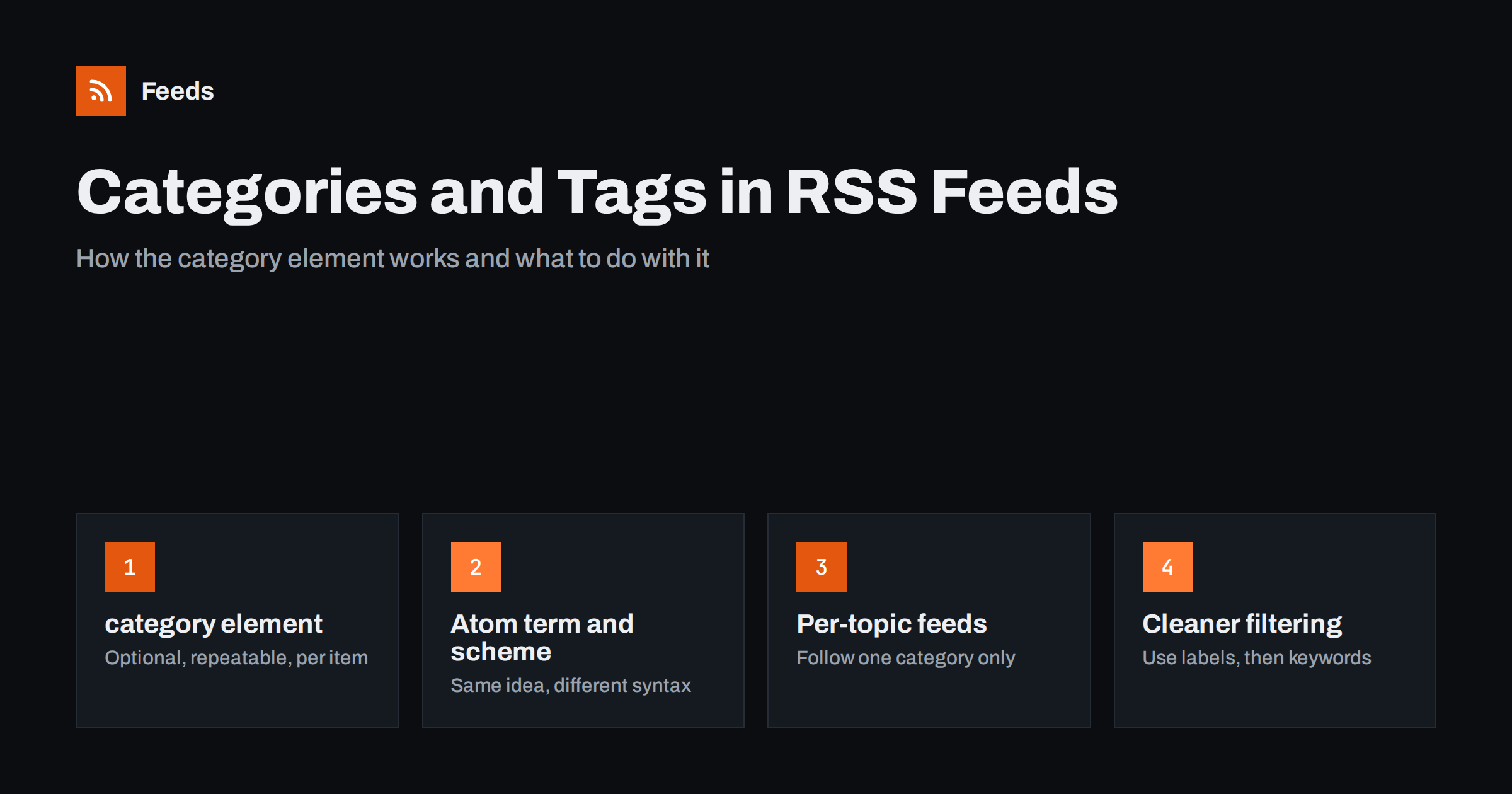
Short answer: In RSS 2.0 an item can carry any number of optional <category> elements, each holding one label such as “Recipes” or “Security”. Atom does the same with <category term="..."/>. Readers and automation tools can use these labels to group, filter and route items, but only if the publisher fills them in consistently. Many feeds also offer a separate feed for each category, which is usually the easiest way to follow one topic.
What the category element is for
Every item in a feed has a title, a link and a date, but those fields say nothing about what the item is about. The category element fills that gap. It is a short label that describes the subject of the item, attached to the item itself, so that any tool that reads the feed can see it without opening the page.
The element is optional. A feed without categories is perfectly valid, and many small blogs publish exactly that. When categories are present, they let a reader, a newsletter tool or an automation workflow sort a mixed stream into useful groups. A news site with a single feed for everything can still let you pick out only the “Business” stories, as long as every item is labelled.
It helps to be clear about what the element is not. It is not a navigation structure and it is not an access control. It does not change how an item is displayed by itself. It is metadata, and its value depends entirely on how carefully the publisher fills it in and how well the receiving tool uses it.
Category syntax in RSS 2.0
In RSS 2.0, <category> appears inside an <item>, and it can also appear once or more at the channel level to describe the whole feed. A basic item looks like this:
<item>
  <title>Our spring update</title>
  <link>https://example.com/spring-update/</link>
  <category>News</category>
  <category>Product updates</category>
</item>
You can repeat the element as often as you like. There is no limit in the format, although a handful of labels per item is plenty. The optional domain attribute names the taxonomy the label comes from, usually as a URL, which is useful when you want to say that one set of labels is your own topic list and another set comes from a standard classification. The specification also allows a hierarchy written as a slash-separated path, but support for that in readers is patchy, so a flat label is the safer choice.
If you want to see the whole structure around the element, the guide to the anatomy of an RSS 2.0 feed shows where it sits among the other item fields.
Category syntax in Atom
Atom treats categories as a first-class feature and gives them more structure. An Atom entry holds one or more empty <category> elements with attributes rather than text content:
termis the required label, the machine-readable value;schemeis an optional address that identifies the vocabulary, similar to thedomainattribute in RSS;labelis an optional human-readable version of the term, for cases where the term itself is a code or a slug.
For example, <category term="security" label="Security"/> tells a tool both the stable identifier and the display name. If you publish Atom and care about clean labels, this is a real advantage. For a broader comparison of the two formats, see RSS vs Atom: which feed format should your site publish.
How WordPress turns categories and tags into feed labels
WordPress is the most common source of feeds with categories, and its behaviour is worth knowing. In its RSS 2.0 output, each post’s categories and tags are both written as <category> elements, and the feed does not mark which label was a category and which was a tag. To a reader, “Recipes” the category and “quick dinner” the tag look the same.
WordPress also creates a separate feed for each category and each tag. The usual pattern is the archive address with /feed/ added at the end, so a category archive at /category/news/ has a feed at /category/news/feed/, and a tag archive works the same way. These per-topic feeds are often more useful than the labels in the main feed, because you do not need any filtering at all: the site has already done the sorting for you. The guide to WordPress feed URLs lists the other feeds a site already has.
Other platforms differ. Some publish categories only for the main category of a post, some use tags only, and some leave the element out of the feed entirely. When you rely on category labels, open the feed in a browser’s source view once and check what is really there.
Categories versus tags: choosing labels that work
Whether you publish a feed or read one, label quality decides how useful the system is. If you control the site, a few habits make a large difference.
- Keep the list short and stable. A dozen broad categories work better than hundreds of near-duplicates. Renaming labels breaks any filter that depends on the old name.
- Use categories for the main topic and tags for details. Because many platforms mix them in the feed, keep tags consistent too: choose one spelling, one plural form and one capitalisation.
- Do not stuff labels. Ten categories on every item mean nothing. Pick the two or three that fit.
- Avoid special characters. Ampersands, quotes and angle brackets must be escaped in XML. Good feed software does this for you, but plain words are safer.
On the reading side, treat labels as hints, not guarantees. A publisher who tags everything “News” gives you nothing to filter on, and you will need other signals.
Using categories to filter and route items
Once labels are reliable, they become a powerful filter. Typical uses include:
- keeping only the “Press releases” items from a mixed company feed;
- sending “Jobs” items to one channel and “Events” items to another;
- excluding a category such as “Sponsored” from a digest;
- building a topic newsletter from several sites that all use a similar label.
Many automation tools can test the category value of an item, and many readers offer rules or folders based on it. If your tool cannot, you can still follow a single category through the per-topic feed described above. For the general approach to cutting noise, the guide to reducing noise in RSS alerts explains how to combine labels with keyword rules.
When there are no categories: filtering by words instead
A large share of the feeds you will meet have no useful categories at all. News sites with one big stream, company blogs that never label anything and feeds generated from plain web pages all fall into this group. In that case you filter on the words in the title and summary instead. This is less precise, because a word can appear in the wrong context, but it works with any feed.
The practical approach is to start with an include list of two or three specific phrases, review the results for a week, and then add an exclude list for the false matches you see. Keep a note of each rule and why it exists, so that you can adjust it later. The same method applies to feeds created from pages without RSS, where there are no categories because the source page never had any.
How RSS Feed Creator helps
RSS Feed Creator turns a web page that has no feed into a clean RSS feed, with titles, images, summaries and dates, and shows you a preview before anything is created. It can merge up to ten sources into one feed, remove duplicates and keep only the items that contain, or do not contain, the words you choose. That makes it a practical way to get topic-level control when a source offers no categories. Limits depend on your plan, which you can see on the pricing page.
Checking your own feed
If you publish a feed, spend ten minutes checking its labels. Open the feed source and confirm that each item has the categories you expect, that tags are not leaking in as clutter and that the names are spelled the same way every time. Run the feed through a validator to catch encoding problems, as described in how to validate an RSS feed. Then subscribe to one of your own category feeds in a reader and see whether the result is something you would want to follow. If it is not, the labels need work.
Related reading
- RSS namespaces explained: content:encoded, dc:creator and more
- How to follow just one section or category of a website
- How to set up keyword alerts using RSS feed filters
The bottom line
The category element is a small, optional label that makes a feed far easier to sort, filter and route. Use it carefully if you publish a feed, check what a source really provides if you consume one, and fall back on per-topic feeds or keyword rules when labels are missing. Consistent, short lists of labels are what turn this simple element into something useful.
FAQ
Is the category element required in an RSS feed?
No. It is optional in both RSS 2.0 and Atom, and a feed without categories is still valid. It becomes useful only when the publisher fills it in consistently.
Can an item have more than one category?
Yes. You can repeat the element as many times as needed. In practice two or three well-chosen labels per item work better than a long list.
Why do my WordPress tags show up as categories in the feed?
WordPress writes both categories and tags as category elements in its RSS 2.0 output, and the feed does not say which is which. Use the separate category and tag feeds if you need to tell them apart.
How do I follow only one category of a site?
Look for a feed for that category, which on WordPress is the category archive address with /feed/ added. If the site does not offer one, filter the main feed on the category label or on keywords in your reader or automation tool.
Do categories in a feed help SEO?
Not directly. Feeds are not a ranking factor on their own, but clear categories on your site and in your feed make content easier for readers and tools to discover and reuse.