 ENEnglish
 LTLietuviškai
 DEDeutsch
 FRFrançais
 RUРусский
 ESEspañol
 PLPolski
 ITItaliano
 UKУкраїнська
 CSČeština
 PTPortuguês
 JA日本語
 LVLatviešu valoda
 ETEesti
 HUMagyar
 IDBahasa Indonesia
 TRTürkçe
 HIहिन्दी
 ELΕλληνικά
 ARالعربية
 THไทย
 VITiếng Việt
 RORomână
 MSBahasa Melayu
 BNবাংলা
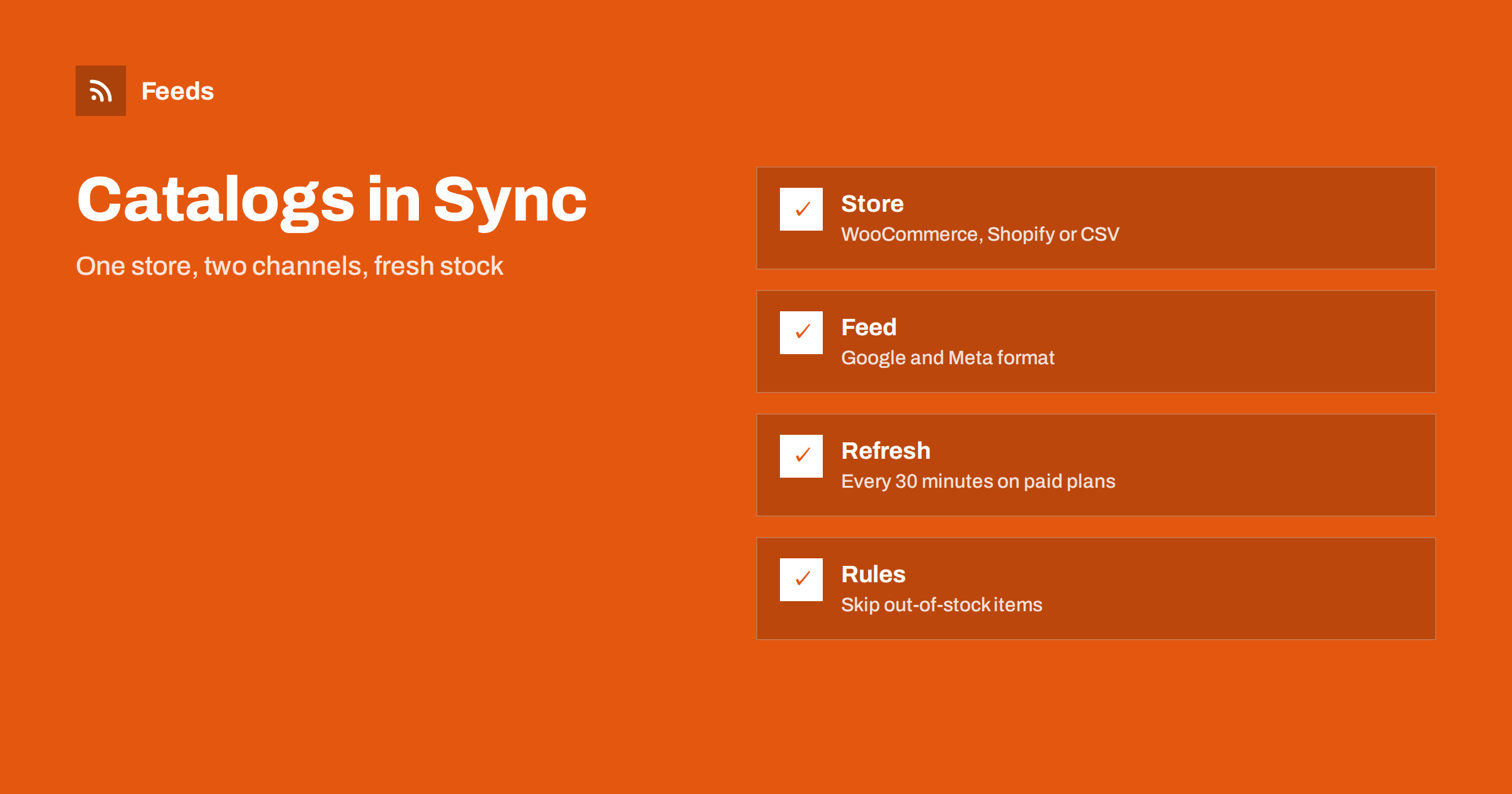
Short answer: Online stores often keep their Google Shopping and Facebook and Instagram catalogs up to date by hand, or not at all, and the result is ads for products that are sold out. RSS Feed Creator builds product feeds from WooCommerce, Shopify or a CSV link, refreshes them on its own and can skip out-of-stock products. Google Merchant Center and Meta can read the feed, so both channels follow the stock in your store.
A common cause is manual work. Someone updates the catalog before a campaign and then forgets it for weeks. Another cause is a plugin that exports once a day at night, while stock changes during the day. Knowing which of these applies to your store tells you how much a faster and automatic refresh can improve things.
The problem with catalogs that drift
A store changes every day: items sell out, prices change, new products arrive and images are replaced. An ad channel does not know about these changes unless you tell it. If the catalog is updated only when someone remembers, shoppers see products that are no longer available, prices that no longer match and old photos. Channels notice too, and they respond with warnings or disapprovals.
Out-of-sync data is costly in three ways: wasted ad spend on products that cannot be bought, unhappy customers who click and find nothing and a weaker standing with the channel. Availability mismatch in Merchant Center and how to fix price mismatch errors in Google Merchant Center describe what these problems look like in practice.
Because both channels read the same file, any mistake affects both, and so does any improvement. Fix a missing brand or a poor image once in the store, and both Google and Meta benefit after the next refresh. This is the main saving of a shared feed: one place to maintain and one place to check.
One source, two channels
The idea is simple: your store is the single source of truth, and the feed carries its data to each channel. RSS Feed Creator reads WooCommerce and Shopify automatically, and any other store can use a link to a CSV file. It creates Google Merchant Center and Meta catalog XML straight from your store. Meta reads the same file, so you do not need to maintain two separate feeds.
The feed uses the Google product XML format with id, title, link, image, price, availability and brand. Currency is detected automatically. For more on the format, see the Google product XML format explained. If you have not set up a store yet, connect WooCommerce, Shopify or a CSV to RSS Feed Creator walks through the first steps.
Set expectations with your team. If a product is added in the morning, it may appear in the feed within the hour but take longer to be approved and shown by a channel. For urgent changes, such as a wrong price, correct the store at once, then check the feed and the channel diagnostics to confirm the change.
Refresh: how quickly changes reach the channels
The feed refreshes by itself. On the free plan it refreshes every 3 hours, and on paid plans every 30 minutes. An out-of-date feed is also refreshed when it is read. This means that when a product sells out in your store, the feed reflects it at the next refresh, and the channel sees the change when it next fetches the feed.
Channels have their own schedules for reading a feed, which you set in Merchant Center and Meta Commerce Manager. For most stores, a daily fetch is the minimum, and several fetches a day are better for fast-moving stock. How often should you update a product feed helps you decide, and RSS feed refresh interval explains what the refresh time means in general.
Review the rule after your first busy week. Compare the products that were left out with the stock in the store, and check that nothing important vanished by mistake. A short check after the first real sales day shows whether your stock data in the store is reliable enough for automation.
Keep stock honest with a rule
A stock rule skips products that are out of stock, so the feed contains only items you can ship. This is the simplest way to avoid ads for unavailable products. Some shops prefer to keep sold-out items with the right availability value, especially when stock returns often; both approaches are valid if they match your store.
Think about your own pattern. A shop with unique items, such as vintage pieces, should skip sold products. A shop with regular restocks may want to keep popular items visible and marked out of stock. Out-of-stock products in your feed explains the options, and product rules in RSS Feed Creator describes how to set stock, title and price rules.
Keep a short list of test products: one with many variants, one on sale, one without a brand, one with a long title and one that is out of stock. Check these first after any change in the store or the rules. If they look right, the rest of the catalog usually does too.
Check the preview before you submit
Before you submit anything to Google or Meta, check the preview. Look at a sample of products: titles, prices, images and availability. Compare a few with your store pages. Check that the currency is right and that links open the right products. This takes a few minutes and prevents most of the errors that show up later in diagnostics.
After submission, look at Merchant Center and Meta Commerce Manager diagnostics. Fix errors first, then warnings. If a product is rejected, the cause is often in the store data, such as a missing image or brand, and fixing it there improves every channel. The product feed checklist is a helpful routine for each change.
Write down the date you connected each channel and the schedule you chose. When something looks wrong months later, that record shows whether a change in the store, in the feed or in the channel settings caused it. Small notes like this make troubleshooting much faster.
Submit the feed to each channel
In Google Merchant Center, add the feed link as a scheduled fetch. In Meta Commerce Manager, add the same link as a data source with a schedule. Use the same link for both channels, so a change in the store reaches both. How to set up a Google Merchant Center product feed and how to add a product feed to a Meta catalog explain each step in detail.
Give the channels a few days to process the first fetch. Products can take time to be approved and to appear in listings. Meanwhile, check that your website and policies meet the channel requirements, such as return information and contact details.
Remember that policies matter as much as data. Both channels check that your site has clear contact details, shipping and return information, and secure checkout. A perfect feed cannot compensate for missing policies, so review those pages at the same time as the feed.
Catalogs for ads and for free listings
A synced feed supports more than paid ads. Google offers free product listings for eligible merchants, and Meta catalogs can power shops and dynamic ads. When the data is in sync, the same effort serves several uses. Google Shopping free listings and Meta catalog ads describe what each channel needs.
Keep your data clean from the start. Titles, images, prices, brands and availability must be accurate, and the more complete the data, the better the products perform. Fill in identifiers where you have them, as explained in GTIN, MPN and brand: product identifiers.
If you are unsure, start with the free plan and a small part of your catalog. Up to 50 products are enough to see how the feed looks, how the channels respond and which fields need work. When the numbers are right, move the full catalog to a paid plan and use the faster refresh for stock that changes often.
Plans and limits
The free plan includes product feeds with up to 50 products, keyword filters and product rules, with a refresh every 3 hours. The Store plan at €19 per month covers 1 store with 3 product feeds and up to 2,000 products, Google Merchant Center and Meta catalog output, rules for stock, titles and prices, and a 30-minute refresh. The Business plan at €39 per month covers 3 stores and 10 feeds with up to 20,000 products and priority support.
Prices are in euros without VAT, and you can cancel at any time; your feeds keep working within the free plan limits. See the pricing page for details. Count your stores, feeds and products, and start with the plan that fits; you can move up later.
Related reading
- How to Set Up a Google Merchant Center Product Feed
- How to Add a Product Feed to a Meta Catalog, Step by Step
- How Often Should a Product Feed Update? A Practical Guide
The bottom line
With RSS Feed Creator, one store feeds both Google Shopping and Meta catalogs. The feed refreshes on its own, a stock rule keeps sold-out items out and the preview lets you check the result. Submit the same link to both channels and review the diagnostics.
FAQ
Can one feed serve both Google and Meta?
Yes. The feed uses the Google product XML format, and Meta reads the same file.
How fast do stock changes appear?
The feed refreshes every 3 hours on the free plan and every 30 minutes on paid plans, and each channel then fetches it on its own schedule.
Které obchody jsou podporovány?
WooCommerce and Shopify are read automatically, and any other store works through a CSV file link.
Will Google Merchant Center accept the feed?
Yes, it uses the Google product XML format with id, title, link, image, price, availability and brand.
What if I cancel?
Your feeds keep working within the free plan limits.


