 ENEnglish
 LTLietuviškai
 DEDeutsch
 FRFrançais
 RUРусский
 ESEspañol
 PLPolski
 ITItaliano
 UKУкраїнська
 CSČeština
 PTPortuguês
 JA日本語
 LVLatviešu valoda
 ETEesti
 HUMagyar
 IDBahasa Indonesia
 TRTürkçe
 HIहिन्दी
 ELΕλληνικά
 ARالعربية
 THไทย
 VITiếng Việt
 RORomână
 MSBahasa Melayu
 BNবাংলা
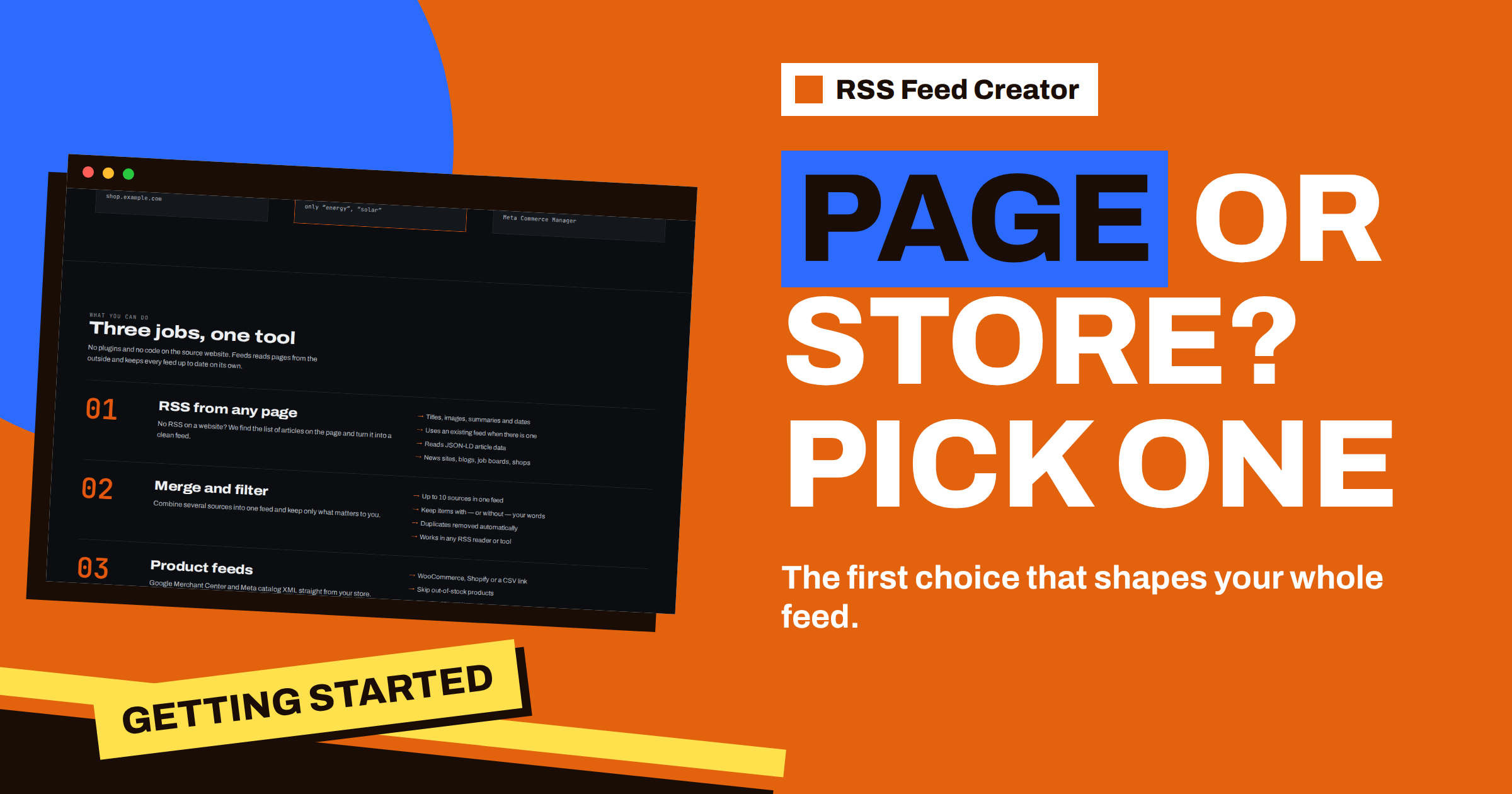
Short answer: The start form of RSS Feed Creator asks one question: what should the feed be made from? “A web page” gives you an RSS feed of articles, news, jobs or any list of items. “My store” gives you a product feed in the Google Merchant Center and Meta catalog format. The choice decides what the tool reads, what the preview shows and which settings you get later, so it is worth a minute of thought. When the goal is to read or post new content, choose a page; when the goal is to advertise products, choose a store.
The first screen in one picture
On the home page, in the middle of the first screen, there is a card with the heading “What should the feed be made from?”. Under it are two tabs, “A web page” and “My store”, then a single box for the address with the hint “example.com/blog or yourstore.com”, and a button labelled “Find items”. A line below says that you are on the free plan and see a preview before anything is created.
The card is simple on purpose. One box, one button and one decision. Everything that follows, from the preview to the settings of the finished feed, depends on the tab you chose, so you can think of it as the fork in the road.
What “A web page” does
With this tab, RSS Feed Creator treats the address as a list of articles. It checks whether the page already has a feed, reads structured article data when the page contains it and otherwise looks for the repeating block of headline, link, image and summary. The preview then shows each item with its title, address, date and thumbnail, up to 20 items on the free plan. How the detection works is described in how RSS Feed Creator finds items on pages without RSS.
The result is an RSS feed with items that carry titles, links, summaries, dates and pictures. You can read it in any RSS reader, send it to a team channel, or add it to PostRSS so that every new item is posted to your social profiles. On the management page you get keyword boxes: one to keep only items that contain certain words and one to skip items that contain others. Page-based feeds can also merge several sources into one feed on the paid plans.
What “My store” does
With the store tab, the tool does not look for articles. It reads products. For WooCommerce and Shopify stores it uses the public product data of the store, and for any other platform you give it a link to a CSV file. The preview names the platform it recognised and lists products with title, price, currency and availability, up to 30 products at a time.
The result is a product feed in the Google product XML format, which Google Merchant Center reads and Meta Commerce Manager can read as well. On the management page you do not get keyword boxes. You get product rules instead: skip out-of-stock products, a title template, a fallback currency and a percentage for prices. The free plan allows product feeds up to 50 products. The first setup is described in connect WooCommerce, Shopify or a CSV to RSS Feed Creator.
A quick way to decide
| Your goal | Elegir |
|---|---|
| Follow news from a site that has no RSS | Una página web |
| Post new items from a partner site to social networks | Una página web |
| Watch a job board or a list of announcements | Una página web |
| Show your products in Google Shopping | Mi tienda |
| Fill a Meta catalog for Facebook and Instagram ads | Mi tienda |
| Turn a supplier spreadsheet into a catalog feed | My store, with a CSV link |
If you are still unsure, ask who will read the result. If a person or a posting tool reads headlines, it is an article feed. If an advertising channel reads prices and availability, it is a product feed.
Cases that sit in the middle
Some situations are not clear at first sight. The most common one is a shop with a blog. The blog is a list of articles, so it belongs under “A web page”: paste the address of the blog section. The catalog is a list of products, so it belongs under “My store”. They are two separate feeds, and each has its own address and settings.
Another case is a category page of a shop that you want to follow as news, for example the “New arrivals” category of a supplier. You can paste its address in the page mode and get an RSS feed of the items that appear there. That is a different thing from a product feed for advertising: you get titles, links and pictures, but not the product rules and the advertising format. If you need prices and stock for a channel, use the store mode on the store itself.
A third case is a store on a platform that is neither WooCommerce nor Shopify. The store tab still works, but through a CSV link: your platform exports a file, and the tool reads that file. The columns it expects are explained in the columns RSS Feed Creator reads from a CSV link.
Three short examples
A local news fan. Maria wants to read the announcements of her town hall, which has a news page but no RSS. She chooses “A web page”, pastes the news address and checks that the preview shows real headlines. Then she adds the feed address to her RSS reader. The whole job takes a few minutes, and the feed refreshes by itself every 3 hours on the free plan.
A small online shop. Tomas runs a WooCommerce shop with about 40 products and wants them in Google Shopping. He chooses “My store”, pastes his shop address and compares three products in the preview with the shop pages. All 40 fit within the free limit of 50 products, so he can test the whole catalog before paying anything. When the shop grows, the Store plan raises the limit to 2,000 products.
A shop that also blogs. Ruta sells craft supplies and writes a weekly blog. She makes one product feed from the shop and one page feed from the blog, and she adds the blog feed to PostRSS so that each new post appears on her social profiles. The two feeds do different jobs and sit side by side in her account list.
In all three cases the decision took a few seconds, and the preview confirmed it. That is the real purpose of the first screen: to put the right tool on the right job before any work is done.
What if you choose the wrong tab?
Nothing is lost. The preview shows you right away that something is off: a page-based preview of a shop home page shows menu items instead of articles, and a store preview of a blog shows no products. Because nothing is created until you press Create, you can go back, switch the tab and try the same address again. The preview is explained in check every item before you create.
If you created a feed of the wrong kind, the simplest fix is to create the right one and delete the old one from its management page. The free plan lets you keep up to three feeds in one list with a free account, so there is room to try.
How the choice affects your plan
The two modes are priced differently only in how you use them. Page feeds are limited by items per feed: 20 on the free plan and 100 on paid plans. Product feeds are limited by products: 50 on the free plan, 2,000 on the Store plan at €19 per month and 20,000 on the Business plan at €39 per month. The pricing page lists everything side by side, and which RSS Feed Creator plan fits your feeds explains how to pick.
In practice, a publisher or researcher stays with page feeds and the PostRSS add-on, while an online store needs the Store plan. Many small businesses need both: a product feed for the shop and a page feed that brings supplier or industry news. Starting free with one of each is a reasonable way to find out.
Related reading
- RSS Feed Creator Walkthrough: From a Web Address to a Feed
- Which Web Address to Paste: Home Page, Section or Search?
- Free Product Feed for a Small Shop: What 50 Products Can Do
The bottom line
“A web page” makes an RSS feed from a list of articles; “My store” makes a product feed for Google and Meta from your products. Decide by the reader: a person or posting tool means a page, an advertising channel means a store. The preview protects you from a wrong choice, because nothing is created until you press the button.
FAQ
Can I use both options for the same website?
Yes. A shop can have a page feed from its blog and a product feed from its catalog. They are separate feeds with separate addresses.
Which option is for Google Merchant Center?
“My store”. It builds the product feed in the Google product XML format, which Meta can read as well.
Do I need an account to try either option?
No. The preview works without an account, and a free account later keeps your feeds in one list.
What if my store is not WooCommerce or Shopify?
Use a link to a CSV file with your products. The store tab reads it in the same way.


