 ENEnglish
 LTLietuviškai
 DEDeutsch
 FRFrançais
 RUРусский
 ESEspañol
 PLPolski
 ITItaliano
 UKУкраїнська
 CSČeština
 PTPortuguês
 JA日本語
JA日本語 LVLatviešu valoda
 ETEesti
 HUMagyar
 IDBahasa Indonesia
 TRTürkçe
 HIहिन्दी
 ELΕλληνικά
 ARالعربية
 THไทย
THไทย VITiếng Việt
 RORomână
 MSBahasa Melayu
 BNবাংলা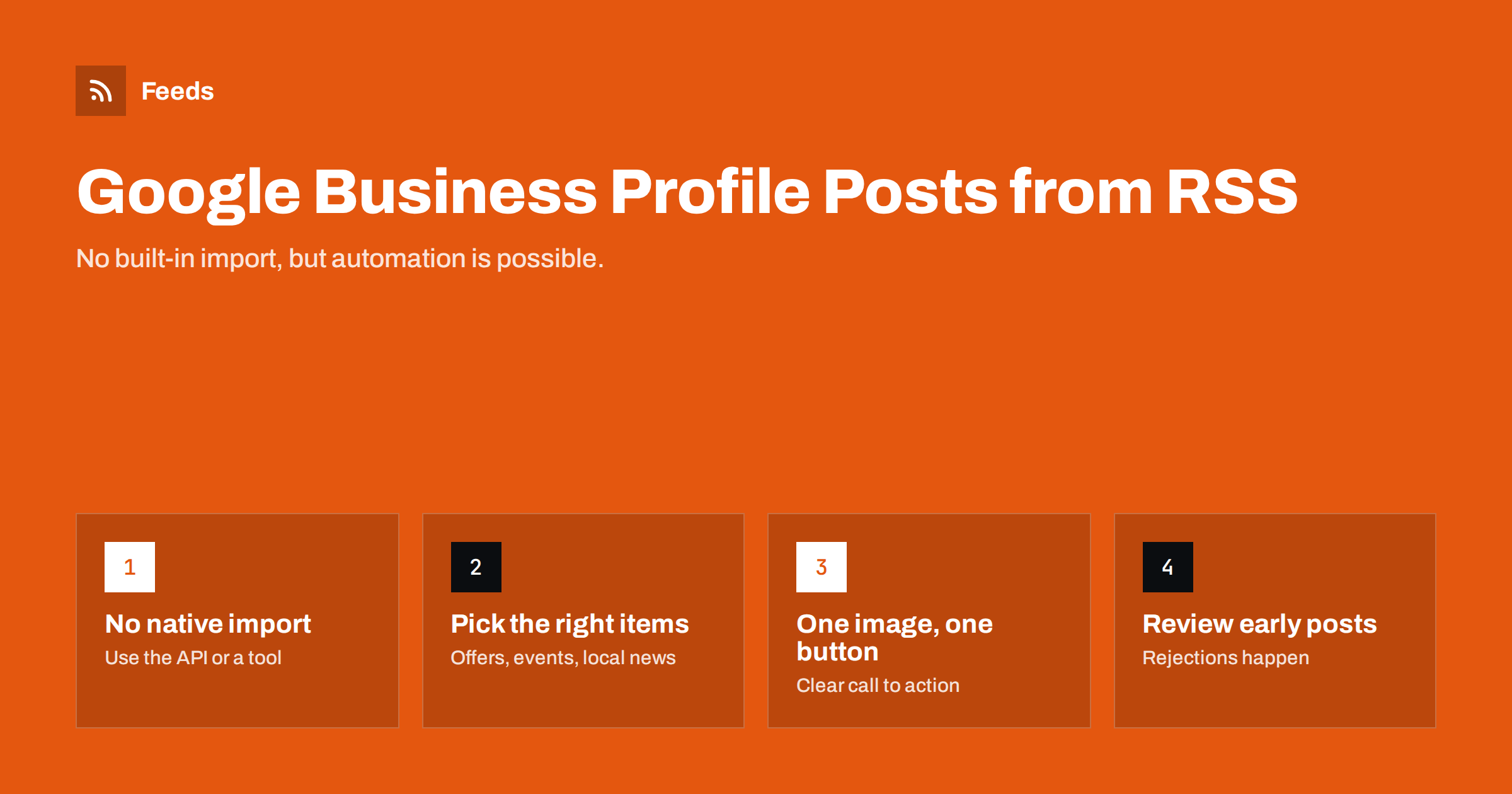
Short answer: Google Business Profile does not let you connect an RSS feed directly, but you can still automate posts. Google offers an API for creating posts on verified profiles, and several social media management and automation tools use it, some of which can trigger a post from a new RSS item. The best candidates are items with a local purpose, such as offers, events, new products and local news. Use a clear image and call-to-action button, keep posts short, and review the first automated posts, because Google can reject posts that break its content rules.
What Google Business Profile posts are
A Google Business Profile is the listing that appears in Google Search and Maps when people look for a business. Besides address, hours and reviews, it can show posts: short updates with text, an image and often a button such as “Learn more”, “Book” or “Order online”. There are several post types, typically general updates, offers with dates and conditions, and events with a start and end time.
Posts are shown on the profile, where people who are already considering the business see them. That audience is valuable: someone looking at a restaurant, dentist, shop or garage on Maps is close to a decision. A current post about this week’s offer or next Saturday’s event can tip that decision. The problem is that many businesses post once, then forget, leaving an outdated offer visible for months.
Why there is no simple RSS option
Unlike some social networks and platforms that accept RSS feeds directly, Google Business Profile has no setting where you paste a feed URL. Posts are created in the profile manager or through the Business Profile API. The API requires a verified business and an application that is allowed to access it, which is why ordinary consumers do not see an “RSS” option.
In practice, automation therefore goes through a third party:
- Social media management tools that support Google Business Profile as a channel alongside Facebook, Instagram or LinkedIn. Some of them can create posts from an RSS feed.
- Automation platforms that connect a feed trigger to a Business Profile action, with a template in between. The choice between such tools is discussed in Zapier vs Make vs IFTTT vs n8n for RSS automation.
- Local marketing platforms for multi-location businesses, which manage posts for many profiles at once.
Before choosing a tool, check that it supports the post type you need and that it lets you set an image and a button. Tool features change, so test with a single post first.
Which feed items make good profile posts
Not everything that works on a blog or social profile works on a Business Profile. People see posts in the context of visiting or contacting the business, so local relevance matters most.
| Feed item | Good profile post? | Why |
|---|---|---|
| Weekly offer or promotion | Yes | Directly influences a visit or purchase |
| Upcoming event at the location | Yes | Gives a reason to come on a specific date |
| New product or service | Yes | Shows what is available now |
| Local news, such as new opening hours | Yes | Practical information for visitors |
| General blog article | Sometimes | Only if useful for local customers |
| Company-wide press release | Rarely | Not relevant to someone visiting a location |
That means you usually want a filtered feed: one category of your website, such as “Offers” or “Events”, or items that contain certain words. If your website offers category feeds, use them; otherwise, keyword filters can create the right subset. Local businesses planning their overall automation will find a broader approach in content automation for local businesses.
Writing a template that fits
Business Profile posts have a limited text length and appear in a compact card, so the template matters more than on some other channels:
- Lead with the point. The first line should state the offer, event or news. People often see only a snippet.
- Keep it short. A few sentences are enough. Long blog excerpts look out of place.
- Use one clear image that shows the product, place or event. Avoid images that are mostly text.
- Choose the right button: “Learn more” for articles, “Book” for appointments, “Order online” for shops, with a link that includes tracking parameters.
- Avoid content Google may reject, such as phone numbers in the text, excessive capital letters, misleading claims or off-topic content.
For general template principles, see writing post templates for automated social feeds. Measure clicks from posts with UTM tags on automated links, because the profile’s own statistics show only part of the picture.
Images: the most common failure
Automated posts often fail or look poor because of images. The feed item may have no image, a tiny thumbnail or an image in a format the tool cannot pass on. Before switching on automation:
- Open the feed and check that every recent item has a large image.
- Check the image aspect ratio; very tall or very wide images may be cropped badly in the post card.
- Make sure image URLs are publicly accessible and not blocked for automated requests.
The same problems appear on other networks too; why automated social posts lose images lists the causes and fixes.
Approval, frequency and multiple locations
Because the profile is part of how Google presents the business, mistakes are visible exactly where customers decide. A few safeguards help:
- Start with an approval step. Let a person approve automated drafts for the first weeks, then switch to full automation for categories that behave well.
- Keep frequency modest. One to a few posts per week is typical for a single location; more rarely adds value.
- Watch for rejected posts. Google may reject posts without much explanation. Check the profile after the first automated posts.
- Multiple locations: use separate filtered feeds per location, or a tool built for multi-location management, so each profile gets relevant local posts.
The general trade-offs between control and speed are covered in full auto vs approval queue.
A simple setup for one location
For a single shop, restaurant or practice, a working setup can be built in an afternoon:
- Create or pick a website section for profile-worthy updates, for example “Offers and news”. Publish each offer or event there as a short post with a good image.
- Get the feed of that section, or create one from the page if the site has no category feeds.
- Choose a posting tool that supports Google Business Profile and RSS triggers, and connect the verified profile with an account that belongs to the business, not to a single employee.
- Write the template: title as the first line, one or two sentences from the summary, the image, and a “Learn more” button with a tracked link.
- Turn on approval for the first month, check each post on Google Maps and fix the template if anything looks wrong.
- Review monthly: clicks from posts, rejected posts and whether the section still receives regular updates.
The website section is the key design decision. It gives staff one familiar place to publish, and every post on the website then automatically becomes a profile post. If the section stops receiving updates, the profile goes quiet as well, so make publishing there part of someone’s routine.
When to keep posting manual
Automation suits recurring, predictable content. Keep these manual:
- responses to local events, weather or emergencies affecting opening hours;
- seasonal campaigns that need specific images and wording;
- anything involving health, legal or financial claims;
- posts for profiles that receive very few updates, where a hand-written post each month is simpler than an automation.
Also keep the core profile information, such as opening hours, holiday hours and services, accurate by hand or through dedicated listing tools. Posts cannot compensate for wrong basic information.
How Feeds helps
Profile posts need a focused feed: offers, events or local news, not everything the website publishes. Feeds can build that feed from any public page, such as an offers or events page without RSS, or from existing feeds, and keep only items with or without certain words. Several sources can be merged into one feed per location, duplicates are removed automatically, and the feed refreshes on its own. The resulting feed link can be used in any posting or automation tool that supports Google Business Profile. Create a filtered feed and preview the items before connecting it.
Related reading
- How to Automate Social Media Posts from an RSS Feed
- How to Auto-Publish an RSS Feed to a Facebook Page
- How Often Should Automated Feeds Post to Social Media?
The bottom line
You cannot paste an RSS feed into Google Business Profile, but you can automate posts through tools that use Google’s API. Send only locally relevant items, such as offers, events and practical news, through a filtered feed; use a short template, a strong image and the right button; start with approvals; and keep sensitive or seasonal posts manual.
KKK
Can I connect an RSS feed directly to Google Business Profile?
No. There is no built-in RSS import. Posts can be automated through the Business Profile API, which many social media management and automation tools use, some with RSS triggers.
What should I post automatically on my Business Profile?
Locally relevant items such as offers, upcoming events, new products or services and practical news like changed opening hours. General blog articles and press releases are usually less useful there.
Why was my automated Business Profile post rejected?
Posts can be rejected for breaking Google’s content rules, for example including phone numbers, misleading or off-topic content, or unsuitable images. Review early posts and adjust the template.
How often should a business post on its profile?
One to a few posts per week is typical for a single location. Consistency and relevance matter more than volume.
Can a business with many locations automate profile posts?
Yes, with a tool built for multi-location management or with separate filtered feeds per location, so each profile receives posts relevant to that location.


