ENEnglish
 LTLietuviškai
 DEDeutsch
 FRFrançais
 RUРусский
 ESEspañol
 PLPolski
 ITItaliano
 UKУкраїнська
 CSČeština
 PTPortuguês
 JA日本語
 LVLatviešu valoda
 ETEesti
 HUMagyar
 IDBahasa Indonesia
 TRTürkçe
 HIहिन्दी
 ELΕλληνικά
 ARالعربية
 THไทย
 VITiếng Việt
 RORomână
 MSBahasa Melayu
 BNবাংলা
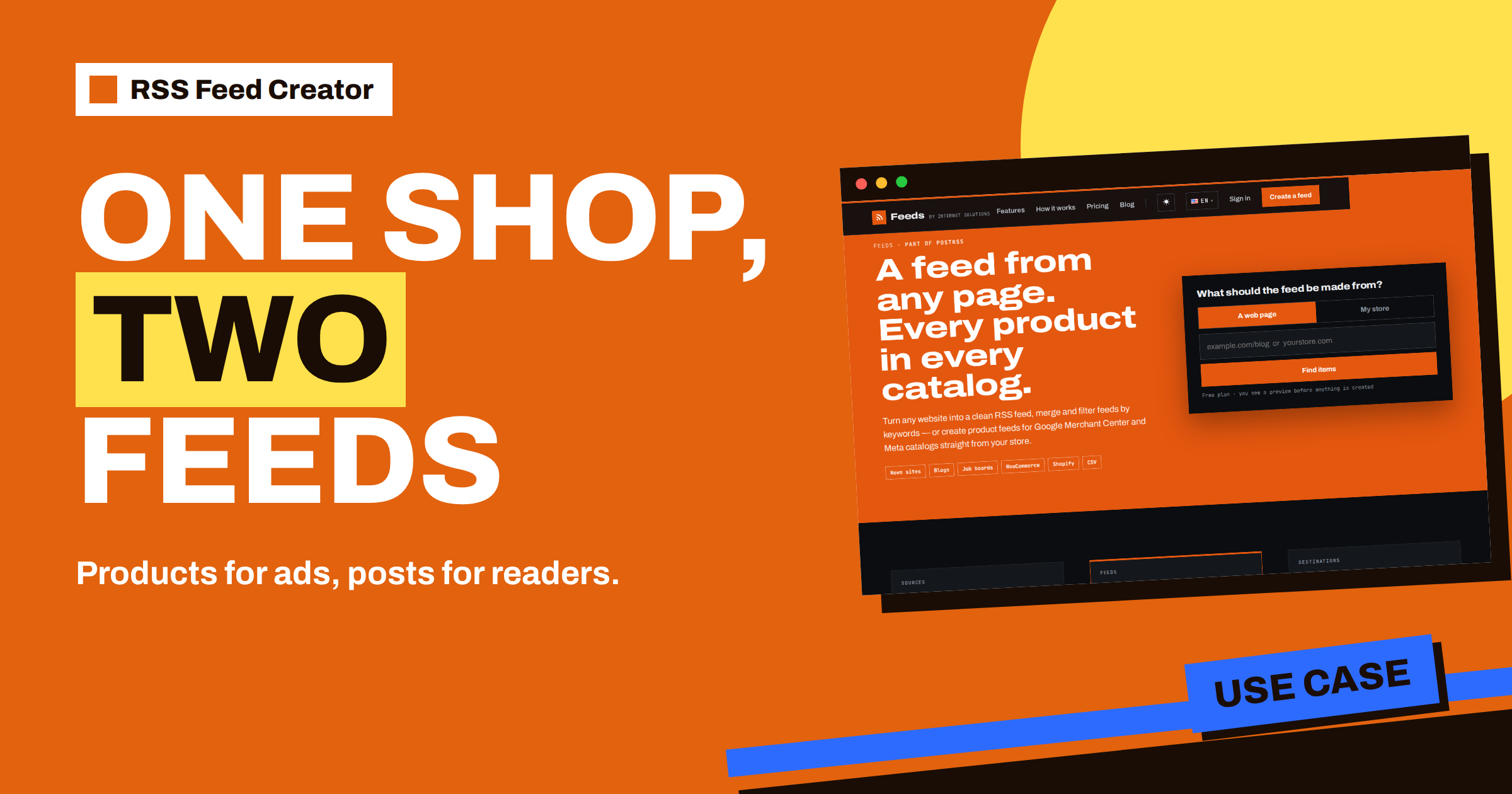
Short answer: A shop that also has a blog can make two different feeds with RSS Feed Creator from the same domain. The product feed uses “My store” and goes to Google Merchant Center and Meta, with rules for stock, titles and prices. The blog feed uses “A web page” and goes to readers, team channels or posting tools, with keyword filters. They have separate addresses, separate settings and separate management pages, and both count toward the number of feeds in your account.
Two jobs for two audiences
A typical small shop has two kinds of public content. The first is the catalogue: products, prices, pictures and availability. The second is the writing around it: announcements, buying guides, news and stories. They are for different audiences and different channels. The catalogue is for shoppers who see it in Google results and in Facebook and Instagram shops. The writing is for followers who read it in a feed reader, in a newsletter or in a social profile.
RSS Feed Creator treats them as two types of feed. The first type is a product feed, which reads the store and writes the Google product format that Meta also understands. The second is an ordinary RSS feed, which reads a page that lists articles, or an existing feed of the blog, and gives you a clean feed with titles, links, pictures, dates and short texts. Because the types are independent, you can start with the one that matters most and add the other later, without changing anything about the first.
What each feed needs from you
| Product feed | Blog feed | |
|---|---|---|
| Home page choice | Minha loja | Uma página da web |
| Address to paste | The shop domain | The blog or news page |
| What is read | Public product data of WooCommerce or Shopify, or a CSV | The existing feed, article data or the repeated cards on the page |
| Settings | Skip out-of-stock, title template, currency, price change in per cent | Words to keep, words to skip, more sources |
| Goes to | Google Merchant Center, Meta Commerce Manager | Readers, automation tools, posting tools |
| Size on the free plan | Up to 50 products | Up to 20 items |
| Size on paid plans | Up to 2,000 products or more | Up to 100 items |
The sizes and the refresh intervals follow the plan of your account: every 3 hours on the free plan and every 30 minutes on paid plans. They are listed on the pricing page, and the plans are compared in which RSS Feed Creator plan fits your feeds.
Setting up the product feed first
For most shops the product feed is the one with a direct effect on sales, so it is the natural first step. Choose “My store”, paste the shop address and check the preview. If the shop runs on WooCommerce or Shopify, the tool reads the public product data and shows up to 30 products. Create the feed, open its management page and set the rules: skip out-of-stock products so that advertising does not lead to empty pages, a title template if you want the brand in front, and the currency fallback. Then copy the feed address into Merchant Center as a scheduled fetch and into Meta as a data source, as described in add your RSS Feed Creator feed to Google Merchant Center and Meta.
If the tool does not recognise the store, the cause is usually one of a few simple ones, covered in connect WooCommerce, Shopify or a CSV to RSS Feed Creator. Give the feed a name that tells you what it is, for example “Shop products”, since the default name is built from the address and you will have two feeds from the same domain.
Then the blog feed
Go back to the home page and this time choose “A web page”. Paste the address of the blog or the news page of the same site. Many blogs already publish a feed, and the preview will say so and show its address. In that case you can use the existing feed directly in a reader, or you can still create one in the tool when you want to filter it or merge it with other sources. If the blog has no feed, the tool finds the list of articles on the page, as explained in how RSS Feed Creator finds items on pages without RSS.
The blog feed has its own settings. You can keep only the articles that contain certain words, for example the name of a product line, and you can skip the ones that contain others. On a paid plan you can add other sources and merge them into one stream. The filters are described in keyword filters in RSS Feed Creator: keep only what matters. Name this feed too, for example “Shop blog”.
What to do with the blog feed
Once you have the address, a blog feed can serve several routines:
- A reader for your team. Add the feed to a reader or a team channel so that everyone sees new articles without asking.
- Automatic posts. Add the address to a posting tool and each new article is announced on your social profiles. The route for sites without their own feed is described in from pages without RSS to social posts with RSS Feed Creator.
- A watch on partners. Make blog feeds for your suppliers and brands and merge them into one stream, so that you hear about launches early.
- A newsletter source. A filtered feed is a neat starting point for a weekly digest of what you published.
None of these touches the product feed. A shopper who sees your product in Google does not see the blog feed, and a reader of the blog feed does not see your catalogue.
Keeping the two apart
The two feeds are independent in every way that matters. The rules of one do not apply to the other: the title template of the product feed has no effect on the blog feed, and the keyword filters of the blog feed have no effect on products. Each feed has its own address, which ends in .xml, and its own management page with its own numbers: how many items or products it holds, when it was last updated, how often it refreshes and how many times it has been read. A rising number of reads is a quick sign that a channel or a reader is really collecting the feed.
If you delete one feed, the other keeps working. Deleting asks for confirmation and stops the address of that feed for good, so be careful to delete the right one, which is another reason to give each a clear name. The private management link of each feed is the key to editing it, and a free account keeps all your feeds in one list, so you do not have to save the links by hand.
Counting feeds against your plan
Your account has a limit on the number of feeds, and it counts feeds of every type together. The free plan lists up to three feeds in one account. The Store plan lists one store and three product feeds, and the Business plan three stores and ten feeds. When you reach the limit, the account shows a note that your plan includes a certain number of feeds and invites you to upgrade.
That has a practical consequence for the shop with a blog. Two feeds, one product feed and one blog feed, leave room for a third on the free plan, which might be a second blog or a supplier. If you plan more than that, check the plan before you create, so that the limit does not surprise you in the middle of a setup.
A sensible order for the first week
- Day one: create the product feed on the free plan and check the first 50 products against the shop.
- Day two: submit it to Merchant Center and, if you use it, to Meta, and read the first diagnostics.
- Day three: create the blog feed and name it. Add it to a reader or a team channel.
- Day five: look at both management pages and compare the numbers of items and reads.
- End of week: decide whether the catalogue needs the Store plan.
Related reading
- Product Rules in RSS Feed Creator: Stock, Titles and Prices
- Keep Google Shopping and Meta Catalogs in Sync with Stock
- RSS Feed Creator Walkthrough: From a Web Address to a Feed
The bottom line
A shop with a blog gets the most from RSS Feed Creator by using both types of feed: a product feed for the channels that sell, and a blog feed for the readers who follow. They share a domain but nothing else, so you can set them up in any order and manage them separately.
FAQ
Can I use one feed for both products and articles?
No. A product feed and a page feed are different types with different settings. Make one of each.
Do both feeds count toward my plan?
Yes. The limit on feeds in an account counts feeds of every type together.
Which feed should I create first?
For most shops the product feed, because Google and Meta use it directly for advertising. The blog feed can follow.
Does my blog need its own RSS feed first?
No. If the blog has one, the tool offers it. If it has none, the tool finds the list of articles on the page.
How do I tell the feeds apart?
Give each a clear name on its management page, such as “Shop products” and “Shop blog”.