 ENEnglish
 LTLietuviškai
 DEDeutsch
 FRFrançais
 RUРусский
 ESEspañol
 PLPolski
 ITItaliano
 UKУкраїнська
 CSČeština
 PTPortuguês
 JA日本語
JA日本語 LVLatviešu valoda
 ETEesti
 HUMagyar
 IDBahasa Indonesia
 TRTürkçe
 HIहिन्दी
 ELΕλληνικά
 ARالعربية
 THไทย
THไทย VITiếng Việt
 RORomână
 MSBahasa Melayu
 BNবাংলা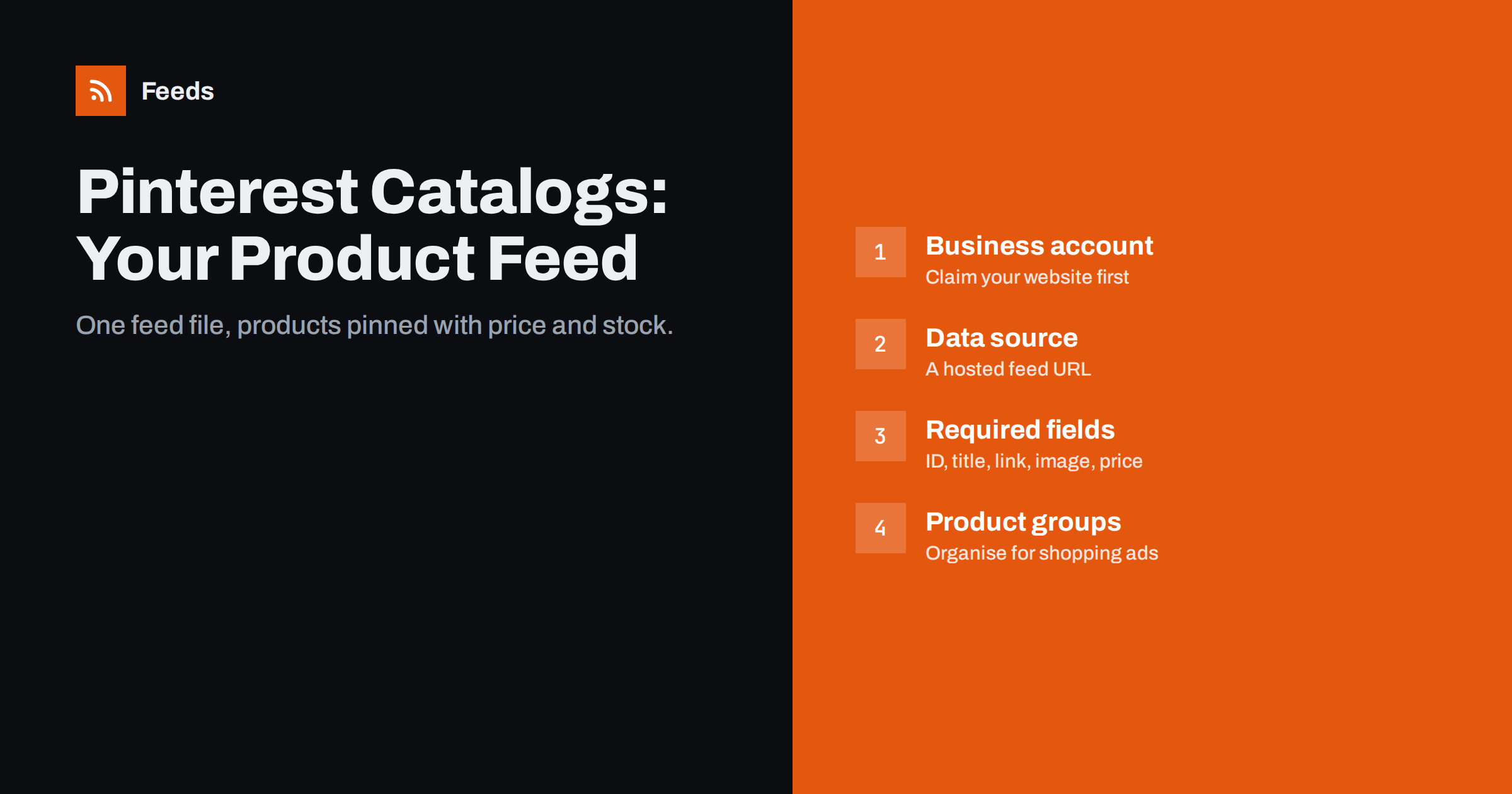
Short answer: to get your products into Pinterest catalogs you need a Pinterest business account, a claimed website and a product feed hosted at a public URL. You add that URL as a data source in the Catalogs section, Pinterest downloads it on a regular schedule and turns each row into a product pin with price and availability. In most cases a well-built Google-format feed can be reused, provided the IDs, links, images and prices are accurate.
What Pinterest catalogs are and why stores use them
Pinterest catalogs let a store upload its whole product range instead of creating pins one by one. Each product in the feed becomes a product pin that shows the price and stock status and links to the product page. Products can then be grouped and used in shopping ads, and they can appear in places where people browse for ideas, such as search results and related pins.
For many shops, Pinterest is a natural fit: home decor, fashion, beauty, crafts, food, weddings and gifts are categories where people actively plan purchases on the platform. Pinterest users often search with intent (“small balcony ideas”, “autumn wedding outfits”), which makes accurate product data valuable. A feed is the only practical way to keep hundreds of products in sync with prices and stock that change every week.
Before you start: account and website requirements
Pinterest asks for a few things before you can add a catalog. Check them first, because a missing step usually shows up later as a confusing error:
- A business account. Personal accounts cannot use catalogs. You can convert an existing account or create a new one.
- A claimed website. You prove that you own the store’s domain, typically with a meta tag, an HTML file or a DNS record. Products must link to that domain.
- Merchant guidelines. Pinterest has rules on product types, landing pages, returns information and contact details. Stores that sell restricted products may be limited.
- A product feed at a stable URL. The file must be downloadable without a login. A feed that changes its address every time it is exported will break the data source.
Rules and interface details change over time, so read Pinterest’s current business help pages before you submit. The principles below stay the same.
Which feed formats and fields Pinterest expects
Pinterest accepts common product feed formats, including delimited files (CSV or TSV) and XML feeds in the RSS style that Google Merchant Center also uses. The field names are very close to Google’s product data specification, which is why one feed can often serve both channels.
The fields that matter most are:
- id: a unique, permanent identifier for each product or variant. Never reuse or change IDs without reason, because Pinterest treats a new ID as a new product.
- title and description: plain text that describes the product clearly. The guide on writing product descriptions for shopping feeds applies here too.
- link: the product page on your claimed domain.
- image_link: a high-quality image. Pinterest is visual, so images carry more weight than on almost any other channel.
- price and availability: must match what a visitor sees on the product page.
- Recommended fields: brand, product_type, google_product_category, sale_price, additional_image_link, item_group_id and condition help with organisation and matching.
If your feed already uses the Google product XML format with g: tags, the structure will be familiar to Pinterest. Variants should share an item_group_id, just as they do for Google.
Step by step: adding the feed as a data source
- Open Catalogs in your Pinterest business account and choose to add a data source.
- Enter the feed URL, the file format, the currency and, if asked, the country and language the feed is for. Stores selling in several markets usually create one data source per market.
- Add credentials only if needed. Pinterest can fetch password-protected feeds, but a public URL with an unguessable path is simpler to maintain.
- Submit and wait for ingestion. The first processing can take some time. Pinterest then fetches the feed again on a regular schedule, typically about once a day.
- Review the ingestion report. It lists products that were accepted, products with warnings and products that were rejected, with the reason for each.
- Create product groups once products are live, for example by category, brand, price range or custom label, so you can use them in shopping ads and reporting.
Reusing your Google or Meta feed
Most stores do not need a separate Pinterest feed. The Google-format XML or CSV file you already send to Merchant Center, or the same file used by a Catalog Meta, usually works as a Pinterest data source. Reusing one feed has clear benefits: prices, stock and IDs are consistent across channels, and there is only one file to maintain.
There are a few reasons to create a Pinterest-specific version:
- Images. Vertical images tend to look better in the Pinterest grid than square packshots. If you have lifestyle images, a separate image field for Pinterest can help.
- Titles. Google titles are often packed with attributes for search matching. On Pinterest, shorter, readable titles usually look more natural.
- Product selection. You may want to exclude low-margin items, spare parts or products that do not suit a visual platform.
| Question | Reuse the existing feed | Create a Pinterest version |
|---|---|---|
| Images | Square packshots are fine for you | You have better vertical or lifestyle images |
| Titles | Titles are short and readable | Titles are long keyword lists |
| Products | The same range suits every channel | Some products should not appear on Pinterest |
| Maintenance | One file, one set of rules | Extra rules to keep in sync |
Common ingestion errors and how to fix them
Pinterest’s report is the first place to look when products are missing. The problems below appear often:
- Link domain does not match the claimed website. Products that link to a different domain, a staging address or a redirecting URL are rejected. Use the final product URL on the claimed domain.
- Missing or broken images. Image URLs that return errors, require cookies or are too small cause rejections. See product feed image requirements for general rules.
- Price format. Prices need a number and a currency in the expected format, for example
24.90 EUR. Missing currencies and prices with thousands separators cause problems. - Duplicate IDs. Two rows with the same ID overwrite each other or are rejected. Make IDs unique per variant.
- Feed could not be fetched. The URL returned an error, timed out or was blocked by a firewall. Test the URL from outside your network.
- Stale data. If the feed file is exported by hand, prices and stock drift away from the site. Automate the file so it reflects the store on every fetch.
Keeping the catalog healthy
A catalog is not a one-time upload. Plan a short routine:
- Check the ingestion report weekly, and immediately after big changes such as a theme update or a sale.
- Remove or mark out-of-stock products consistently; showing products people cannot buy wastes clicks.
- Watch that sale prices are applied and removed on time.
- Keep IDs stable when you migrate or redesign the store, so product pins keep their history.
The same health metrics you track for Google, described in product feed health metrics, work for Pinterest as well.
How Feeds can help
Feeds creates product feeds in the Google product XML format, with id, title, link, image, price, availability and brand, straight from a WooCommerce or Shopify store or from a CSV file link. It is built for Google Merchant Center and Meta catalogs, and because Pinterest reads feeds in the same general format, many stores test the same file as a Pinterest data source and check the ingestion report. Rules let you skip out-of-stock products, rewrite titles and adjust prices, currency is detected automatically, and the feed refreshes on its own so prices and stock stay current. See the plans for product limits and store options.
Related reading
- Google Product Feed Attributes: Required and Recommended
- Meta Catalog Ads: What Your Product Feed Must Get Right
- Product Feed Checklist: 25 Checks Before You Submit
The bottom line
Pinterest catalogs turn a product feed into shoppable pins. Set up a business account, claim your domain, host the feed at a stable URL and add it as a data source. Reuse your Google-format feed where it fits, adjust images and titles if Pinterest deserves its own version, and check the ingestion report regularly so rejected products do not go unnoticed.
FAQ
Do I need a separate product feed for Pinterest?
Usually not. A Google-format XML or CSV feed with accurate IDs, links, images, prices and availability can often be reused. Create a separate version only if you want different images, titles or products on Pinterest.
How often does Pinterest update a catalog?
Pinterest fetches the data source again on a regular schedule, typically about once a day. Your feed file itself should always reflect current prices and stock, so every fetch picks up correct data.
Why were my products rejected by Pinterest?
The most common reasons are links to a domain you have not claimed, broken or small images, wrongly formatted prices, duplicate IDs and a feed URL that cannot be downloaded. The ingestion report names the reason for each product.
Can a personal Pinterest account use catalogs?
No. Catalogs require a business account and a claimed website. You can convert a personal account to a business account in the settings.
Should I use vertical images in a Pinterest feed?
Vertical images often look better in the Pinterest grid, but they are not required. If you have good vertical or lifestyle images, consider adding them for Pinterest while keeping clear product images for other channels.


