 ENEnglish
 LTLietuviškai
 DEDeutsch
 FRFrançais
 RUРусский
 ESEspañol
 PLPolski
 ITItaliano
 UKУкраїнська
 CSČeština
 PTPortuguês
 JA日本語
JA日本語 LVLatviešu valoda
 ETEesti
 HUMagyar
 IDBahasa Indonesia
 TRTürkçe
 HIहिन्दी
 ELΕλληνικά
 ARالعربية
 THไทย
THไทย VITiếng Việt
 RORomână
 MSBahasa Melayu
 BNবাংলা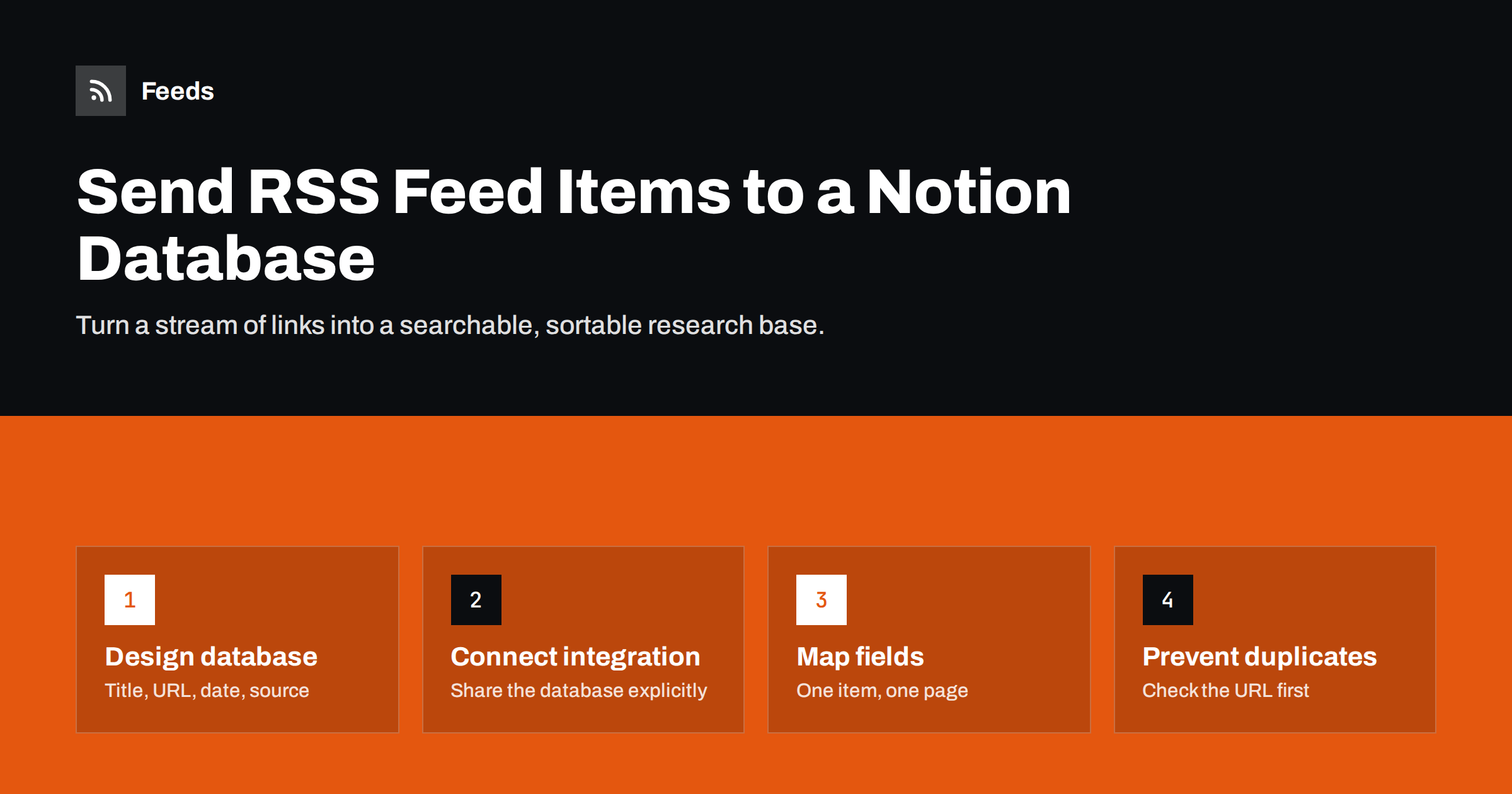
Short answer: Notion does not read RSS feeds on its own, but its API lets tools create pages in a database. To send feed items to Notion, create a database with properties such as Title, URL, Published date, Source and Status, connect an integration to it, and use an automation platform or a small script that checks the feed and creates one database page per new item. Check whether the URL already exists before creating a page, so the same item is never added twice.
Why put feed items in Notion
An RSS reader is excellent for reading and triage, but it is not built for collaboration, planning or long-term reference. A Notion database adds those capabilities. Feed items become pages that a team can tag, comment on, assign and sort, alongside the rest of its work. Typical uses include:
- Content research: collecting articles, studies and news for future posts, with notes on why each matters.
- Editorial planning: turning industry news into topic ideas with a status such as “idea”, “planned” and “written”.
- Competitor tracking: recording competitors’ blog posts, product news and announcements in a searchable table.
- Reading lists: a shared list of recommended articles for a team or a class.
- Knowledge bases: keeping links to documentation, changelogs and standards updates in one place.
If your workflow is more about writing than collecting, our guide to automating content research with feeds shows how a Notion database can fit into a broader research routine.
Step 1: design the database
Design the database before connecting anything. Changing property names later means updating the automation as well. A practical starting structure:
| Property | Type | Filled by |
|---|---|---|
| Title | Title | Item title from the feed |
| URL | URL | Item link |
| Published | Date | Item publication date |
| Source | Select | Feed or site name |
| Summary | Text | Short excerpt from the feed |
| Status | Status or select | Set to “New”; changed by people |
| Etichete | Multi-select | Added by people, or by rules |
Keep automated fields and human fields clearly separate. The automation writes Title, URL, Published, Source and Summary; people own Status, Tags and any notes. That way, nobody’s work is overwritten, and it is obvious which information came from the feed.
Create a few views as well: “New this week” filtered by status, “By source” grouped by source, and a board view by status if you use the database for planning.
Step 2: connect an integration
Notion’s API works through integrations. An automation platform will usually guide you through connecting your workspace; for your own script, you create an internal integration in Notion’s settings and receive a secret token.
The step people most often miss is sharing the database with the integration. Integrations can only see pages and databases that have been explicitly connected to them. Open the database, use its menu to add the connection, and select your integration. Without this, the automation will report that the database cannot be found, even though the token is valid.
Keep the token secret. Anyone with it can read and write whatever the integration has been given access to. Store it in your automation tool’s credential store or an environment variable, and grant access only to the databases the workflow needs.
Step 3: choose the tool that watches the feed
You have three broad options:
- Hosted automation platforms offer an RSS trigger and a “create database item” action for Notion. Setup takes minutes and needs no code.
- Self-hosted workflow tools give you the same building blocks on your own server, which suits teams with many workflows or data rules. Our guide to building RSS workflows with n8n walks through a typical setup.
- A small script run on a schedule can fetch the feed, check for existing URLs and create pages through the API. This is flexible and free, but you maintain it.
If you are choosing between platforms, see our comparison of Zapier, Make, IFTTT and n8n for RSS automation. Check how often each option polls feeds, because some plans check only every 15 minutes or less often.
Step 4: map fields carefully
When you map feed fields to database properties, a few details avoid messy data:
- Strip HTML from summaries. Feed descriptions often contain HTML tags and images. Use plain text, cut to a sentence or two.
- Convert dates. Feed dates come in different formats. Make sure they arrive in the Date property as real dates, in the right time zone, not as text.
- Use a fixed Source value. Set the source name in the workflow rather than relying on the feed title, which may be long or change.
- Set Status to “New”. This gives the team a clear inbox view.
- Consider page content. You can also put the summary or full text into the page body. Keep it short; the link is the reference, and long copied text raises copyright questions.
Step 5: prevent duplicates
Duplicates are the most common problem in feed-to-database workflows. They happen when a feed republishes an item, when the automation runs twice, or when the same story arrives from several sources.
- Check before you create. Query the database for the item’s URL; only create a page if none exists. Most platforms support a “find item” step before “create item”.
- Normalise URLs. Remove tracking parameters such as
utm_sourcebefore comparing, so the same article with different parameters is recognised. - Deduplicate upstream. Merging and deduplicating sources before they reach Notion reduces the work. Our guide to stopping duplicates in automated workflows explains the common causes.
Example: a small content team’s research database
To make this concrete, imagine a three-person marketing team at a software company that publishes two blog articles a week and wants a steady supply of ideas and sources.
- Sources. They choose twelve sources: eight industry blogs, two competitor blogs and two trade news sites. Three of the sites have no RSS, so they create feeds from their news pages.
- One feed. They merge the twelve sources into one feed, keep only items mentioning their product category or its main use cases, and remove duplicates.
- The database. A Notion database called “Research inbox” receives each new item with Title, URL, Published, Source and Summary, and Status set to “New”.
- The routine. Every Monday, one person spends twenty minutes on the “New” view. Items become “Idea”, “Reference” or “Ignore”. Ideas get a short note explaining the angle for their own blog.
- Planning. In the monthly planning meeting, the team opens the “Idea” view, picks topics and links the chosen items to the article pages in their editorial calendar database.
After a few months, the database also becomes a record of what competitors published and when, which is useful for positioning and for spotting gaps. The whole system needs no manual copying, and the weekly review takes less time than the old habit of checking twelve websites.
Keeping the database useful over time
A database that receives dozens of items a day will become cluttered unless someone looks after it.
- Filter before saving. Only send items that match your topics. A keyword-filtered feed is far better than a database full of irrelevant entries.
- Review weekly. Change the status of new items to “Useful”, “Used” or “Ignore”. Archive ignored items after a month.
- Watch API limits. Notion’s API is rate-limited to a few requests per second on average. Workflows that add hundreds of items at once should add them gradually.
- Check that the workflow still runs. Tokens expire, databases get renamed and feeds change. A quick look at “New this week” tells you whether items are still arriving.
For simpler needs, a spreadsheet may be enough. Our guide to pulling RSS feeds into Google Sheets shows a no-automation alternative.
Preparing the feed before it reaches Notion
The cleaner the feed, the cleaner the database. Feeds can create RSS feeds from websites that do not offer one, merge several sources into a single feed, keep only items with (or without) your keywords, and remove duplicates automatically. That means your Notion workflow only needs one feed URL and receives only relevant, de-duplicated items. You can try it on one website on the free plan; see the pricing page for limits.
Related reading
- How to Find Blog Topic Ideas by Monitoring Industry Feeds
- How to Track Competitor Blogs and News with RSS Feeds
- How to Automate Content Curation Without Losing Quality
The bottom line
Notion becomes a powerful research and planning tool when feed items flow into a database automatically. Design the database first, share it with an integration, use an automation platform or script to create one page per new item, map fields cleanly, and check URLs to prevent duplicates. Filter the feed before it arrives and review the database weekly, and it stays useful rather than turning into another inbox.
FAQ
Can Notion subscribe to an RSS feed?
Not by itself. Notion’s API lets other tools create database pages, so an automation platform or script reads the feed and adds new items to your database.
Why can’t my automation find my Notion database?
The database probably has not been shared with the integration. Open the database, add the connection for your integration, and try again.
How do I stop duplicate items in my Notion database?
Before creating a page, search the database for the item’s URL and skip it if it already exists. Removing tracking parameters from URLs makes the check more reliable.
Which fields should an RSS database in Notion have?
At minimum Title, URL, Published date and Source. A Status property and Tags make it useful for teams, and a short Summary helps with scanning.
Is there a limit to how many items I can add?
Notion’s API has rate limits of a few requests per second on average, so large batches should be added gradually. Workspace plans may also have their own limits.


