ENEnglish
 LTLietuviškai
 DEDeutsch
 FRFrançais
 RUРусский
 ESEspañol
 PLPolski
 ITItaliano
 UKУкраїнська
 CSČeština
 PTPortuguês
 JA日本語
 LVLatviešu valoda
 ETEesti
 HUMagyar
 IDBahasa Indonesia
 TRTürkçe
 HIहिन्दी
 ELΕλληνικά
 ARالعربية
 THไทย
 VITiếng Việt
 RORomână
 MSBahasa Melayu
 BNবাংলা
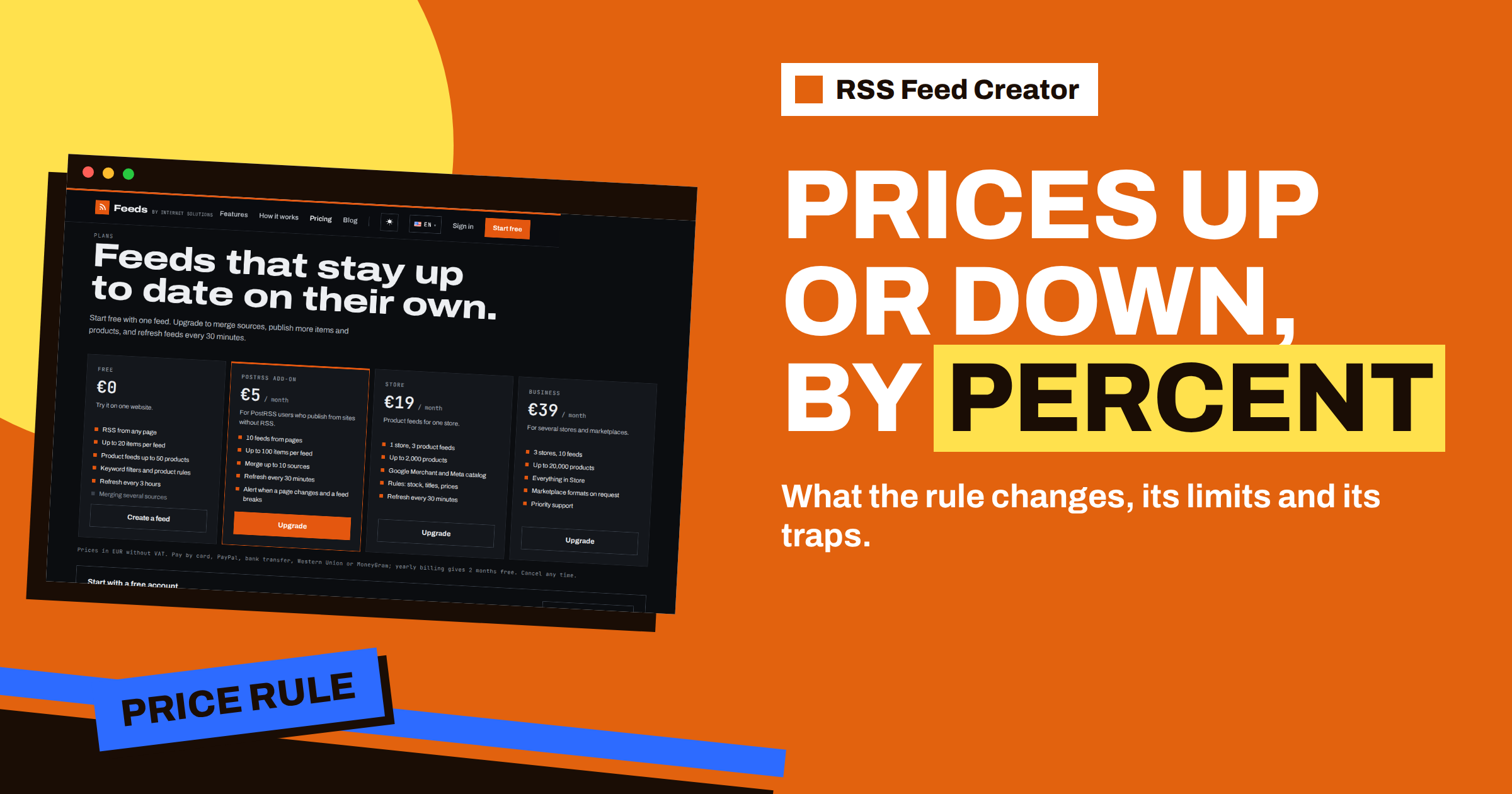
Short answer: The “Change prices by %” setting of a product feed in RSS Feed Creator multiplies every price, and every sale price, in the feed by one number. It accepts values from minus 90 to plus 500, rounds the result to two decimals and leaves the store untouched. It suits a supplier file whose prices are net or wholesale, or a catalog whose prices must be adjusted by a fixed factor. It is a poor fit for a short sale, because Google and Meta compare the feed price with the price on the page, and a difference produces a mismatch.
Where the setting lives and what it does
Every product feed has a settings box on its management page with four controls: whether to skip out-of-stock products, a title template, a currency and the field “Change prices by %”. The last one is a plain number with a step of one tenth. It starts at 0, which means that prices pass through unchanged. When you save a different number, the feed is rebuilt, and each price is calculated as the original price multiplied by one plus the percentage divided by one hundred.
Three details matter. First, the same factor is applied to the regular price and to the sale price, so the difference between them keeps its proportion. Second, the result is written with two decimals and a dot, followed by the currency code, so 21.989 becomes 21.99 with no rounding to .99 or .90. Third, the factor is one number for the whole feed. The rule cannot treat one category or one brand differently. The wider picture of the rules is in product rules in RSS Feed Creator: stock, titles and prices.
The limits of the setting
The management page keeps the number between minus 90 and plus 500. A value below the lower limit becomes minus 90, which gives one tenth of the original price, and a value above the upper limit becomes plus 500, which gives six times the original price. A field that is empty or not a number becomes 0. The limits protect against typing errors such as 1000 instead of 10, and they leave room for every realistic use.
The setting changes prices and nothing else. It does not touch shipping costs, because the feed does not carry them, it does not change the currency, and it does not touch the stock. It also changes only the feed. Your shop keeps showing its own prices to visitors. That separation is the whole point, and it is also the reason for the main trap described below.
The arithmetic, with examples
The factor is the same whichever way you think of it, so it helps to keep a few numbers at hand.
| Setting | Factor | Original price | Feed price |
|---|---|---|---|
| +10 | 1.10 | 19.99 | 21.99 |
| +21 | 1.21 | 100.00 | 121.00 |
| +30 | 1.30 | 45.00 | 58.50 |
| -15 | 0.85 | 80.00 | 68.00 |
| -90 | 0.10 | 50.00 | 5.00 |
Increases and decreases are not symmetrical. A price raised by 25 per cent and then lowered by 25 per cent does not come back to the start, because the second step works on the larger number. To undo an increase of 21 per cent you need about minus 17.4, not minus 21. Because the field accepts one decimal, the result of such a reversal can differ from the original by a few cents. For exact conversions, fix the price at its source instead.
Good uses
The rule fits best where the price in the source is not the price you want to advertise, and the difference is a constant factor.
- Net prices to gross prices. A supplier list that shows prices without value added tax can be turned into prices with tax by adding the tax rate, for example plus 21. Check the result against a few products on the shop page, since the rounding of tax in a shop can differ by a cent.
- Wholesale to retail. A supplier file with trade prices becomes a retail feed by adding a margin. The feed built from a supplier file is described in CSV link to product feed: the columns RSS Feed Creator reads.
- A permanent channel adjustment where the shop page itself shows the adjusted price, for instance a separate storefront for one market whose prices differ by a fixed percentage.
In each case the percentage is a way to express a pricing rule that is true everywhere, not a trick for one campaign.
The trap: the feed price must match the page
Google Merchant Center and Meta compare the price in the feed with the price they find on the product page. When they differ, the product is flagged, and repeated differences put the whole account at risk. This is the subject of Merchant Center price mismatch: causes and fixes. It follows that a percentage which makes the feed cheaper than the page, or dearer than the page, is dangerous unless the page shows the same price.
The classic mistake is a sale. A shop owner sets minus 20 in the feed on the evening before a sale and leaves the shop at the old prices, hoping that the advertisement shows a lower price. The channel sees a lower price in the feed and a higher price on the page and flags the products. If the sale is real, change the prices in the shop, and let the feed follow. If you want the advertisement to show the old price crossed out, use the regular and sale price fields that come from the shop, as explained in sale prices in a product feed.
Check what the rule produced
After saving, wait a minute for the feed to be rebuilt, then use the list of the latest products on the management page. Each entry shows the title, the price with its currency and the availability. Compare three or four products with the shop by hand, using one cheap, one expensive and one on sale. Then open the feed address and look at the price lines of the same products. A number that does not match your calculation usually has one of three causes: the source price was already different from what you assumed, the currency fallback was used, or the percentage field kept an old value. The currency logic is explained in currency in your product feed: codes, fallback and multi-country.
A worked example with a supplier file
A small shop receives a CSV price list from its supplier with net prices. The shop wants a Google and Meta feed with gross prices for customers in a country with 21 per cent value added tax. The steps are short. Host the file at a public address ending in .csv, create a product feed from it, set the field “Change prices by %” to 21, save and wait. The product 100.00 now appears in the feed as 121.00 and a sale price of 80.00 as 96.80. The shop page, which also shows 121.00 and 96.80, matches the feed, so there is no mismatch.
The test is the page. If the shop page showed 120.99 because of its own tax rounding, the one-cent difference could still be tolerated, but a bigger gap would not. The cleaner solution in a long run is a supplier file that already carries final prices, and the percentage rule is the bridge until that happens.
Changing or removing the rule later
The setting can be changed at any time. Saving a new number rebuilds the feed within a minute, and saving 0 returns the original prices. The shopping channels, however, only see the change when they fetch the feed again, which depends on the schedule you set in each channel, so a new percentage may take hours to show up in Merchant Center or Commerce Manager. In the meantime the old prices there may disagree with the page. When you plan to change the rule, change it shortly before a scheduled fetch, and check the diagnostics afterwards. Keep a note of the date and the value, so that a future colleague knows why every price in the feed is 21 per cent higher than in the source.
When not to use the rule
- Short promotions. Change the shop, not the feed.
- Different factors for different products. One number cannot express that. Use a separate source for each group, for example two CSV files.
- Prices that must end in .99. The rule does not round to endings; it writes two decimals as calculated.
- Currency conversion. The rule does not convert currencies. It multiplies the number and keeps the code.
Related reading
- Product Rules in RSS Feed Creator: Stock, Titles and Prices
- How to Fix Price Mismatch Errors in Google Merchant Center
- Sale Prices in Product Feeds: sale_price and Effective Dates
The bottom line
The percentage rule is a simple multiplier for all prices in one feed, with limits from minus 90 to plus 500 and two-decimal results. Use it to express a constant factor such as tax or a margin, check a few products against the shop, and keep campaigns in the shop where the page and the feed stay equal. The free plan lets you try the rule on 50 products, and the Store plan on the pricing page covers larger catalogs.
FAQ
Does the rule change my shop’s prices?
No. It changes only the prices written in the feed. The store keeps its own prices.
Is the sale price changed as well?
Yes. Both the regular price and the sale price are multiplied by the same factor, so the proportion between them stays the same.
What is the largest change I can enter?
Plus 500 per cent and minus 90 per cent. Values outside this range are brought back to the nearest limit.
Can I set different percentages for different products?
No. The percentage applies to the whole feed. Use separate sources and feeds when groups of products need different factors.
Why does Merchant Center warn about my prices after I used the rule?
The feed price probably differs from the price on the product page. Make the page and the feed agree, then wait for the next fetch.