 ENEnglish
 LTLietuviškai
 DEDeutsch
 FRFrançais
 RUРусский
 ESEspañol
 PLPolski
 ITItaliano
 UKУкраїнська
 CSČeština
 PTPortuguês
 JA日本語
JA日本語 LVLatviešu valoda
 ETEesti
 HUMagyar
 IDBahasa Indonesia
 TRTürkçe
 HIहिन्दी
 ELΕλληνικά
 ARالعربية
 THไทย
THไทย VITiếng Việt
 RORomână
 MSBahasa Melayu
 BNবাংলা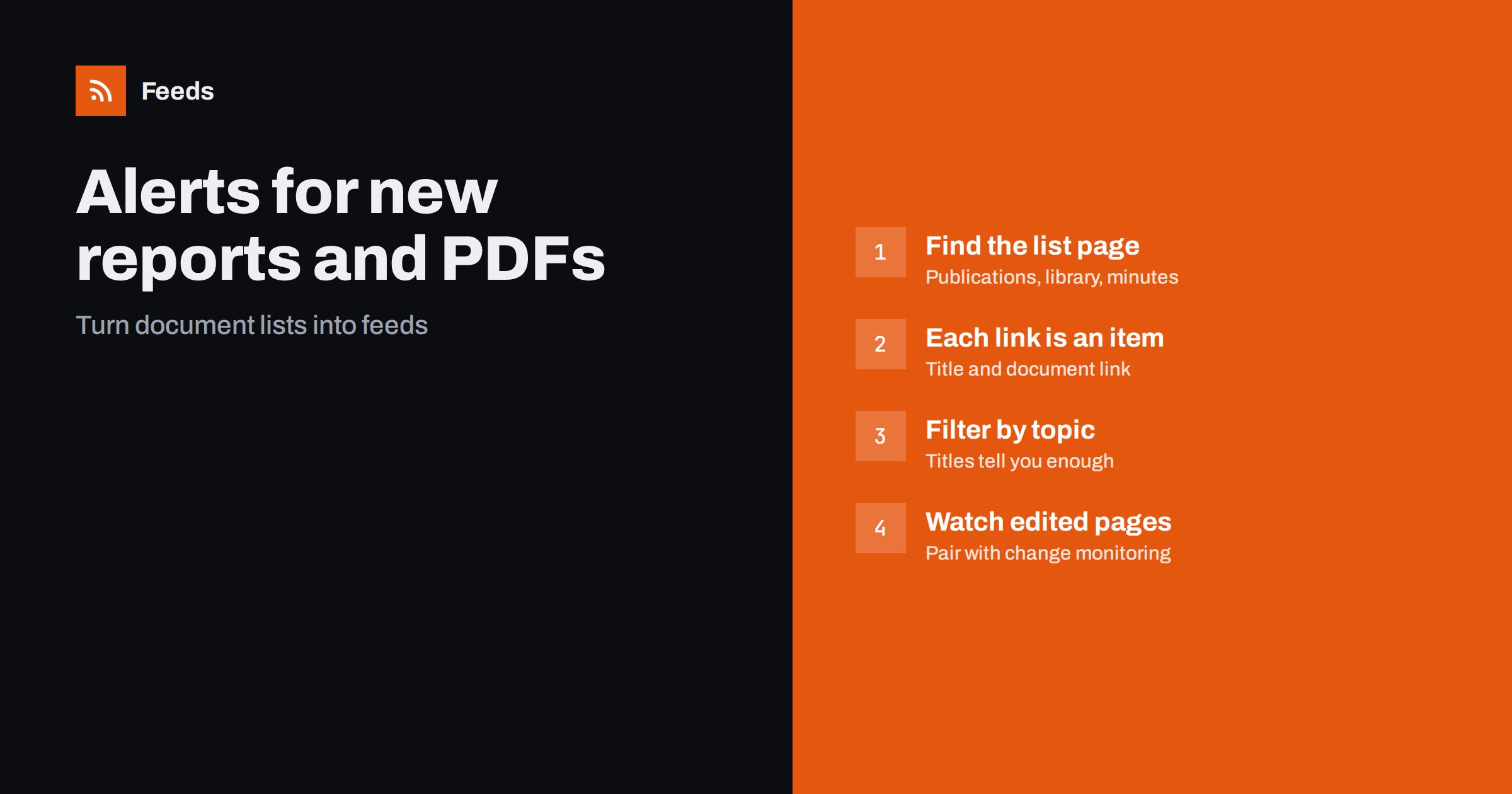
Short answer: Find the page where the organization lists its documents, such as a publications page, library, reports archive or meeting minutes page, and create a feed from it. Each new document link then becomes a feed item with its title and a link to the PDF or document page. Filter the feed by topic words if the list is long, and pair it with a page change monitor for pages where documents are replaced in place rather than added.
A surprising amount of important information is published not as articles but as documents: research reports, annual reports, market studies, council meeting agendas and minutes, policy papers, technical guidance, standards drafts and statistical releases. These usually appear as links on a plain page, often with no feed, no email alert and no announcement anywhere else. Analysts, consultants, journalists, compliance teams and researchers who depend on them end up checking the same pages every week. A feed can do that checking for you.
Documents are also easy to miss because they rarely get promoted. An organization might post a news article for a big annual report, but not for a technical annex, a consultation response or a set of committee minutes. Those quieter documents are often exactly what specialists need, and a feed from the document list catches them without relying on anyone deciding they were worth announcing.
Typical document pages worth following
| Publisher | Page | Why it matters |
|---|---|---|
| Councils and public bodies | Meeting agendas and minutes | Decisions before they are reported |
| Regulators and agencies | Publications, guidance library | New rules and interpretations |
| Research institutes and think tanks | Reports and working papers | Evidence and analysis for your field |
| Industry associations | Studies, position papers, market reports | Sector data and policy positions |
| Companies | Investor reports, sustainability reports, white papers | Strategy, results, commitments |
| Standards bodies | Drafts for comment, new publications | Upcoming technical requirements |
How a document list becomes a feed
Document pages are usually lists: a title, perhaps a date and a file type or size, and a link. A page-to-feed tool treats each entry as an item, with the title as the item title and the document address as the link. When a new document is added to the list, it becomes a new feed item on the next refresh.
This works well when the page lists documents as separate entries with distinct links. It works less well when the page is a single long text with links scattered through paragraphs, or when the same document link is replaced with a new version under the same address. Those cases are covered below.
Step 1: Find the right page
Most organizations have one or more pages that act as a document index. Look for “publications”, “reports”, “library”, “resources”, “documents”, “downloads”, “meetings” or “minutes” in the navigation or footer. If documents are organized by year, category or committee, use the page that will receive new entries: usually the current year, the main publications list or the page for the committee you follow.
Search pages inside document libraries can also work if the search, sorted by date, has a stable address. That lets you follow only documents matching a topic. Test the search address in a private browser window first: if it shows the same results without your session, it is a stable, shareable address that a feed tool can read too.
Step 2: Create the feed and check the preview
Create a feed from the page with a page-to-feed tool and check the preview carefully.
- Titles: they should be the document titles, not “Download”, “PDF” or file sizes. Some pages use the file name as link text; that is less readable but still useful.
- Links: they should point to each document or to each document’s page.
- Coverage: the preview should include the most recent documents; if the page lists oldest first, check that new entries will still be detected.
- Dates: document lists often show dates; if not, items are usually dated by when they were first seen.
If the preview shows navigation links or unrelated items, try a more specific page, such as one category or one year.
Step 3: Filter by topic
Large publishers release many documents. Document titles are usually descriptive, which makes keyword filters work well. Include words for your topics, and consider excluding recurring document types you never need, such as routine financial statements or procurement notices, if they are published on the same page.
For meeting minutes and agendas, filters on committee names or recurring agenda topics can help, although agenda titles are often generic (“Agenda, 14 March”). In that case, follow the committee’s own page unfiltered and open each new agenda.
Step 4: Handle pages where documents are replaced
Some organizations update documents in place: the same link always points to the latest version of a guide, policy or price list. A feed does not notice this, because no new link appears. For these documents, use a page change monitor on the page, or watch the document’s “last updated” line if the page shows one.
Similarly, if a page is one long text that gains new paragraphs with links, a change monitor may be clearer than a feed. Many teams use both: a feed for list pages and a change monitor for a few key documents that are edited in place.
Step 5: Read, capture and share
Documents take longer to read than articles, so a routine matters.
- Scan new items weekly, or daily for time-critical sources such as council agendas, which are often published only a few days before meetings.
- Skim the summary or executive summary of each relevant document.
- Save important documents to a shared folder or reference manager, with the date and source.
- Share a short note with colleagues: what the document says and why it matters to you.
A worked example
A policy analyst at an environmental nonprofit follows about thirty document sources: the publications pages of two ministries and the environment agency, the reports sections of five research institutes, the agendas and minutes of the regional council’s environment committee, and the studies pages of three industry associations whose positions she tracks. Only two of these pages offer feeds. She generates feeds from the rest, checking each preview to make sure titles are document names rather than “PDF” labels.
She merges them into two feeds: one for official documents, read daily, and one for research and association reports, read weekly and filtered for her four policy areas. When the council’s committee publishes an agenda that includes a proposal on water abstraction, she sees it five days before the meeting, reads the attached report and prepares a short written submission in time. Previously, she would have learned about the item from a news story after the vote.
For three key guidance documents that the environment agency updates in place, she adds a page change monitor alongside the feeds, so she also hears when the text of existing guidance changes.
Common mistakes
- Following a page organized by year and forgetting to switch. When a new year starts, new documents may go to a new page. Check each January.
- Expecting feeds to detect updated versions. Same link, new content is not a new item. Use change monitoring for those.
- Missing documents published elsewhere. Some organizations publish on several pages. Check that your source page is the main index.
- Not checking feed health. Document libraries are often rebuilt during website redesigns. Check that feeds still find items.
How Feeds helps
Feeds turns document and publication list pages into RSS by finding the list of items on the page and showing a preview before anything is created, and it uses an existing feed when a page has one. Each new document link appears as a feed item you can read anywhere. You can merge document pages from several organizations into one feed and keep items with your words, with duplicates removed automatically. Feeds refresh on their own, and paid plans alert you if a feed stops finding items. See the pricing page for plan limits.
Related reading
- Page Change Monitoring vs RSS Feeds: Which Do You Need?
- How to Track Government and Regulator Updates with RSS
- How to Follow Academic Journals and Research with RSS Alerts
The bottom line
Important documents often appear quietly as links on plain pages. Turn those document lists into feeds, check the preview for clean titles and links, filter by topic where lists are long, and use change monitoring for documents updated in place. A weekly scan then replaces the habit of checking the same pages by hand.
SSS
Can RSS alert me when a new PDF is published?
Yes, if the PDF is added as a new link on a list page. A feed created from that page will show each new document link as an item.
What if the document is updated but keeps the same link?
A feed will not detect that, because no new link appears. Use a page change monitor on the page or document listing for those cases.
How do I follow council meeting minutes?
Find the page where agendas and minutes are listed for the committee you care about and create a feed from it. Each new agenda or minutes document then appears as a feed item.
Why are my feed titles just “Download”?
Some pages use generic link text. Try a different view of the page, such as a table or list view with titles, or rely on the document names in the links.
Can I filter document feeds by topic?
Yes, and it works well because document titles are usually descriptive. For generic titles like agendas, follow the specific committee or category page instead.


