 ENEnglish
 LTLietuviškai
 DEDeutsch
 FRFrançais
 RUРусский
 ESEspañol
 PLPolski
 ITItaliano
 UKУкраїнська
 CSČeština
 PTPortuguês
 JA日本語
JA日本語 LVLatviešu valoda
 ETEesti
 HUMagyar
 IDBahasa Indonesia
 TRTürkçe
 HIहिन्दी
 ELΕλληνικά
 ARالعربية
 THไทย
THไทย VITiếng Việt
 RORomână
 MSBahasa Melayu
 BNবাংলা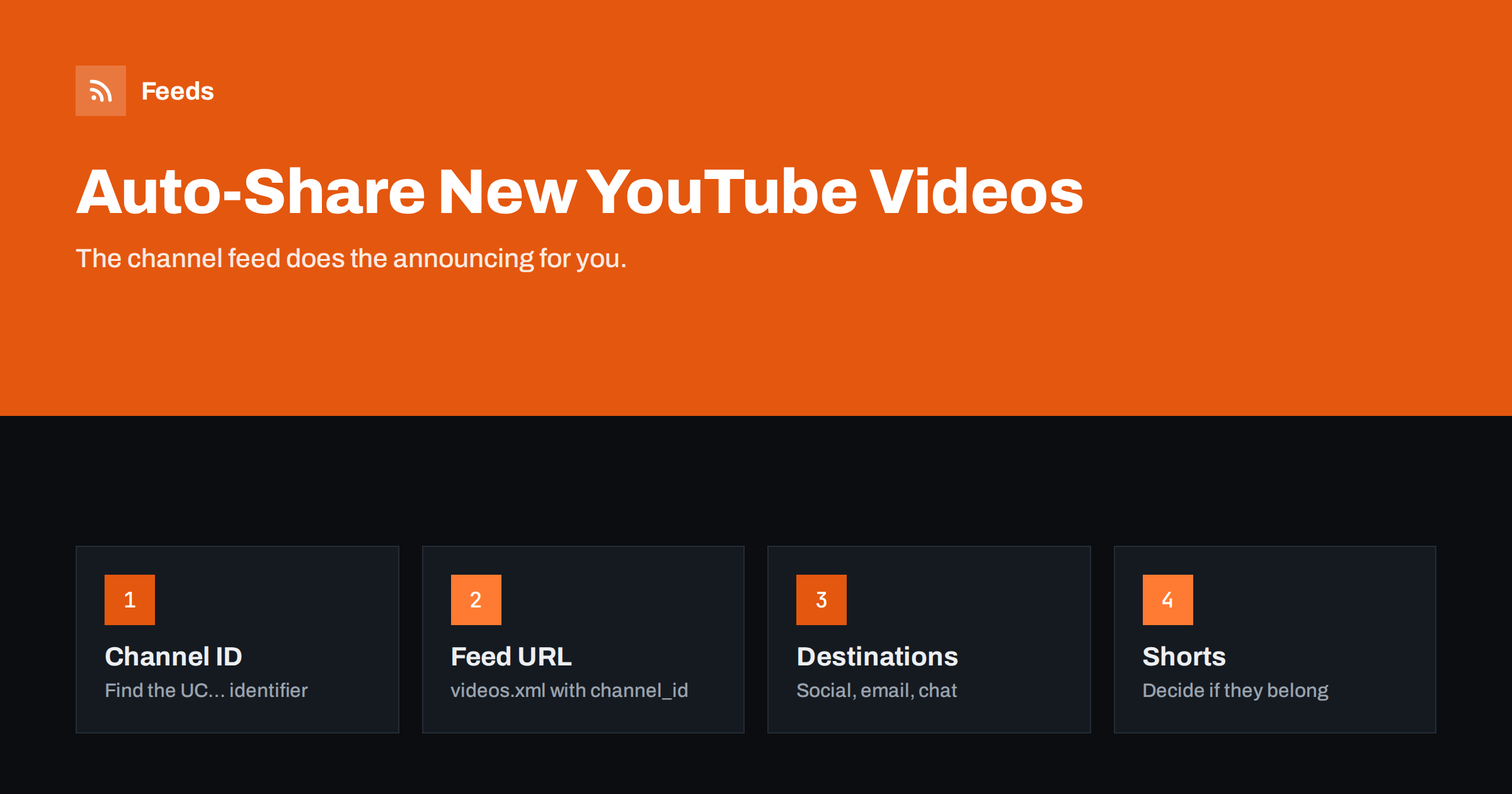
Short answer: Every YouTube channel publishes an Atom feed at https://www.youtube.com/feeds/videos.xml?channel_id= followed by the channel ID, and every public playlist has one with playlist_id=. Connect that feed URL to a social posting tool, email platform or automation workflow, and each new upload is shared automatically with its title, link and thumbnail. Decide upfront whether Shorts and livestreams should be shared, and write a template that adds context rather than just a link.
Why use the feed instead of YouTube’s own notifications
YouTube notifies subscribers of new uploads, but only within YouTube, and only those who subscribed and enabled notifications. Your followers on LinkedIn, Facebook, X, Telegram, Discord or your email list will not hear about a new video unless you tell them.
Doing it manually works for occasional uploads, but it is easy to forget, and the announcement often comes hours or days late. The channel feed turns this into a reliable, automatic step. Upload once, and every channel you care about gets a post shortly after the video goes public.
Automatic sharing also helps the video itself. Early views often matter for how a new video performs, and bringing your existing audiences from other channels to it in the first hours after publication is exactly what a feed-based workflow does well.
The same feed is useful in the other direction too. Teams can follow competitors’, partners’ or industry channels in a feed reader or chat channel, without anyone having to check YouTube.
Finding the channel feed URL
The feed URL needs the channel ID, which starts with UC and is followed by a string of letters and numbers. It is not the same as the channel’s handle, such as @yourbrand.
Ways to find the ID:
- For your own channel: in YouTube Studio, the advanced settings of your channel show the channel ID.
- From the channel page: open the channel, use the “Share channel” option in the About section, and copy the channel ID if offered.
- From the page source: view the channel page source and search for
channel_idorexternalId; many browsers also reveal an RSS link in the page head.
Then build the URL: https://www.youtube.com/feeds/videos.xml?channel_id=UCxxxxxxxxxxxxxxxxxxxxxx. Open it in a browser; you should see XML with entries for recent videos.
For a playlist, use https://www.youtube.com/feeds/videos.xml?playlist_id= with the playlist ID from the playlist’s URL. Playlist feeds let you share only a specific series, which is useful if your channel mixes several topics.
What the feed contains
The YouTube feed is in Atom format and lists the most recent uploads, typically around the latest fifteen. Each entry includes:
- The video title and link.
- Publication and update dates.
- The video ID and channel information.
- A
media:groupwith the description, thumbnail URL and some statistics.
Because the feed only includes recent videos, it is suited to “new upload” automation, not to building a full archive. Most automation and posting tools read Atom as easily as RSS.
Destinations and how to set them up
Social networks
Add the feed to your social posting tool as you would a blog feed. Video links usually produce rich previews on most networks, with the thumbnail shown and, on some, the video playable inline. Use a template with a sentence about what viewers will learn, not just “New video”.
An email platform’s RSS campaign can send a weekly “new videos” digest from the channel feed. Thumbnails from the feed make the email visual. Keep the description short; YouTube descriptions often contain long link lists and timestamps.
Team and community chats
Discord servers, Telegram channels, Slack and Teams channels are natural destinations, especially for creator communities and internal training channels. Use the methods you would for any feed: bots, webhooks or automation platforms.
Your website
Some sites show their latest videos on the homepage using the feed. Keep this as a simple list with thumbnails and links, or embed a few videos manually for better performance.
Shorts, livestreams and premieres
The channel feed can include more than regular uploads, depending on how YouTube handles each format at the time. Shorts, scheduled premieres and livestreams may appear as entries. That can surprise you: a flurry of Shorts may flood your LinkedIn page, or a livestream announcement may be shared before the stream starts.
Decide what you want:
- If Shorts should not be shared, filter entries whose link contains
/shorts/where your tool shows it, or use a playlist of long-form videos as the feed instead. - For premieres and livestreams, check how your posting tool behaves the first time, and adjust with filters or a posting delay.
- For mixed-topic channels, use playlist feeds per topic and send each to the right audience.
Writing better automated video posts
- Lead with the benefit. “How to fix X in five minutes” beats “New video out now”.
- Use the title well. Since automation copies the video title, a clear, descriptive title helps every destination.
- Trim the description. Use only the first sentence or two; long descriptions with timestamps and links clutter posts.
- Tag appropriately. One or two hashtags on networks that use them.
- Add UTM parameters only if you link to a page on your own site that embeds the video, since UTM tags on YouTube links do not show up in your website analytics.
- Consider a delay of a few minutes after publishing, so thumbnails and metadata are final before networks cache the preview.
Example: a small business video channel
Consider a small software company that publishes a tutorial video every week and occasional Shorts with quick tips. Its goals are simple: customers should hear about new tutorials wherever they follow the company, and the support team should know when a new video exists so they can link to it in replies.
The setup looks like this:
- A playlist called “Tutorials” that contains only the long-form videos. Its playlist feed drives social posting on LinkedIn and Facebook, with a template that starts with the problem the video solves.
- The full channel feed, including Shorts, goes to the company’s Telegram channel, whose audience likes quick tips.
- The tutorials playlist feed also feeds a monthly “new tutorials” block in the customer newsletter through the email platform’s RSS campaign.
- A support team chat channel receives every new tutorial with a note to add it to the help centre’s related articles.
After uploading, the video team does nothing else. Within a short time, the video is announced in four places, each in a format that suits the audience. The only manual step left is a personal comment from the presenter on LinkedIn, which tends to add more engagement than any template.
This kind of setup takes an afternoon to build and saves a small, repeating chore every week, which adds up to a lot over a year.
Following other channels
Channel feeds are equally useful for keeping track of others. Marketing teams follow competitors’ and industry channels; trainers follow official channels of the tools they teach; community managers follow creators relevant to their audience. Put the feeds into a reader, or merge them and post new videos into a team channel.
Feeds can merge several channel feeds into one, keep only videos whose titles contain your keywords and remove duplicates, so a team channel receives only relevant new videos from many sources. It also creates feeds from pages without RSS, which helps when you want to combine video uploads with news from websites that lack a feed. See plans and limits for merged sources.
Troubleshooting
- Feed shows an error: check the channel ID; handles and custom URLs do not work in the feed URL.
- New video not posted: private, unlisted or scheduled videos do not appear until public. Check the feed itself before blaming the tool.
- Old videos posted: changing a video’s title or details can sometimes update the entry; tools that look at update dates may treat it as new.
- No thumbnail in the post: the network’s preview may be cached, or your tool may not read
media:thumbnail.
Related reading
- How to Automate Social Media Posts from an RSS Feed
- How to Auto-Post an RSS Feed to a Telegram Channel
- Why Automated Social Posts Lose Images and How to Fix It
- How to Turn an RSS Feed into an Automatic Email Newsletter
The bottom line
The YouTube channel feed is one of the simplest automation sources available: find the channel ID, build the feed URL and connect it to your social posting tool, newsletter or team chat. Use playlist feeds to separate topics, decide how Shorts and livestreams should be handled, and write templates that tell people why the video is worth watching. From then on, every upload announces itself.
SSS
Does every YouTube channel have an RSS feed?
Yes. Public channels have an Atom feed at youtube.com/feeds/videos.xml with the channel_id parameter, and public playlists have one with the playlist_id parameter.
Can I use a channel handle in the feed URL?
No. The feed needs the channel ID that starts with UC. You can find it in YouTube Studio settings or in the channel page source.
How many videos does the YouTube feed include?
It lists the most recent uploads, typically around fifteen entries, so it suits new-upload automation rather than building an archive.
Will Shorts appear in the channel feed?
They can. If you do not want Shorts shared, filter entries by their link or use a playlist feed that contains only your long-form videos.
Can I get a feed for only one series of videos?
Yes. Put the series in a public playlist and use the playlist feed URL with the playlist_id parameter.
How quickly do new videos appear in the feed?
Usually shortly after a video becomes public, although there can be a delay. Your automation tool’s polling interval adds to that, so expect minutes rather than seconds.


