 ENEnglish
 LTLietuviškai
 DEDeutsch
 FRFrançais
 RUРусский
 ESEspañol
 PLPolski
 ITItaliano
 UKУкраїнська
 CSČeština
 PTPortuguês
 JA日本語
JA日本語 LVLatviešu valoda
 ETEesti
 HUMagyar
 IDBahasa Indonesia
 TRTürkçe
 HIहिन्दी
 ELΕλληνικά
 ARالعربية
 THไทย
THไทย VITiếng Việt
 RORomână
 MSBahasa Melayu
 BNবাংলা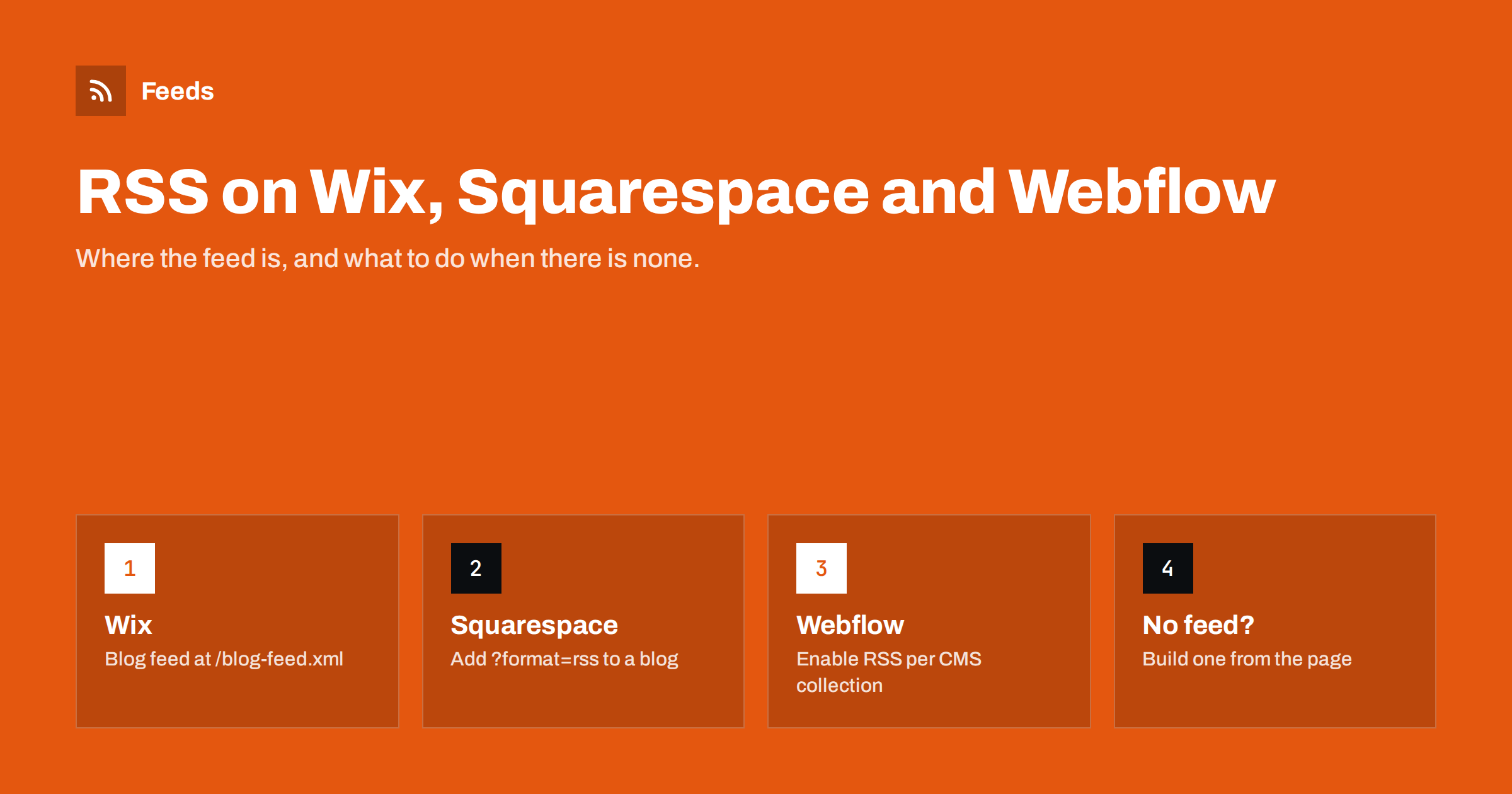
Short answer: all three website builders can publish an RSS feed for blog content, but each does it differently. On Wix the blog feed is usually at /blog-feed.xml; on Squarespace you add ?format=rss to the address of a blog page; on Webflow you switch RSS on in the settings of a CMS collection. Pages that are not blogs, such as a news list built by hand or a static events page, normally have no feed, and for those you need a page-to-feed tool.
Why builder sites often “hide” their feed
Classic content management systems such as WordPress print a feed link in the page head and often show an RSS icon somewhere in the theme. Hosted website builders are designed for people who may never have heard of RSS, so the feed exists but is rarely advertised. Visitors do not see an icon, the template may not include an autodiscovery tag, and the site owner may not know the feed is there at all.
That matters for three groups of people:
- Site owners who want to connect their blog to an email newsletter tool, a social posting tool or a partner site. Almost every automation tool starts with a feed URL.
- Readers who want to follow a small business or creator in an RSS reader instead of hoping the algorithm shows their posts.
- Marketers and agencies who monitor client or competitor sites and need a reliable signal when something new is published.
The good news is that the feed usually exists. The work is knowing where to look and checking that it contains what you expect.
Wix: the blog feed
When a Wix site uses the built-in Wix Blog app, the platform generates an RSS feed for the blog automatically. In most cases the address is the site’s domain followed by /blog-feed.xml, for example example.com/blog-feed.xml. You do not need to switch anything on; the feed appears as soon as the blog has posts.
Things to know about the Wix feed:
- It covers the blog app only. Pages built with ordinary sections, text boxes or repeaters are not part of it, even if they look like a news list.
- It lists the latest posts. Treat it as a stream of new content, not an archive of everything you have ever published.
- Images and excerpts depend on the post. Posts with a cover image and a proper excerpt produce much better items in readers and social tools than posts that start with a long introduction.
If the address does not load, check that the blog is actually the Wix Blog app and not a page designed to look like a blog. Wix’s own help centre documents the current behaviour, and it is worth checking because builders change details from time to time.
Squarespace: add ?format=rss to a blog page
Squarespace takes a different approach. Every blog page is a collection, and you can get its feed by adding ?format=rss to the page address. If your blog lives at example.com/journal, the feed is at example.com/journal?format=rss. A site with two blog pages, say “News” and “Recipes”, therefore has two separate feeds.
A few practical points:
- Use the page slug, not the home page. Adding the parameter to the home page does not give you the blog feed unless the home page is the blog itself.
- Each blog page is independent. That is useful when you want to send only one type of content to a newsletter or social account.
- Squarespace podcasts are built on blog pages. The same feed mechanism is what podcast directories read, with extra podcast settings added on top.
Squarespace templates often include an autodiscovery link for the blog feed, so many RSS readers find it when you paste the blog address. If yours does not, paste the full ?format=rss address instead.
Webflow: enable RSS on a CMS collection
Webflow does not create a feed by default. Content is stored in CMS collections, such as “Blog Posts”, “Case Studies” or “Jobs”, and RSS is a setting on each collection. In the collection settings you turn on the RSS feed option and choose which fields map to the feed’s title, description and image. After publishing the site, the feed is available under the collection’s path.
That design has advantages and traps:
- You decide what goes into the feed. A clean summary field mapped to the description gives far better results than a long rich-text body.
- Any collection can have a feed. Job openings, events or changelog entries can be published as RSS just like blog posts, which makes Webflow flexible for automation.
- Nothing happens until you publish. Enabling the option in the Designer without republishing the site leaves the old state live.
- Static pages have no feed. A news page built with static sections instead of a collection list cannot use this feature.
Because the feed path depends on your collection settings, the simplest way to confirm it is to open the collection’s settings after enabling RSS and copy the address Webflow shows, then open it in a browser.
Comparison at a glance
| Builder | Where the feed comes from | Needs switching on? | Typical gap |
|---|---|---|---|
| Wix | Wix Blog app, usually /blog-feed.xml |
No | Pages built without the blog app |
| Squarespace | Blog page address plus ?format=rss |
No | Non-blog pages and hand-built lists |
| Webflow | RSS setting on each CMS collection | Yes, per collection | Collections without RSS enabled, static pages |
Other hosted builders follow one of these patterns: either a fixed feed for the blog module, a parameter on the page address, or a setting per content type. When in doubt, search the builder’s help centre for “RSS” and test the address in a browser. Our guide to RSS autodiscovery link tags explains how to check whether a page announces its feed to readers and tools.
How to check that the feed is actually useful
Finding the address is half the job. Before connecting a newsletter, social tool or reader, open the feed and check a few things:
- It loads without errors. A browser should show XML or a styled feed page, not a 404 or a login screen.
- The newest post is at the top and its date is correct. Wrong dates cause readers and automations to skip or repeat items.
- Each item has a sensible title, link and summary. Summaries that are just the first lines of the post, cut mid-sentence, are common on builder sites. Writing a proper excerpt fixes them.
- Images are present if you plan to post to social networks. Missing images are one of the most common complaints with automated posts.
- Links point to the live domain, not to a staging or free subdomain left over from before the site was connected to its own domain.
A validator helps if something looks off. The step-by-step guide on validating an RSS feed and fixing common errors covers the problems that appear most often, and choosing between full text and summaries helps you decide what your items should show.
When a page has no feed at all
Builder sites frequently have content that lives outside the blog module: a “News” page maintained as a list of text blocks, a “Projects” gallery, an events page, a careers page or a product catalog. None of these produce RSS on their own. You have three options:
- Move the content into the blog or a CMS collection. This is the cleanest fix if you own the site and the content really is a series of posts.
- Enable a feed for the right collection on Webflow, where almost any repeating content can be a collection.
- Create a feed from the page itself. A page-to-feed tool reads the public page like a visitor, detects the repeating list of items and turns it into RSS. This is the only option when the site belongs to someone else, such as a partner, supplier or competitor.
For the last case, the general method is described in how to create an RSS feed for a website without RSS. Builder pages are usually well suited to this, because their lists are rendered as regular HTML with a clear repeating structure.
How Feeds helps with builder sites
Feeds works from the outside, so it does not matter which builder a site uses and you do not need any access to it. Paste the address of a page and Feeds first checks whether the site already offers an RSS feed; if it does, that feed is used. If not, it finds the list of articles on the page, reads titles, images, summaries and dates, and also uses JSON-LD article data where the page provides it. You see a preview of the items before anything is created.
You can then merge several sources into one feed, keep only items with or without certain words, and let duplicates be removed automatically. The feed refreshes on its own, and paid plans send an alert if a feed stops finding items after a layout change. If you run a store on another platform, product feeds for Google Merchant Center and Meta can be created from WooCommerce, Shopify or a CSV file link. You can try it on a page of your choice or compare the options on the plans page.
Related reading
- WordPress RSS Feed URLs: Every Feed Your Site Already Has
- Shopify Blog RSS Feeds: Where They Are and How to Use Them
- RSS Feeds on Substack, Ghost, Medium and Other Platforms
The bottom line
Wix, Squarespace and Webflow can all publish RSS, but only for content stored in their blog or CMS features. Find the feed with the builder’s pattern, check that titles, dates, summaries and images look right, and fix weak excerpts at the source. For pages that were built by hand or belong to other people, create the feed from the page itself.
FAQ
Does every Wix site have an RSS feed?
Only sites that use the Wix Blog app get an automatic blog feed, usually at /blog-feed.xml. Pages built from ordinary sections or repeaters are not included, even if they look like a list of news.
How do I find the RSS feed of a Squarespace blog?
Open the blog page and add ?format=rss to its address, for example example.com/journal?format=rss. Each blog page on the site has its own feed.
Why does my Webflow site have no RSS feed?
Webflow feeds are switched off by default. Enable RSS in the settings of the CMS collection you want to publish, map the title, description and image fields, and republish the site.
Can I get a feed from a builder page that is not a blog?
Not from the builder itself in most cases. You can move the content into a blog or CMS collection, or use a page-to-feed tool that reads the public page and turns its list of items into RSS.
Why do my feed items show cut-off summaries?
The builder usually falls back to the first lines of the post when no excerpt is set. Write a short, complete excerpt for each post and the feed, newsletter tools and social posts will use it.


