ENEnglish
 LTLietuviškai
 DEDeutsch
 FRFrançais
 RUРусский
 ESEspañol
 PLPolski
 ITItaliano
 UKУкраїнська
 CSČeština
 PTPortuguês
 JA日本語
JA日本語 LVLatviešu valoda
 ETEesti
 HUMagyar
 IDBahasa Indonesia
 TRTürkçe
 HIहिन्दी
 ELΕλληνικά
 ARالعربية
 THไทย
THไทย VITiếng Việt
 RORomână
 MSBahasa Melayu
 BNবাংলা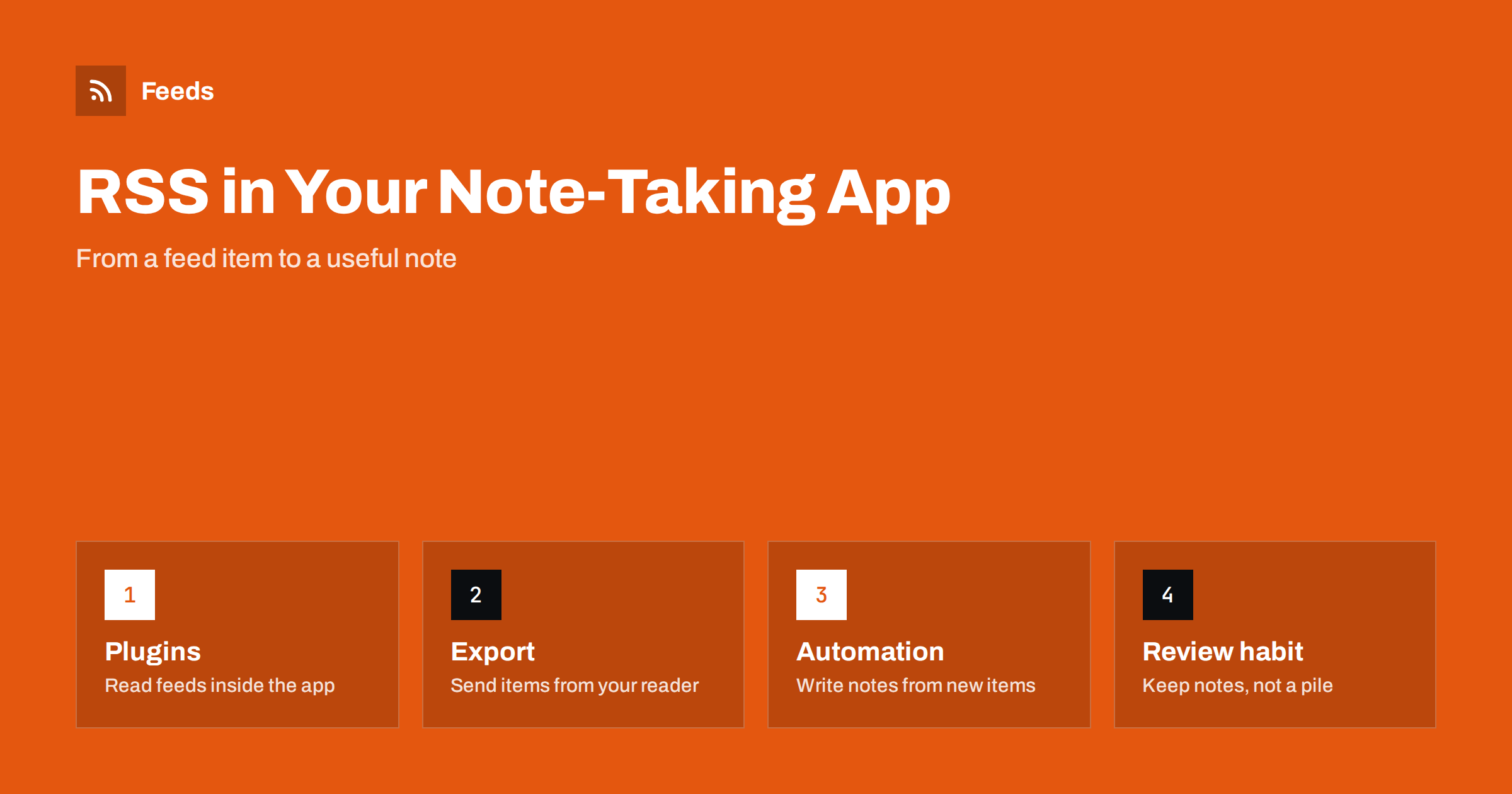
Short answer: You can bring RSS into a note-taking app in three ways: read feeds inside the app with a community plugin, send items from your feed reader to your notes with an export or clipping feature, or use an automation tool that writes a note for each new feed item. Whichever you choose, save the title, the link, the date and a short summary, and review the inbox weekly so that it stays a working tool and does not become a pile.
Why connect feeds to your notes
A feed reader is good at showing what is new, and a note-taking app is good at keeping what matters. The two jobs are different, and many people end up copying links from one to the other by hand. Connecting them removes that step: an interesting article becomes a note with its source, and you can link it to your own ideas, projects and questions.
This is especially useful for research, writing and learning. A researcher keeps a library of papers, a writer collects examples and quotes, and a student keeps summaries of articles linked to a course. In each case the feed delivers the raw material and the notes app turns it into knowledge. The workflow for writers is described in how writers can automate content research with feeds.
Option one: read feeds inside the notes app
Some notes apps can be extended with plugins. Obsidian, which stores notes as plain Markdown files, has a large library of community plugins, and several of them read RSS feeds so you can browse items and save one as a note without leaving the app. Other apps, such as Logseq, have their own plugin systems or ways to import feed items.
- Advantage. Everything is in one place, and saving a note takes a click.
- Drawback. Community plugins are maintained by volunteers, and their features, names and availability change. Check the current plugin list and the date of the last update before you rely on one.
- Drawback. A notes app is not designed as a full reader, so features like folders, filters and read status may be basic.
This option suits people with a few feeds and a strong habit of saving items they like. If you follow hundreds of sources, a dedicated reader is better.
Option two: a reader that sends items to your notes
Many people prefer to keep a good feed reader and send selected items to their notes. Readers offer different ways to do this: a share button, a clipping extension, e-mail forwarding, a connection to a service, or an export of saved items. A browser clipper that saves the open page as a Markdown note is the most common one.
The workflow is simple. Read in the reader. When an item is worth keeping, clip it. The note arrives in an inbox folder with the title, link and date. If you want to know more about how a reader and a read-later app can work together, see RSS reader vs read-later app.
The advantage is that the reader does what it does best, including filtering and marking items as read. The cost is a manual step, which is also a kind of filter: you only keep what you decide to keep.
Option three: automation that writes the notes
If you want every new item from a feed to become a note, use an automation tool. The tool watches the feed, and for each new item it creates a Markdown file or a database entry in a folder that your notes app uses. Workflow tools such as n8n, Make and Zapier can do this, and the choice between them is covered in Zapier vs Make vs IFTTT vs n8n for RSS automation. A step-by-step approach for one of them is in building RSS automation workflows with n8n.
The same idea works for notes services that are not file-based. For a database such as Notion, see how to send RSS feed items to a Notion database.
Use this option only for feeds that are small and valuable. A busy feed will fill your vault with hundreds of notes you never read, and searching will become harder, not easier. Filter by keyword first, and write only the items that match.
What a good feed note contains
Consistent notes are easier to search and link. A simple template is enough:
- Title. The title of the article, without the site name.
- Source and link. The name of the site and the full address, so you can go back to the original.
- Date. The publication date, and the date you saved the note.
- Tags or properties. A few words such as the topic, the project, or a status like unread.
- Summary. Two or three sentences, preferably in your own words.
Most notes apps support a small block of properties at the top of a note, which you can use for these fields. If an automation writes the notes, it can fill them in. When a feed gives only a short summary, the decision between a summary and the full text is explained in full text or summary: choosing what your RSS feed shows.
One note per item or one note per day
There are two common structures. In the first, each feed item becomes its own note. This makes linking easy, because each article is a node you can connect to others, but it creates many small files. In the second, a daily or weekly digest note collects all new items as a list. This is lighter, and good for scanning, but individual items are harder to link.
A practical mix is to let automation add items to a digest, and to create a full note only for the ones you decide to keep. The digest is the inbox, and the individual notes are the library.
A review habit that prevents a pile
The biggest risk of connecting feeds to notes is hoarding. Items arrive faster than you can read them, and the inbox becomes a pile of good intentions. A short weekly review prevents this:
- Open the inbox folder or digest.
- Delete everything that no longer interests you.
- For what remains, write one sentence on why it matters and link it to a project or topic.
- Move it out of the inbox.
If the inbox is regularly too large, reduce the sources or tighten the filters. The advice in how to organize your RSS reader so it never overwhelms you applies equally to a notes inbox.
Keeping your own copy, with care
Notes are personal, but copying other people’s work has limits. Saving a link, a short summary and a few short quotes for your own use is normal. Copying whole articles into a vault that you share, publish or sync with others is a different matter, and the terms of the source site apply. If you want a longer-term personal archive, the approach is explained in how to archive RSS feed content and keep your own copy. Prefer storing the link and your summary over a full copy, since pages move and your notes remain.
Sites without a feed. Some of the best sources for your notes are websites without a feed: a research group’s news page, a small publisher’s article list or a standards body’s updates. For these you can create a feed from the page and treat it like any other source. A feed built from a page contains the same fields, so the plugin, the reader or the automation does not notice the difference. The result is that your notes system can follow sites that have never offered RSS.
How RSS Feed Creator helps
RSS Feed Creator turns the article list of a web page into a standard RSS feed with titles, images, summaries and dates, and it uses an existing feed when the page already has one. You see a preview of the items before the feed is created, and the feed works in any RSS reader or tool, which includes the plugins and automation tools described above. You can merge several sources into one feed (up to 10 on paid plans) and keep only the items that contain your keywords, so your notes inbox gets fewer and better items. Feeds refresh every 3 hours on the free plan and every 30 minutes on paid plans, and the free plan allows up to 20 items per feed. The details are on the pricing page.
Related reading
- OPML Files Explained: Move Your RSS Subscriptions Anywhere
- RSS GUIDs Explained: Why Readers Show Old Posts as New
- How to Choose an RSS Reader: Features That Actually Matter
The bottom line
Connect feeds to your notes in the way that fits your volume: a plugin for a few feeds, clipping from a reader for a careful selection or automation for a small and valuable stream. Use one simple template, keep a digest as the inbox and review it every week. Save the link and your own summary and let the notes grow from what you keep.
BUJ
Can Obsidian read RSS feeds?
Not on its own, but community plugins can read feeds and save items as notes. Plugin features and availability change, so check the current list and the last update date before you rely on one.
What is the easiest way to save feed items as notes?
Read in your usual feed reader and use a share button or a browser clipper to save the interesting items as Markdown notes. It adds one manual step, which also works as a filter.
Should every feed item become a note?
No. Automate only small, valuable feeds, or let items collect in a digest and create full notes for those you keep. Writing everything produces a vault that is hard to search.
What should a note from a feed item include?
The title, the source and link, the publication date, a few tags or properties and a short summary in your own words. A consistent template makes notes easier to search and link.
Can I follow a website without a feed in my notes app?
Yes. Create a feed from the site’s article list page and add that feed to the plugin, reader or automation you use. The result behaves like any other feed.