 ENEnglish
 LTLietuviškai
 DEDeutsch
 FRFrançais
 RUРусский
 ESEspañol
 PLPolski
 ITItaliano
 UKУкраїнська
 CSČeština
 PTPortuguês
 JA日本語
JA日本語 LVLatviešu valoda
 ETEesti
 HUMagyar
 IDBahasa Indonesia
 TRTürkçe
 HIहिन्दी
 ELΕλληνικά
 ARالعربية
 THไทย
THไทย VITiếng Việt
 RORomână
 MSBahasa Melayu
 BNবাংলা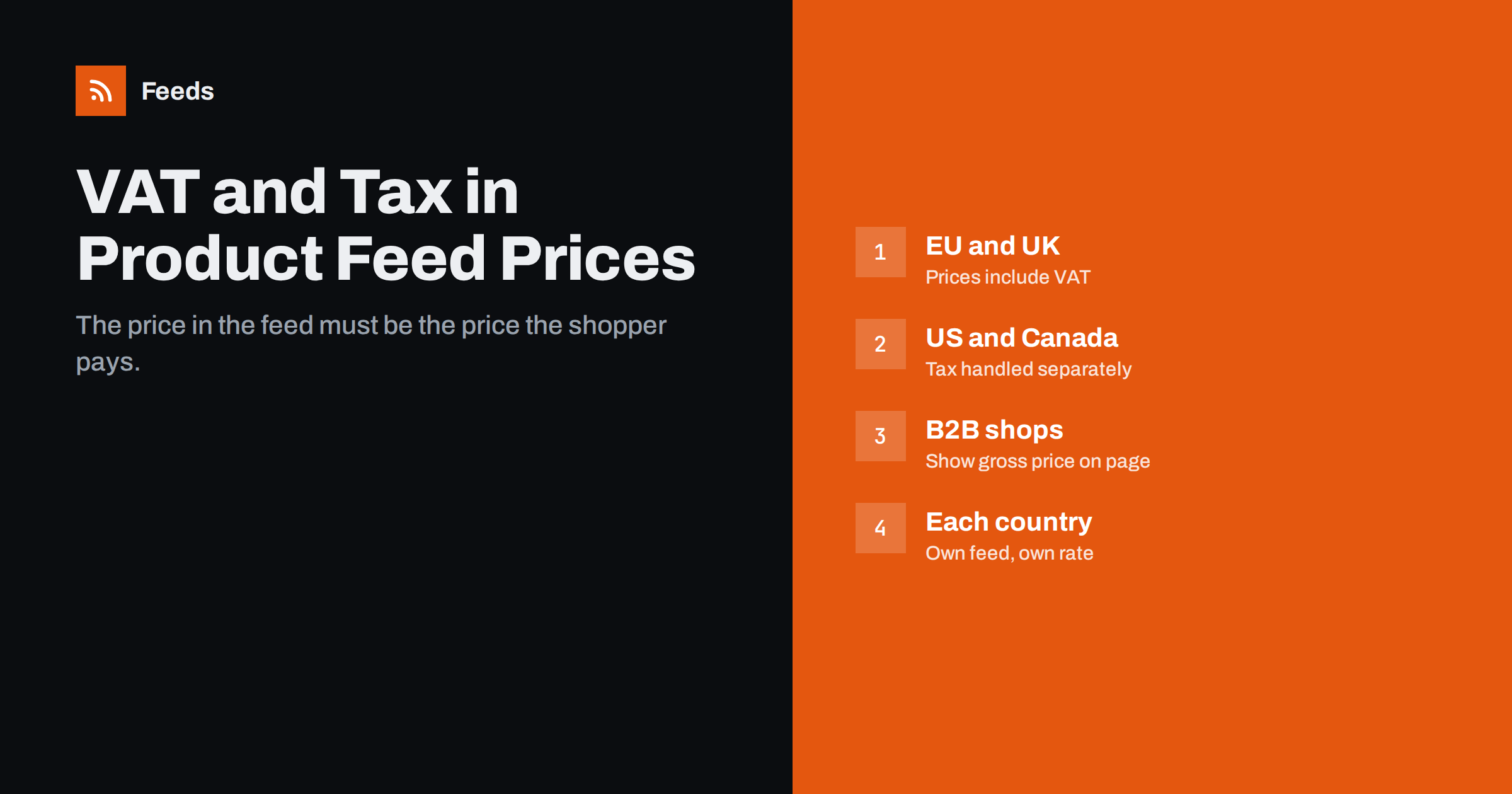
Short answer: in most countries, including the EU member states and the UK, the price in a Google product feed must include VAT, because that is the price consumers pay. In the United States and Canada, prices are submitted without sales tax, and tax is handled separately in Merchant Center. Whatever the market, the feed price must match the price shown on the landing page for a shopper in that country. B2B shops that display net prices need to show the gross price on the page too, and stores selling in several countries need a feed per country with the right rate.
Why tax causes so many feed problems
Tax looks like a detail, but it is one of the most frequent reasons for price mismatches and disapprovals. Store platforms can be configured to store prices with or without tax, to display them either way, and to change the displayed price depending on the visitor’s country. Feed plugins then export one of those values, not always the one Google expects. The result is a feed that says 100 while the page says 121, or the other way round.
Google compares the feed price with the page. If they differ, the item can be flagged for a price mismatch, as described in how to fix price mismatch errors in Merchant Center. Getting tax right from the beginning prevents a whole category of those errors.
The basic rule by market
| Market | Feed price | Where tax is handled |
|---|---|---|
| EU countries | Including VAT | In the price itself |
| United Kingdom | Including VAT | In the price itself |
| Most other countries with VAT or GST | Usually including tax | In the price itself; check local rules |
| United States | Excluding sales tax | Merchant Center tax settings |
| Canada | Excluding sales tax | Handled separately |
The logic follows local consumer law. Where shops must show prices including tax, the feed must do the same. Where shelf prices traditionally exclude sales tax, as in the United States, the feed follows that convention and tax is added separately. Google’s product data specification and Merchant Center help pages give the current rules for each country, and they are worth checking whenever you enter a new market.
B2B shops that show net prices
Many wholesale and trade shops display prices excluding VAT, because their customers are businesses that reclaim it. That creates a conflict in countries where consumer listings must include VAT: the feed should contain the gross price, but the page shows the net price, and Google sees a mismatch.
Practical solutions:
- Show both prices on the product page, for example “€100.00 excl. VAT / €121.00 incl. VAT”. Google can then find the gross price on the page, and business buyers still see the figure they care about.
- Offer a price display switch with gross prices as the default for visitors who are not logged in.
- Make sure structured data carries the gross price, because Google also reads the page markup.
- Do not submit net prices as if they were consumer prices. Even if an item is not disapproved, it misleads shoppers who compare offers.
Also check whether your products are suitable for consumer-facing channels at all. Some B2B catalogs are better advertised through other channels than Shopping ads and free listings.
Reduced rates and mixed catalogs
Many countries apply different VAT rates to different products: books, food, children’s items or medical products often have reduced rates. A feed that calculates gross prices by adding one standard rate to all net prices will be wrong for part of the catalog.
- Let the store calculate tax per product, using its tax classes, and export the final consumer price.
- Avoid formulas in spreadsheets or feed rules that add a single percentage to everything, unless your whole catalog really has one rate.
- Spot-check one product from each tax class: feed price, page price and checkout price should be identical.
The same caution applies to any price rules in product feeds: a rule that changes prices must still produce the price a shopper sees on the page.
Selling in several countries
When you sell across borders, the correct price depends on the destination. An EU shop selling to consumers in other EU countries generally charges the VAT rate of the customer’s country once it passes the EU distance-selling threshold, so the same product can have a different gross price in each country. Outside the EU, prices may be shown without local taxes, with duties handled at delivery.
For feeds this means:
- One feed per target country, or a feed with country-specific prices, so each market sees its own correct price.
- The landing page must show the same price for a visitor from that country, typically through geolocation or a country selector with a distinct URL.
- Currency and language must match the target country as well.
The broader setup is covered in multi-country product feeds: currency, language and prices. Tax is the part that most often goes wrong in those setups, because the page may show one country’s price while the feed contains another’s.
Sale prices, shipping and other price-related fields
- sale_price follows the same tax rule as price: including VAT in VAT markets, excluding sales tax in the US. See sale prices in product feeds.
- Shipping costs are separate from the product price and are usually set in Merchant Center shipping settings; in VAT markets they are shown including VAT as well. The options are described in shipping settings vs attributes.
- unit_pricing_measure and similar fields do not change the tax rule; they only help show a price per unit.
- Price format should always be a number plus an ISO currency code, for example
121.00 EUR, without thousands separators.
Symptoms of a tax problem and what they usually mean
Tax errors rarely announce themselves as tax errors. They show up as other messages or odd numbers. These patterns point to tax as the likely cause:
- Every price in the feed is lower than on the page by the same percentage, such as 20 or 21 percent. The feed exports net prices while the page shows gross prices.
- Only some products have price mismatches, and they belong to the same category, such as books or food. A single standard rate was applied to products with a reduced rate.
- Mismatches appear only in one target country. The page shows the price for your home country while the feed contains prices for the target country, or the reverse.
- US listings show prices that look too high. The feed includes sales tax that should have been left out.
- Problems begin right after a store update, for example a change in the tax display setting, a new tax plugin or a theme that now shows net prices to guests.
When you spot one of these patterns, fix the setting at its source rather than patching individual products. A single wrong setting usually affects the whole catalog, and correcting it clears most of the errors in the next feed fetch.
A quick tax checklist for your feed
- Know the tax convention of each target country: included or excluded.
- Check the store setting that decides whether exported prices include tax.
- Compare five products in the feed, on the page and at checkout for a visitor from each target country.
- Include at least one product with a reduced rate and one on sale in the test.
- Check the page’s structured data price.
- Repeat the check after changing tax settings, themes, plugins or entering a new market.
How Feeds helps
Feeds builds Google product XML, which Meta catalogs also read, directly from a WooCommerce or Shopify store or from a CSV file link. It reads the public product data, so the prices in the feed follow what the store publishes, and currency is detected automatically. Rules can adjust prices and rewrite titles, and out-of-stock products can be skipped. If your store has several markets or tax setups, a CSV link gives you full control over the exact price for each feed. As with any tool, compare a few feed prices with the product pages after setup. See the plans for product limits and store options.
Related reading
- Google Product Feed Attributes: Required and Recommended
- WooCommerce Product Feed for Google Shopping: A Setup Guide
- 12 Product Feed Mistakes That Quietly Cost You Sales
The bottom line
The price in your feed must be the price the shopper in that country sees and pays. In VAT markets that means including VAT; in the United States and Canada it means excluding sales tax. Let the store calculate tax per product, show gross prices on B2B pages, create a feed per country when rates differ, and test feed, page and checkout prices together whenever settings change.
SSS
Should Google Shopping prices include VAT?
In the EU, the UK and most other countries with VAT, yes. The feed price must be the consumer price including VAT, matching the product page.
Do US product feed prices include sales tax?
No. In the United States, prices are submitted without sales tax, and tax is handled separately in Merchant Center rather than in the product price.
My B2B shop shows prices without VAT. What should the feed contain?
For consumer-facing listings in VAT countries, the feed should contain the gross price. Show the gross price on the product page as well, next to the net price, so the page and feed match.
Can I add VAT to all prices with one formula in my feed?
Only if every product has the same rate. With reduced rates for some products, let the store calculate tax per product and export the final price.
Do I need separate feeds for different EU countries?
If the price differs by country, for example because of different VAT rates, yes. Each country needs a feed or country-specific prices that match what visitors from that country see.


