 ENEnglish
 LTLietuviškai
 DEDeutsch
 FRFrançais
 RUРусский
 ESEspañol
 PLPolski
 ITItaliano
 UKУкраїнська
 CSČeština
 PTPortuguês
 JA日本語
JA日本語 LVLatviešu valoda
 ETEesti
 HUMagyar
 IDBahasa Indonesia
 TRTürkçe
 HIहिन्दी
 ELΕλληνικά
 ARالعربية
 THไทย
THไทย VITiếng Việt
 RORomână
 MSBahasa Melayu
 BNবাংলা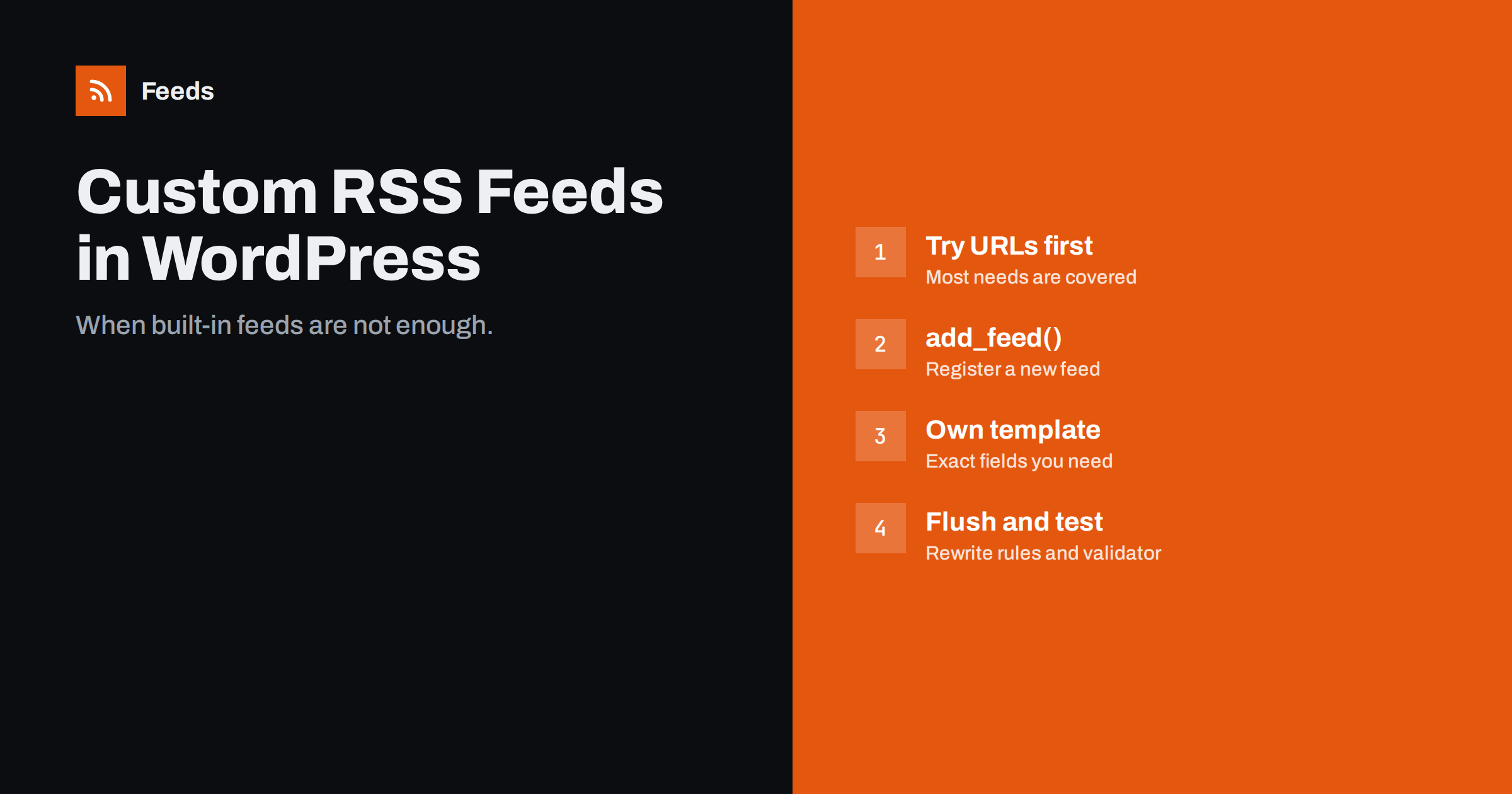
Short answer: Before writing code, check whether a built-in feed URL already does the job: WordPress offers feeds for every category, tag, author, custom post type and search, and query parameters can combine them. If you need a different structure, such as custom fields, a partner’s required format or a mix of post types, register a new feed with add_feed(), give it its own template, flush the rewrite rules once, and validate the result. Keep the code in a small plugin, not in the theme.
Custom feeds solve real problems: a partner portal that wants only events with a start date, a job board that needs location and salary fields, a mobile app that expects a particular set of tags, or an internal dashboard that should show several post types together. WordPress makes custom feeds surprisingly easy, but it is just as easy to create one that breaks on the next update or slows down the site. This guide covers when to build one, how to do it properly and how to keep it healthy.
First, check whether you need a custom feed at all
A lot of “custom feed” requests can be solved with URLs WordPress already understands. Before writing code, try these:
- One category or tag:
/category/events/feed/or/tag/webinar/feed/. - Several categories:
/?cat=3,7&feed=rss2, or exclude one with/?cat=-12&feed=rss2. - A custom post type:
/?post_type=jobs&feed=rss2, or the post type archive plus/feed/. - A custom taxonomy term: the term archive address plus
/feed/. - A keyword:
/?s=webinar&feed=rss2. - A different order:
/?feed=rss2&orderby=modifiedworks for some public query variables, though not all are allowed.
If one of these delivers the right items and the partner accepts standard RSS, you are done. Build a custom feed only when you need different fields, a different format, or logic that URLs cannot express.
Common reasons for a truly custom feed
- Extra fields such as event dates, prices, locations or author bios from custom fields.
- A partner specification that requires particular element names or namespaces.
- Mixed content: posts, pages and custom post types in one chronological feed.
- Different content rules: full text for a partner feed while the public feed shows summaries, or the reverse.
- A stable, documented URL such as
/feed/partners/that will not change if categories are renamed. - Different item counts from the public feed, for example 50 items for an archive consumer.
How WordPress feeds work under the hood
Understanding the mechanism helps you avoid mistakes. When someone requests /feed/, WordPress:
- Matches the URL against rewrite rules and sets the
feedquery variable. - Runs the normal main query for that context, such as the latest posts or a category archive, limited to the number set in Settings → Reading.
- Calls the handler registered for the feed type, which loads a template such as
feed-rss2.phpfrom WordPress core. - The template loops through the query results and prints the XML, firing hooks like
rss2_ns,rss2_headandrss2_itemalong the way.
This gives you three levels of customisation: change the query, hook into the existing template to add elements, or register a completely new feed with its own template.
Level 1: adjust the query of existing feeds
To change which items appear in a feed without changing its format, use the pre_get_posts action and check is_feed(). For example, to include a “podcast” custom post type in the main feed:
add_action( 'pre_get_posts', function ( $q ) {
    if ( $q->is_main_query() && $q->is_feed() && ! $q->is_category() ) {
        $q->set( 'post_type', array( 'post', 'podcast' ) );
    }
} );
Be careful: this changes the feed for every subscriber. Test it on staging and make sure the added post type does not flood readers with old items, since readers consider anything with a new identifier as new.
Level 2: add elements to the existing feed
When you only need extra fields, hook into the RSS 2.0 template. Declare any namespace with rss2_ns and output elements per item with rss2_item:
add_action( 'rss2_item', function () {
    $start = get_post_meta( get_the_ID(), 'event_start', true );
    if ( $start ) {
        echo '<ev:startdate>' . esc_html( $start ) . '</ev:startdate>' . "\n";
    }
} );
Remember that every prefixed element needs its namespace declared on the root element, or the feed becomes invalid. Use established namespaces when they exist rather than inventing your own, and escape every value.
Level 3: register a completely new feed
For a feed with its own URL and structure, use add_feed(). It registers a feed name and a callback; WordPress then serves it at /feed/name/ and /?feed=name.
add_action( 'init', function () {
    add_feed( 'partners', 'render_partner_feed' );
} );

function render_partner_feed() {
    $posts = get_posts( array(
        'post_type'      => array( 'post', 'event' ),
        'posts_per_page' => 30,
        'category_name'  => 'partners',
    ) );
    header( 'Content-Type: application/rss+xml; charset=UTF-8' );
    // Load your template file here and loop through $posts.
    require __DIR__ . '/templates/feed-partners.php';
}
In the template, output a normal RSS 2.0 structure: the XML declaration, the rss root with namespaces, a channel with title, link and description, and one item per post with title, link, guid, pubDate and description. Use get_the_guid() or the permalink for guids, mysql2date( DATE_RSS, ... ) for dates, and esc_html() or esc_url() for every value.
After adding a new feed, flush the rewrite rules once: visit Settings → Permalinks and click Save, or call flush_rewrite_rules() on plugin activation. Never flush on every page load; it is slow.
Agree on a specification before you build
When a custom feed is meant for a partner, an app developer or another team, most of the effort goes into agreeing what the feed should contain, not into the code. A short written specification saves several rounds of fixes. It should cover:
- The URL and whether it needs authentication, such as a secret key in the query string.
- Which items are included: post types, categories, statuses and how many.
- Which fields each item must have, their element names, and example values.
- Formats for dates, prices, currencies and time zones.
- Identifiers: what the guid is, and a promise that it will never change.
- Content rules: full text or summary, allowed HTML, image sizes.
- Update expectations: how often the partner will fetch the feed and how quickly new items must appear.
Send the partner a sample feed early, even with test content, and ask them to import it into their system. Problems with element names or date formats show up in minutes that way, rather than after launch. Keep the specification with the plugin code so that future changes do not break the agreement by accident.
Performance, caching and security
- Keep queries light. Feeds are requested often, by many bots. Avoid meta queries across thousands of posts without indexes, and limit the number of items.
- Cache the output. A transient or page cache for a few minutes is enough for most feeds and protects the database.
- Do not expose private data. Custom fields sometimes hold internal notes, emails or prices meant for logged-in users. Output only what you intend to publish.
- Put the code in a plugin, not the theme’s
functions.php. A theme change should not break a partner’s integration. - Document the URL and fields for whoever maintains the site next.
Testing a custom feed
- Open the feed URL and view the source; confirm nothing appears before the XML declaration.
- Run it through the W3C Feed Validation Service and fix every error.
- Check it in a real reader and, if it is for a partner, in their system or with their test tool.
- Publish a new test item and confirm it appears after caches expire.
- Re-test after WordPress, theme and plugin updates.
If what you need is not a new format but a combination of feeds, for example your WordPress feed plus a partner’s news page that has no RSS, filtered by keywords, a custom WordPress feed is the wrong tool. Our tool, Feeds, merges several sources into one RSS link, removes duplicates and keeps only items with your words, without any code on your site. See the plans.
Related reading
- WordPress RSS Feed URLs: Every Feed Your Site Already Has
- How to Add Featured Images to Your WordPress RSS Feed
- How to Validate an RSS Feed and Fix the Most Common Errors
The bottom line
Most custom feed needs in WordPress can be met with built-in feed URLs and query parameters. When you need different fields or a different structure, adjust the query with pre_get_posts, add elements with the rss2_item hook, or register a new feed with add_feed() and your own template. Keep the code in a plugin, cache the output, escape every value, and validate before handing the URL to anyone.
SSS
How do I create a custom RSS feed in WordPress?
Register it with add_feed() in a small plugin, point it to a callback that runs your query and loads an RSS template, then flush rewrite rules once by saving the permalink settings. The feed becomes available at /feed/your-name/.
Can I create a feed for a custom post type without code?
Usually yes. Use /?post_type=your_type&feed=rss2, or the post type archive address followed by /feed/ if the post type has an archive.
How do I add custom fields to my WordPress RSS feed?
Hook into rss2_item to output extra elements for each item, and declare any namespace with rss2_ns. Escape every value and validate the feed afterwards.
Why does my new custom feed return a 404?
The rewrite rules have not been flushed since the feed was registered. Visit Settings → Permalinks and click Save Changes once, then try again.
Should the code go in functions.php?
It is better in a small custom plugin. Code in the theme disappears when the theme changes, which silently breaks any partner or tool that uses the feed.


